4 CAMERA USER INTERFACE
Once the Ethernet connection has been established (see section 3.4.1 of the
Cam-
era Manual
,
Preparing the Ethernet Connection
), you have the following possibili-
ties to see the first image of the camera:
• Direct access using a browser (section 4.1,
The First Image in the Browser
)
• Display the camera using MxViewer (free Windows client for MOBOTIX
cameras; section 4.2,
The First Image in MxViewer
)
Open the browser-based user interface of the camera to complete the remaining
configuration tasks (see section 4.3,
The Live Screen in the Browser
).
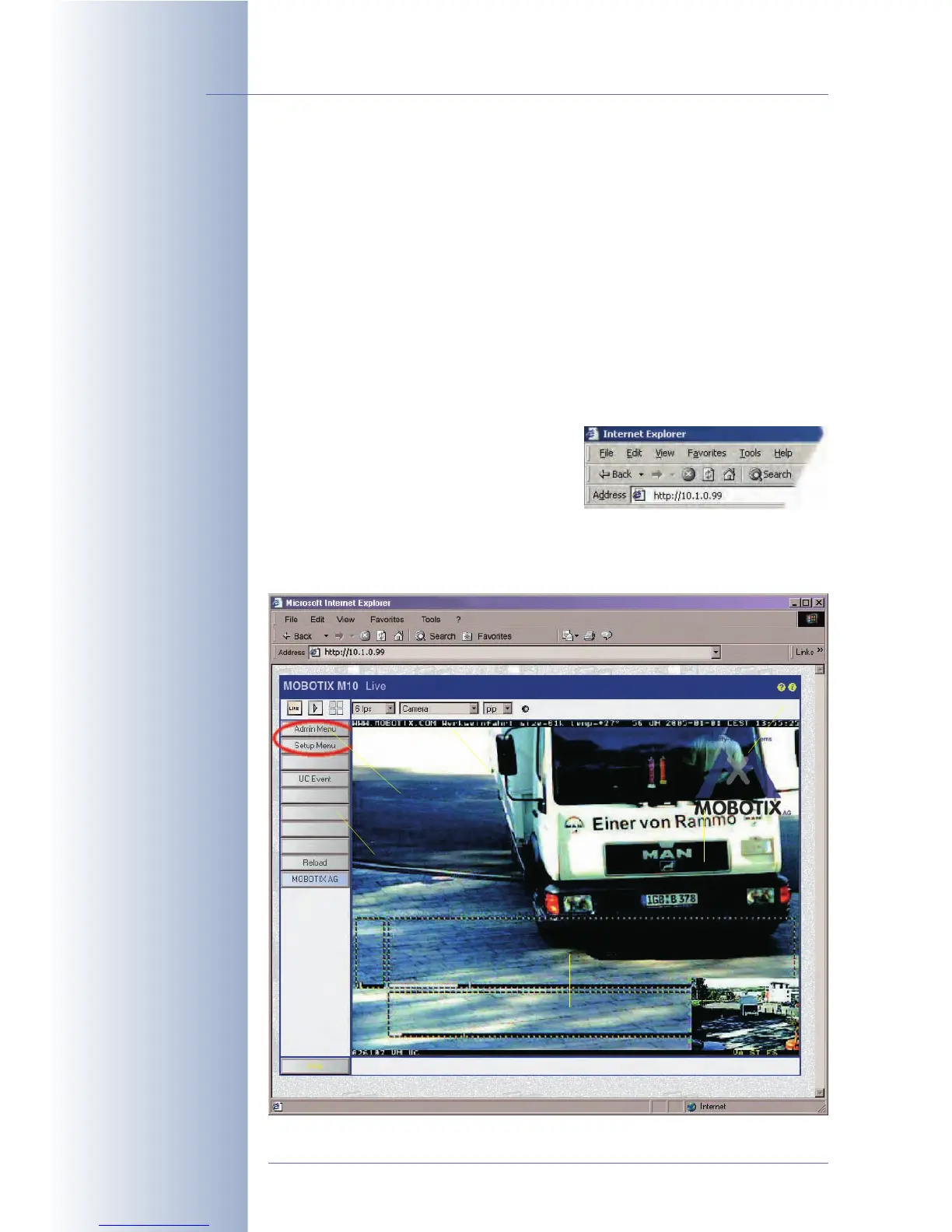
4.1 The First Image in the Browser
Now that you have successfully started the
camera for the first time, you can access the
camera using your preferred browser to see
the live video stream and the user interface.
Internet Explorer, Mozilla, Firefox, Safari,
Camino or any other graphical browser with activated JavaScript is suitable. The
operating system is of no importance, even PDAs can be used without any prob-
lems.
© MOBOTIX AG • Security-Vision-Systems • Made in Germany
www.mobotix.com • sales@mobotix.com • 10.10.2006
8/288
Software Camera Manual Part 2
This chapter contains
valuable information!
Read carefully!
Camera access:
http://10.1.0.99 (example
IP)
The factory IP address is
printed on the sticker on
the camera
Administration menu:
User name: admin
Password: meinsm
Softbuttons are freely
configurable
Softbuttons
Camera screens
Quick-Controls
Camera status
and help
Video Motion Window
Logo display



 To Next Page