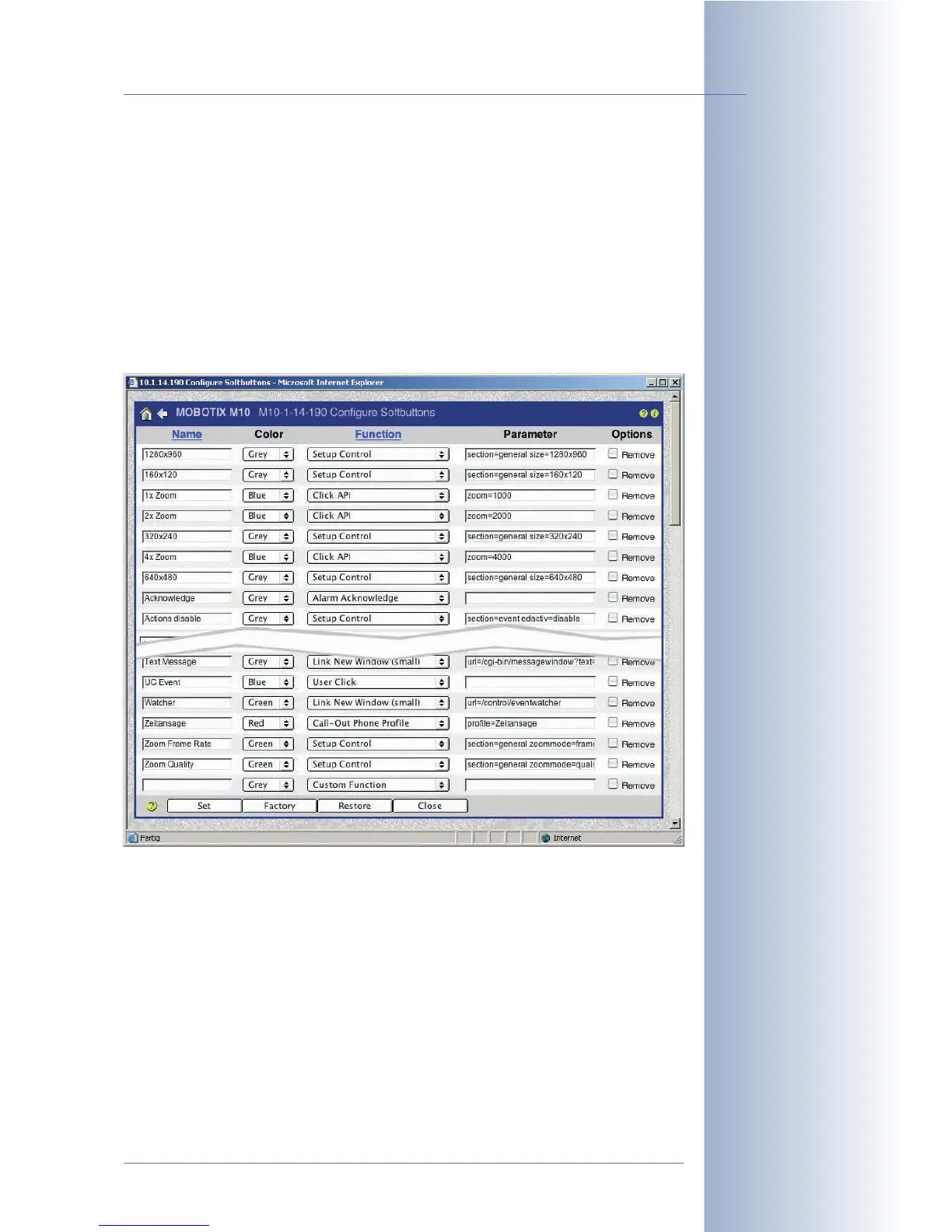
4.9.2 Managing Softbutton Functions
The Admin Menu > Configure Softbuttons dialog lists all functions that are used
in conjunction with a softbutton. Assigning such a function to a softbutton is ac-
complished using a Shift-click on a softbutton, as described above.
The Name field contains the caption of the softbutton. The Color selection box al-
lows setting a background color for a button (Grey, Green, Red, Blue or Yellow). The
Function selection box sets the function of the softbutton. Numerous functions have
been predefined as per factory settings (e.g. opening the Setup or the Admin
menu, FTP, e-mail, LEDs, Reboot, ...) or are added by other dialogs.
MV: Events
for
instance opens the Events MultiView screen.
The Custom Function option allows specifying any camera command (such as set-
ting maximum exposure times, selecting specific exposure measurement
windows, rotating the image by 180 degrees, ...). Use the custom function to exe-
cute any camera function and enter the corresponding values in the Parameter
field of that line. The MOBOTIX camera thus offers highly flexible possibilities to
adapt the user interface to the requirements of the current application (HTTP-API).
In order to delete certain softbutton definitions, activate the Remove check box and
click on Set.
© MOBOTIX AG • Security-Vision-Systems • Made in Germany
www.mobotix.com • sales@mobotix.com • 10.10.2006
49/288
Software Camera Manual Part 2
You may select the name
and one of five colors for
a softbutton
Some functions require in-
formation in the parame-
ter field
The factory configuration
has a pre-defined set of
functions
Custom softbuttons can
execute commands of the
HTTP API!



 To Next Page