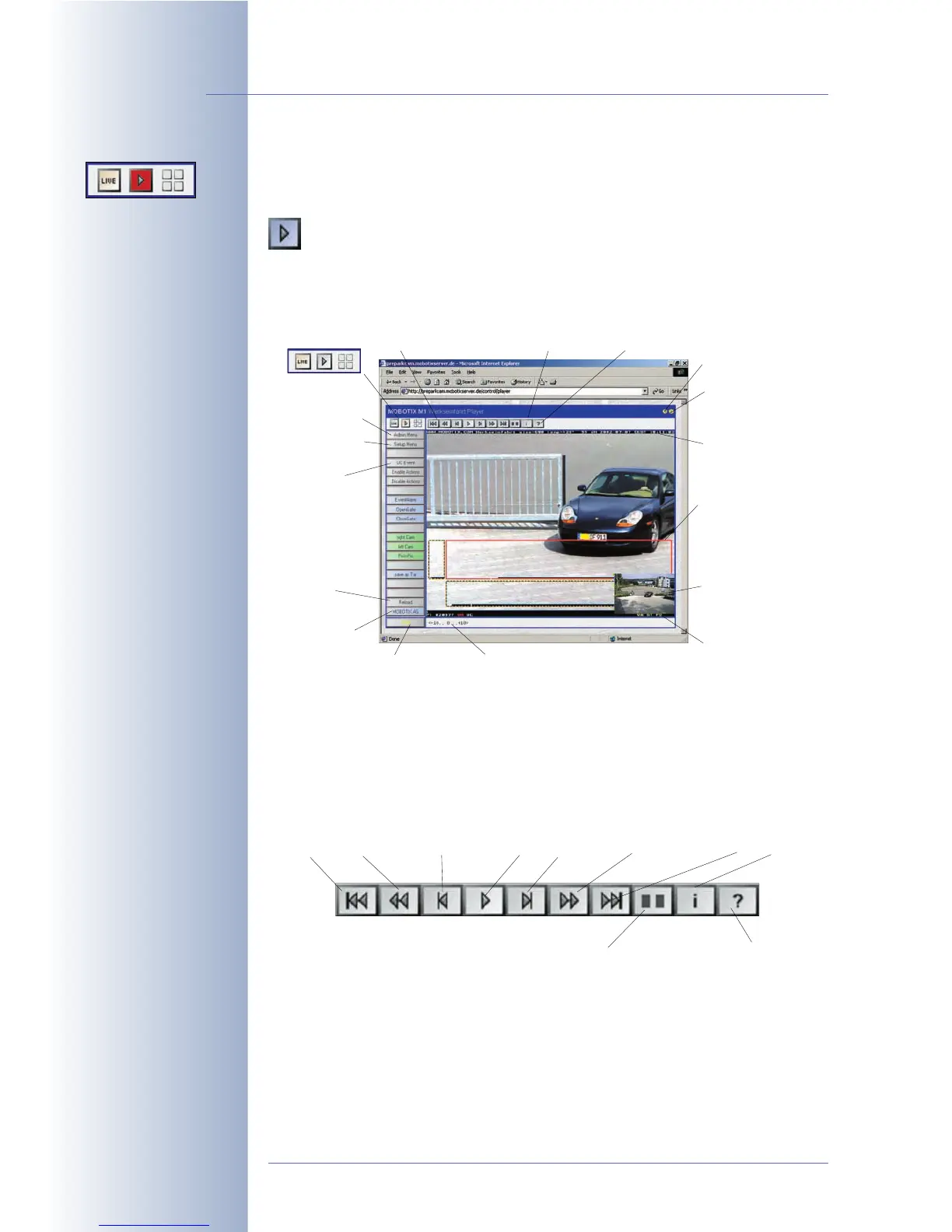
4.4 The Playback Screen in the Browser
4.4.1 Controls
The MOBOTIX camera can record image sequences and video clips either
triggered by events or continuously. In addition, the camera can save images
before and after an event has been triggered.
By factory default, event images are stored automatically in the internal image sto-
rage when clicking on the UC Event button or when the video motion detection
windows (dotted frames on the Live screen) detect movements.
Click on the Player button to open the Playback screen if you would like to play
back the recorded images or video clips. Note: It is of no importance if the images
reside in the camera's internal storage or on an external file server.
© MOBOTIX AG • Security-Vision-Systems • Made in Germany
www.mobotix.com • sales@mobotix.com • 10.10.2006
30/288
Software Camera Manual Part 2
Setup Menu> Event
Settings to change event
settings
You can define several Vi-
deo Motion windows with
different parameters
Player controls:
As simple as a DVD player!
Help pages
Info button
Help pages
Text display
Status bar
(can be disabled)
Screen selection:
- Live
- Player
- Multiview
Admin Menu
Setup Menu
(Image, Events)
User Click (UC)
(Buttons can
execute almost
any camera
functions)
Reload
MOBOTIX
Homepage
Player Menu:
Image control (FF, Rewind, …) (i) Image info (?) Query Window (time, event)
Softbuttons:
Event Story: Number of pre- and post-alarm images
Picture in picture
(only dual lens models



 To Next Page