Important: The
Search for new cameras on the subnet
option only finds cameras
that are on the same subnet as the searching camera. This means that a camera
with an IP address of 192.168.0.27 (network mask 255.255.255.0) will find
a camera with an IP address of 192.168.0.58, but not a camera with an IP
address of 192.168.5.58.
4.5.3 Configuring Image Areas
In order to display a camera in a specific image area or to change the display opti-
ons of a camera, Shift-click the desired image area.
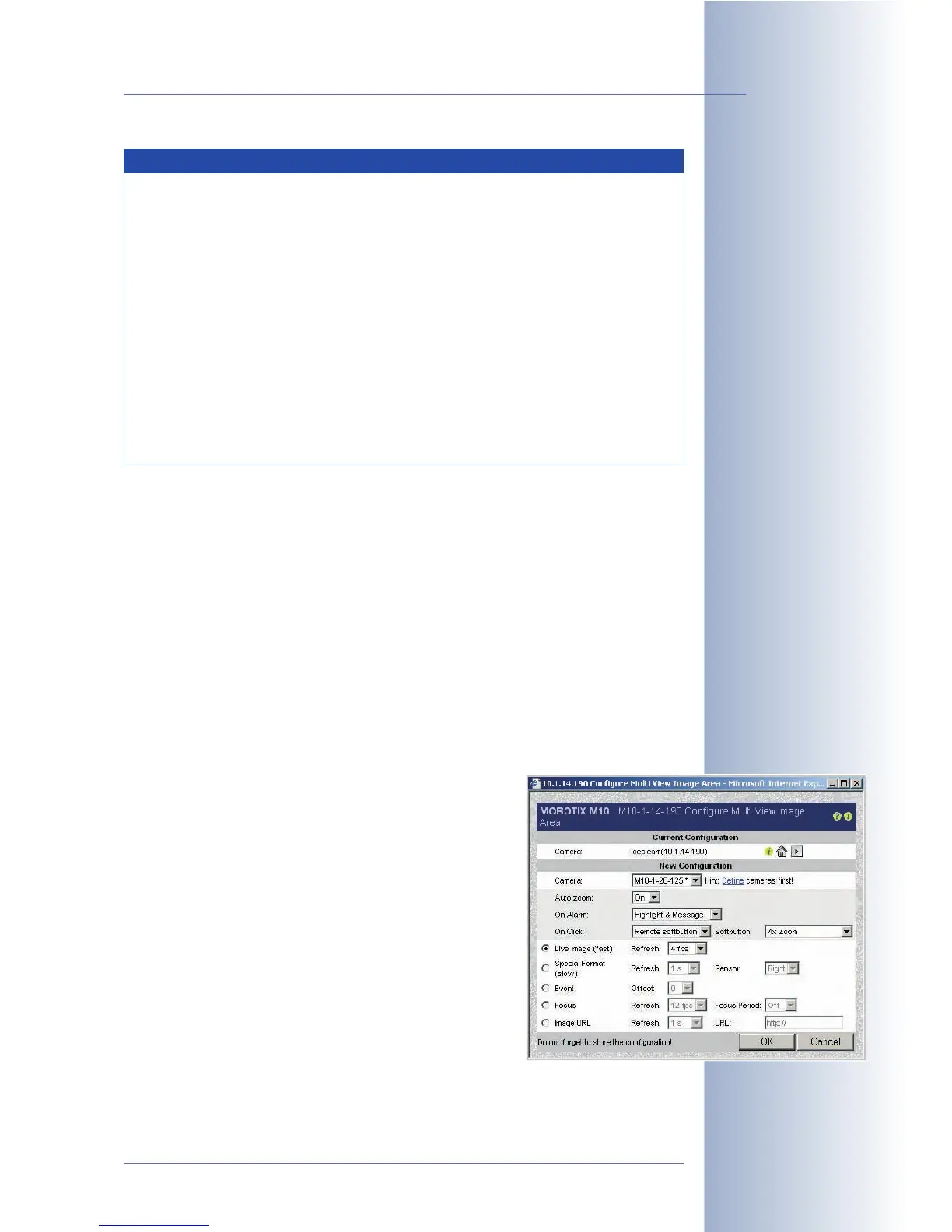
The Configure MultiView Image Area dialog opens, allowing you to set the follo-
wing parameters:
(1) Select a camera:
Camera: Select a camera (the name shown in the
list is the camera name as set in Admin Menu >
Ethernet Interface or by the Quick Installation wi-
zard). The
localcam
entry corresponds to the current
camera. If
localcam
is the only entry in the list, click
on the Define link and add cameras as described in
section 4.5.2,
Defining Cameras
.
© MOBOTIX AG • Security-Vision-Systems • Made in Germany
www.mobotix.com • sales@mobotix.com • 10.10.2006
39/288
Software Camera Manual Part 2
You can copy configurati-
on files from one camera
to one or more other ca-
meras (see section 5.9.4,
Copying Configuration
Files to Other Cameras
)
One camera can automati-
cally find the other MO-
BOTIX cameras on the
subnet
Single image areas can be
customized individually!
Note
Camera List: The list of the cameras found on this subnet is a
snapshot of all MOBOTIX cameras that were online when the search
was initiated. It is by design that this list is not updated automatically
as this would mean unnecessary network traffic and would put extra
load on the searching camera. It makes sense to update the list of
available cameras before creating a new MultiView configuration or to
delete the list of cameras and then have the camera search again for
all cameras that are present on the subnet.
Storing the Configuration: After you have searched for MOBOTIX ca-
meras on the subnet, you should click the Set button. After clicking on
the Close button, the entire configuration will be stored in the perma-
nent Flash storage of the camera (provided you agree). This will ensure
that the camera list is still present after rebooting the camera.



 To Next Page