over one of the event images to display an enlarged version of the event image
(Auto Zoom). Click on one of the event images to open the Playback screen with
the corresponding event image in the browser. For each of the image areas on the
MultiView screen, you can set how the area should react to mouse-over events,
alarms and when clicking on the image (see section 4.5.3,
Configuring Image
Areas
).
4.5.2 Defining Cameras
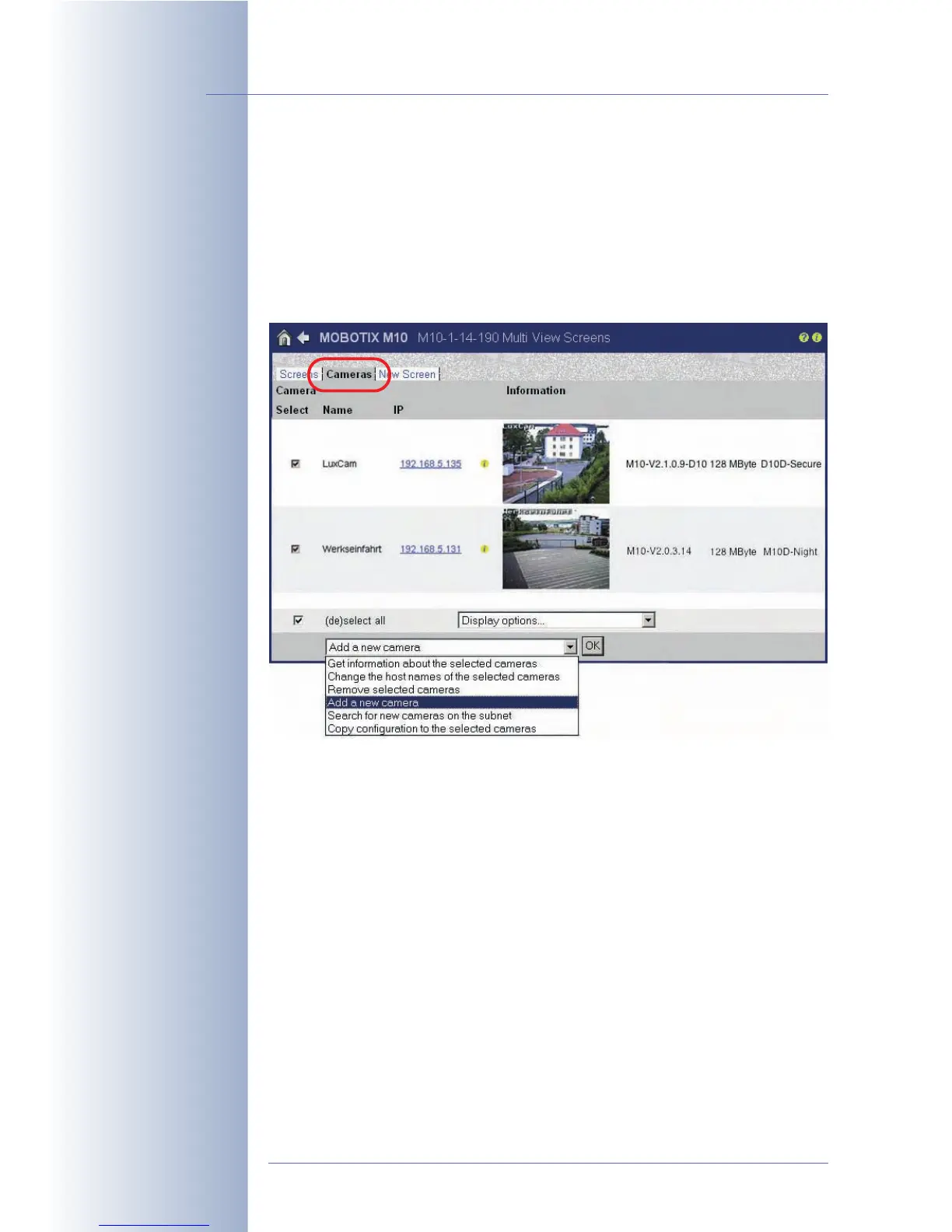
You may select one MOBOTIX camera for each of the image areas of the MultiView
screen (see section 4.5.3,
Configuring Image Areas
). Finding other MOBOTIX came-
ras is easy as the camera can search for other MOBOTIX cameras on the same
subnet and can add them automatically to the list of available cameras (Admin
Menu > MultiView Screens > Cameras, see figure). Select
Search for new came-
ras on the subnet
and click on OK to have the camera search for other MOBOTIX
cameras on the subnet and to display them in the camera list. As an alternative,
you can enter the IP address of a known MOBOTIX camera by selecting
Add a new
camera
, clicking on OK, entering the IP address and clicking on Add.
© MOBOTIX AG • Security-Vision-Systems • Made in Germany
www.mobotix.com • sales@mobotix.com • 10.10.2006
38/288
Software Camera Manual Part 2
Shift-click on an event
image
Using this list, you can
also streamline camera
administration, e.g. you
can copy definitions (pass-
words, softbuttons, Multi-
View screens, …) from one
camera to one or more ca-
meras



 To Next Page