thus be sent easily using e-mail or they can be stored on a CD or other external
storage devices. In order to view the recorded event images and image sequen-
ces, no application other than a browser is required. Since the images in the com-
pressed tar file are JPEG images, they can be shown or edited using standard
applications once they have been decompressed.
4.5 The MultiView Screen in the Browser
4.5.1 Controls
Using any MOBOTIX camera to display several cameras in one browser is
very simple and does not involve any kind of software installation. The came-
ra images can be displayed in sizes of 160x120, 320x240, 640x480 and 1280x960.
The number and size of live camera images is only restricted by the screen size
and the resolution of the monitor.
By factory default, three MultiView screens with different layouts and configurations
have been preset (Events, Focus and Quad softbuttons). Click on the correspon-
ding button to open the desired screen.
Besides the existing MultiView screens, you may create your own layouts (see sec-
tion 4.5.4,
Creating Customized Screens
), complete with an automatically created
softbutton for the new MultiView screen. Clicking on one of the MultiView softbut-
tons thus provides a convenient method for switching between the different Multi-
View screens.
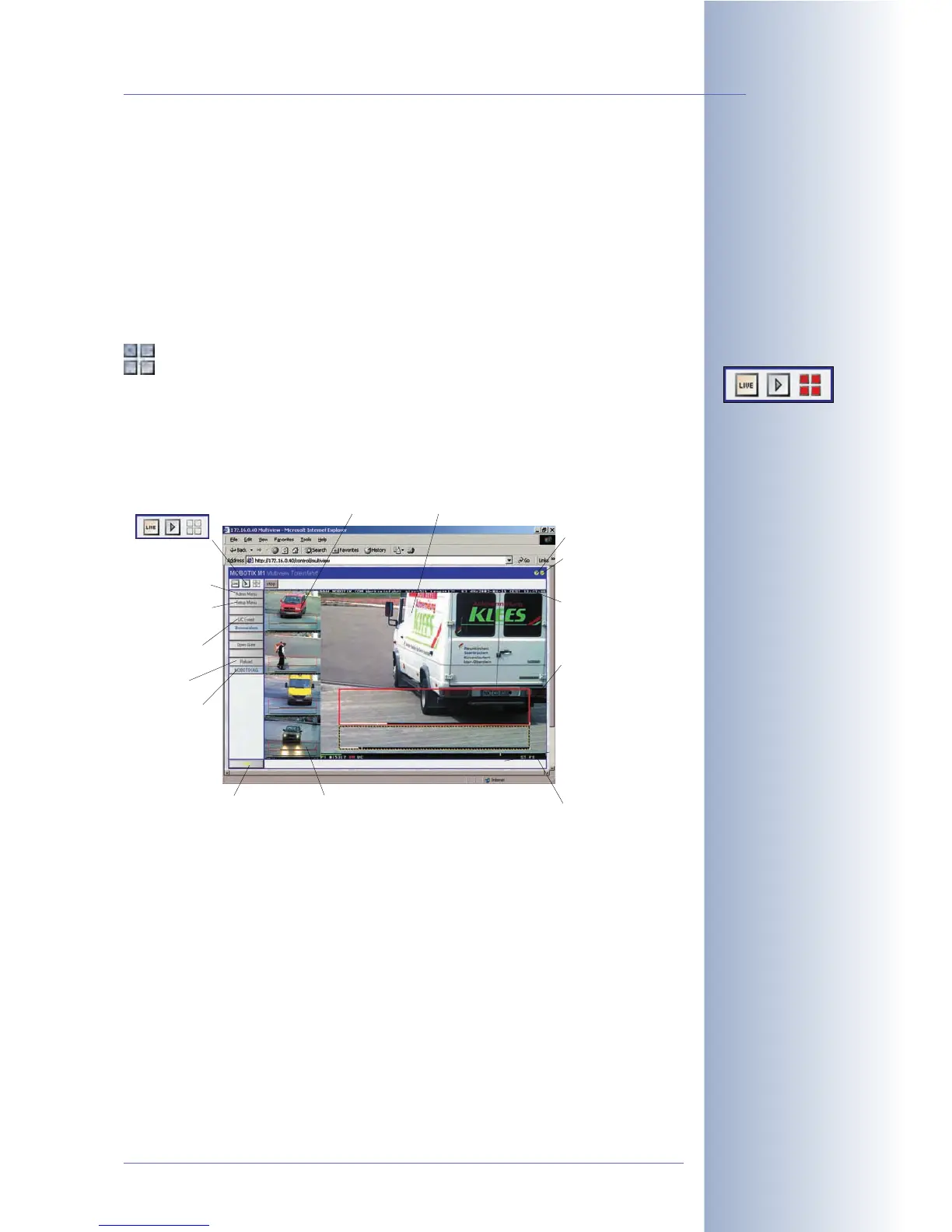
When switching to the MultiView screen of the camera, the Events screen will be
loaded automatically (see figure on preceding page). This screen shows the current
live image in the right image pane (640 x 480 pixels) and the last four event
images on the left side using an image size of 160 x 120 pixels. Move the mouse
© MOBOTIX AG • Security-Vision-Systems • Made in Germany
www.mobotix.com • sales@mobotix.com • 10.10.2006
37/288
Software Camera Manual Part 2
To display and extract
the contents of the down-
loaded .tar archive file,
use e.g. WinZip, StuffIt
or PowerArchiver.
You can define quad views,
sequencers or automatic
alarm popups with tra-
cking
Use the softbuttons to
switch between different
MultiView screens
Shift-click to customize
softbuttons
Switch between several
screens using softbuttons
Help pages
Info button
Help pages
Text display
Status bar
Screen selection:
- Live
- Player
- Multiview
Admin Menu
Setup Menu
(Image, Events)
User Click
Reload
MOBOTIX
Homepage
Multi View screen: can be split freely to display several live cameras and event
images (screen shows 4 events and 1 live image)
Softbuttons:
Event area: shows the last events
(auto zoom when hovering with the mouse)
Video motion window fo



 To Next Page