• Messaging 2: This dialog allows configuring additional actions and mes-
sages. The settings in this dialog are used to create a second messaging
path for assigning different actions and messages to different set of events.
• Recording: This dialog allows setting the type and format of the video
recording (JPEG snap shot recording, event recording (MxPEG video), MxPEG
continuous recording, with or without sound, image sequence parameters,
etc.). For additional information on this topic, see chapter 8,
Recording
.
• Event Filter: (section 7.6.3) This dialog configures the camera's event filter.
The filter's event counter will only trigger an event (and subsequently, actions
and messages) if a specific number of events within the specified timeframe
is either surpassed or not reached.
• Event Logic: (Section 7.6.4) This feature provides a method of triggering an
event only if two other selectable events or event sets occur within the speci-
fied timeframe. For example, if a video motion (VM) event is detected, an
automatic alarm or phone call will only be triggered if the security guards hit
an alarm switch within 10 seconds.
• Signal Out Action: Use this dialog to select the events, which will only acti-
vate the signal output switch of the camera.
7.3 General Procedure
By factory default, the MOBOTIX camera is not armed; it needs to be armed first
before proceeding. The easiest way to arm the camera is to use the enhanced
Arm & Record softbutton (see also section 4.3.1,
Controls
). To arm the camera
manually, open the Setup Menu > General Event Settings and Event Settings
dialogs.
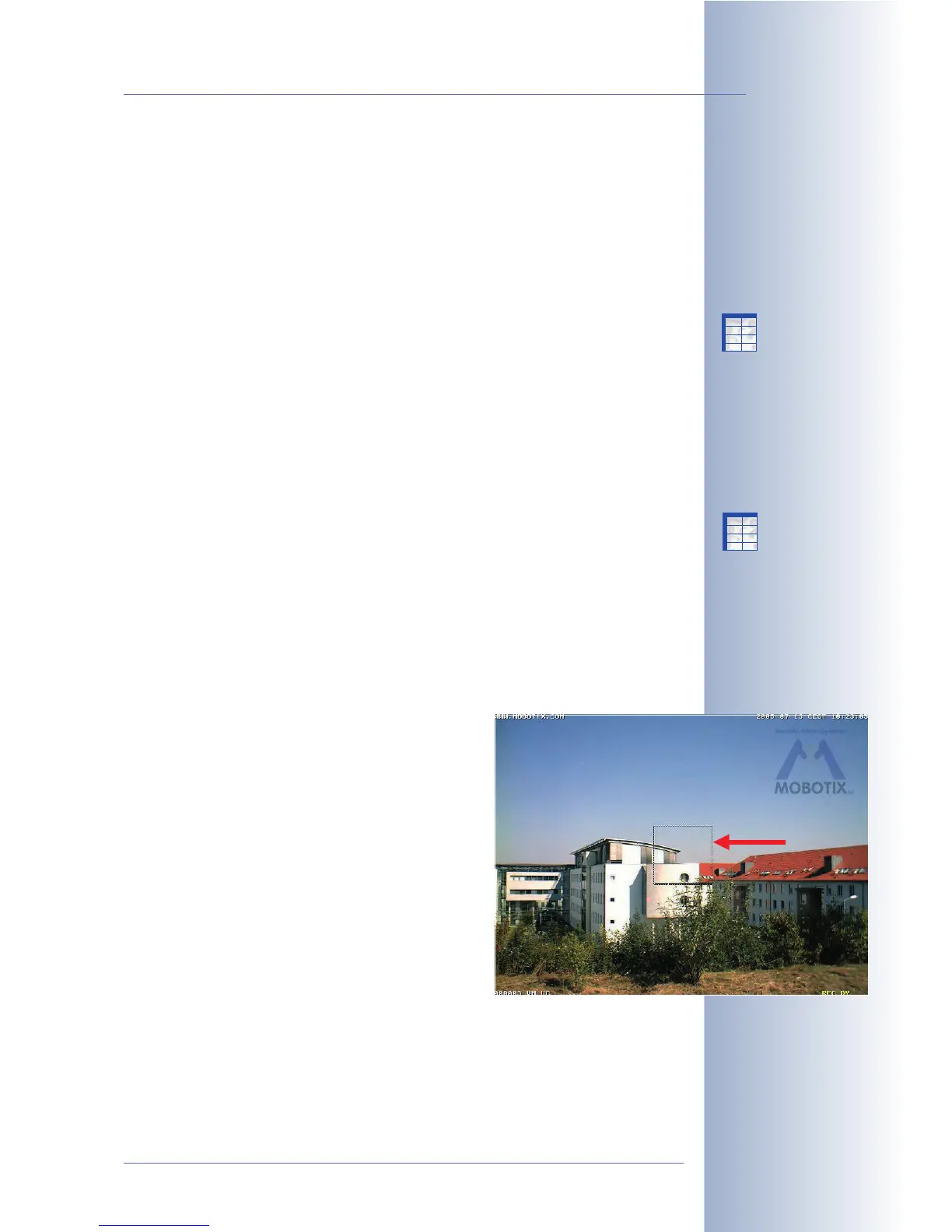
Arming the camera will also activate the predefined
video motion window event (VM, dotted square at
center of the image) and the user click event (UC
Event softbutton). When connected to the power sup-
ply, every MOBOTIX camera records images in the
internal image storage as soon as the camera
detects movements within the video motion (VM) win-
dow. To trigger video recording manually, click on the
UC Event (UC) softbutton of the Live screen.
Arming the camera, however, will not assign any
actions or messages to the alarms (events). Actions
and messages are to be configured as described in
section 7.7,
Actions and Messages, Action and Mes-
sage Profiles
.
© MOBOTIX AG • Security-Vision-Systems • Made in Germany
www.mobotix.com • sales@mobotix.com • 10.10.2006
143/288
Software Camera Manual Part 2
Event can be linked logi-
cally for enhanced event
detection
Predefined video motion
window (dotted square;
factory default)
X
X
-
-
-
-
X
X
Kamerafunktionen
Kameramodell
X
X
-
-
-
-
X
X
Kamerafunktionen
Kameramodell



 To Next Page