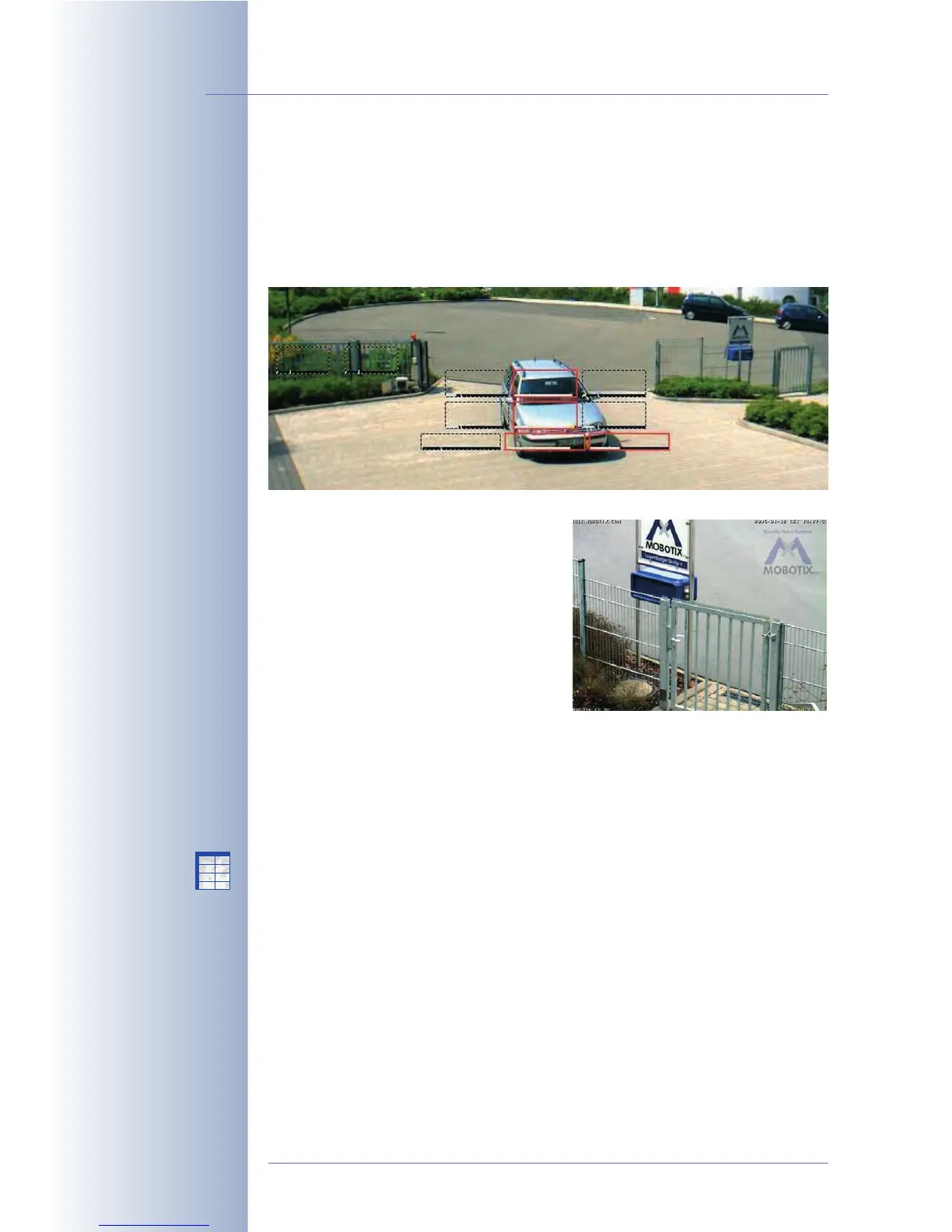
Elements Displayed in the Live Image: Video Motion Detection, Logos
The dotted rectangles in the live image show the video motion detection
windows. The MOBOTIX camera automatically stores images or video clips if one
or more motion detection windows detect a change within the window. If a video
motion window detects movement, its frame turns red and it triggers an event.
The camera can also display Logos within
the live image; these logos may be partially
transparent (watermark) and have transpa-
rent areas. On top, the camera can rotate
several logos and can even play simple
animations (Admin Menu > Logo Profiles).
The graphic files of the logos can be stored
in the camera or can be retrieved automati-
cally from external web or FTP servers (Ad-
min Menu > Manage Image Files).
4.3.2 Image Settings
Use the following Quick Controls for easily setting the most important image para-
meters:
• Browser frame rate: Use this dropdown list to set the rate for updating the
live image in the browser. Note that this setting does not have any influence
on the internal image conversion and storage rates (internal or external ring
buffer).
• Camera Selection: Select the sensor (left or right) to be used for the live
image if your camera is a dual lens model. Selecting the
Both
option on a
Dual model will create a side-by-side image from both image sensors. The
RiL
option displays a miniature version of the right sensor within the image of
the left sensor.
LiR
displays a miniature version of the left sensor within the
image of the right sensor.
Selecting the
Auto
setting in a MOBOTIX Night model causes the camera to
automatically switch from the right (color) to the left sensor (B/W) when the il-
lumination falls below the value set for Camera Night Switch (DY/NI). In a
© MOBOTIX AG • Security-Vision-Systems • Made in Germany
www.mobotix.com • sales@mobotix.com • 10.10.2006
22/288
Software Camera Manual Part 2
Rather set several small
Video Motion windows
than one or two large ones
Logo features:
• Animated
• Transparent
• Freestyle
Camera Selection:
• Right
• Left
• Both
• RiL
• LiR
• Auto
Video Motion Window
X
X
-
-
-
-
X
X
Kamerafunktionen
Kameramodell



 To Next Page