9.3 Camera Phone (Listen, Speak and Intercom Modes)
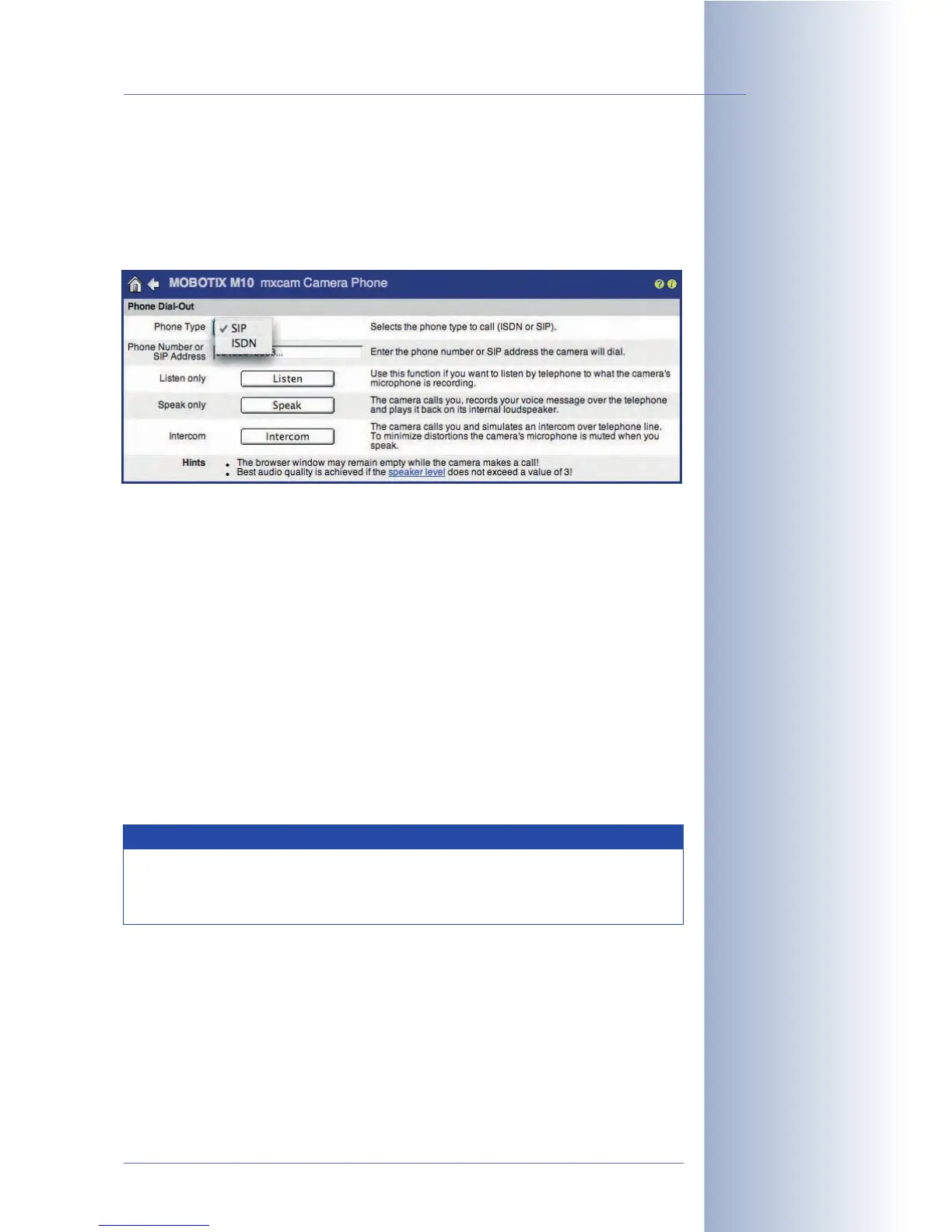
Open the Admin Menu > Loudspeaker and Microphone dialog and enter a
phone number. As soon as you click one of the buttons (Listen, Speak, Intercom),
the camera will call this number. Use this feature for testing the phone connection
of the camera or for establishing quick connections to the camera, for example.
Using the Camera Phone:
1) Select the phone type to call (
SIP
or
ISDN
).
2) Enter the phone number or SIP address for the camera to dial.
3) Select a function:
• Listen: Click on the Listen button to hear the audio data from the
MOBOTIX camera when it calls a phone.
• Speak: Click on the Speak button to make an announcement from the
phone on the speaker of the MOBOTIX camera.
• Intercom: Click on the Intercom button to use the camera for two-way
communication or as an intercom system.
The camera will call the phone number or SIP address you entered.
© MOBOTIX AG • Security-Vision-Systems • Made in Germany
www.mobotix.com • sales@mobotix.com • 10.10.2006
241/288
Software Camera Manual Part 2
If the SIP option does
not appear in this list,
configure VoIP in Admin
Menu> VoIP Settings
Camera Phone using either
SIP or ISDN
By factory default, you can easily establish an ISDN connection to
the camera (e.g. for testing purposes) in the Camera Phone dialog.
This does not require any further configuration of the camera.
Note



 To Next Page