• Buffering of video sequences on the Windows computer and saving these
sequences as MxPEG video clips with sound.
• Controlling camera image settings from MxViewer.
• Automatic display of the softbuttons defined on the active camera.
•Integrated pan/tilt head control by clicking into the image with the mouse
or by using a joy stick.
• MxViewer is remotely controllable from other computers or cameras (e.g.
cameras can prompt MxViewer to show their images).
This list contains just a few of the MxViewer features. See the MxViewer online help
for more information.
4.10.5 Installing and Starting MxViewer
Download the newest version of MxViewer (EXE file) from www.mobotix.com.
Apart from the latest version of MxViewer, the download area also contains the
Windows help for the application.
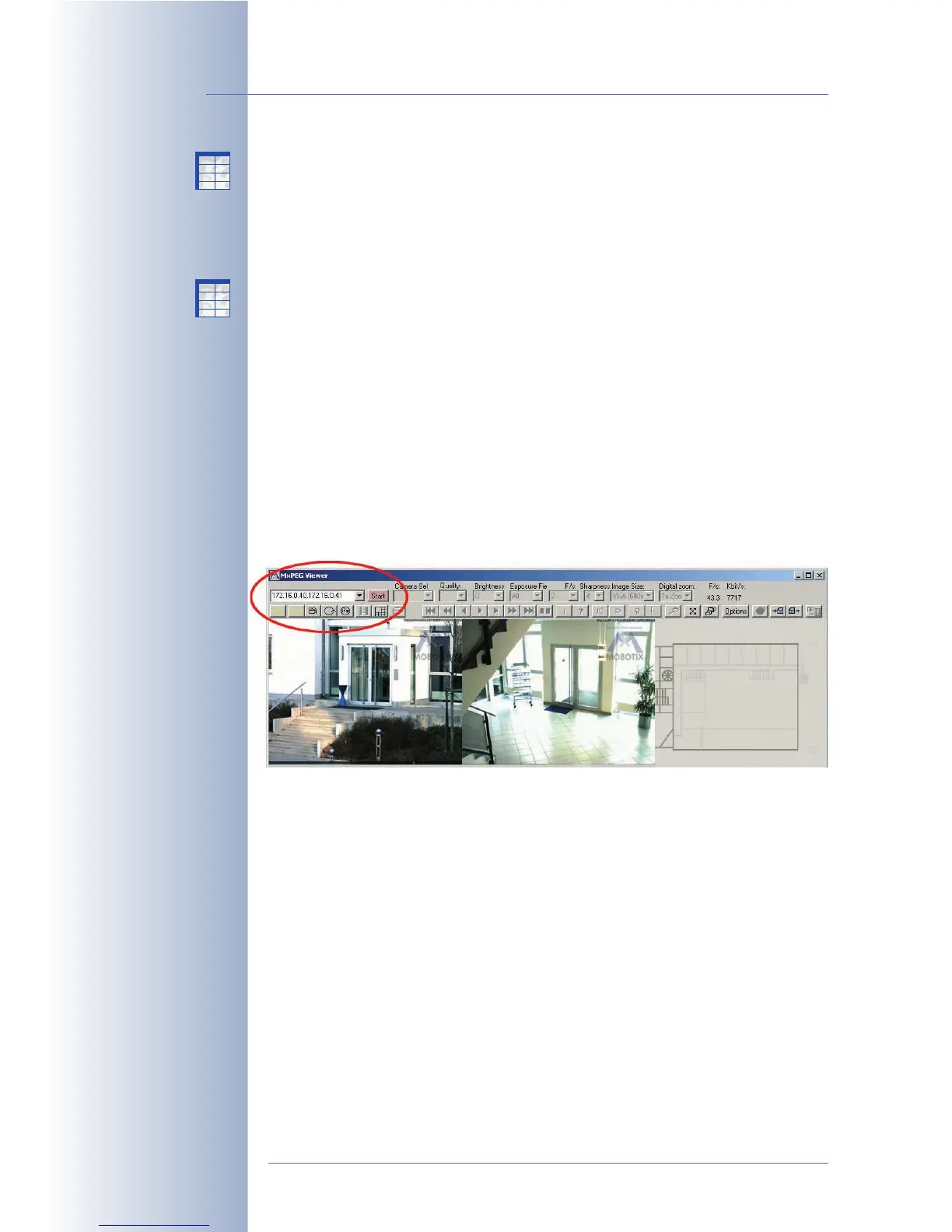
Start the application and search for MOBOTIX cameras as described in section 4.2,
The First Image in MxViewer
.
MxViewer displays the live images of the cameras it has found; the values for fra-
me rate and bandwidth in the top right corner show the combined values for all
displayed cameras. Clicking on a camera will activate this camera (yellow frame)
and the frame rate and bandwidth values will be those of the active camera.
The pull-down lists below the title bar of MxViewer show the most important Quick
Controls of the camera and always display the current values of the active camera.
Clicking on Options will display the options for the active camera. Use this dialog to
set and store the user and password information for this camera. This dialog also
allows setting the global options that are valid for all cameras. The remaining tabs
of this dialog show the options for the other defined cameras.
For further information on MxViewer, consult the MxViewer help that you can
download together with the application from www.mobotix.com.
For additional information on MxPEG, read section 4.3.5,
JPEG, MxPEG and Audio
as well as section 4.3.6,
Background Information on JPEG, MxPEG and Audio
.
© MOBOTIX AG • Security-Vision-Systems • Made in Germany
www.mobotix.com • sales@mobotix.com • 10.10.2006
54/288
Software Camera Manual Part 2
X
X
-
-
-
-
X
X
Kamerafunktionen
Kameramodell
X
X
-
-
-
-
X
X
Kamerafunktionen
Kameramodell



 To Next Page