• Focus: Apart from image areas that display live and event images (see
above), you can define one "focus area" per screen. The focus area can
be set to the image of the camera that was last clicked, the latest event
image or it can cycle through the images of the other cameras one after
another. Usually, the focus area is the large one; all other areas are
smaller. The Events MultiView screen is a typical example of such a scre-
en definition.
You may also set a separate Refresh rate when the live image is dis-
played in the focus window. If Focus Period has been set to
Off
, the cor-
responding camera images will be shown in the focus window once an
event has occurred. If a duration has been set for Focus Period (3 s, 5 s,
...), all image areas for which the On Alarm parameter has been set to
Focus
will be shown for the specified duration.
• Image URL: Enter a JPEG image with full path that is to be loaded either
from the local subnet or from the Internet using a specific periodic refresh
rate. This option allows displaying network cameras or web cams from
other manufacturers.
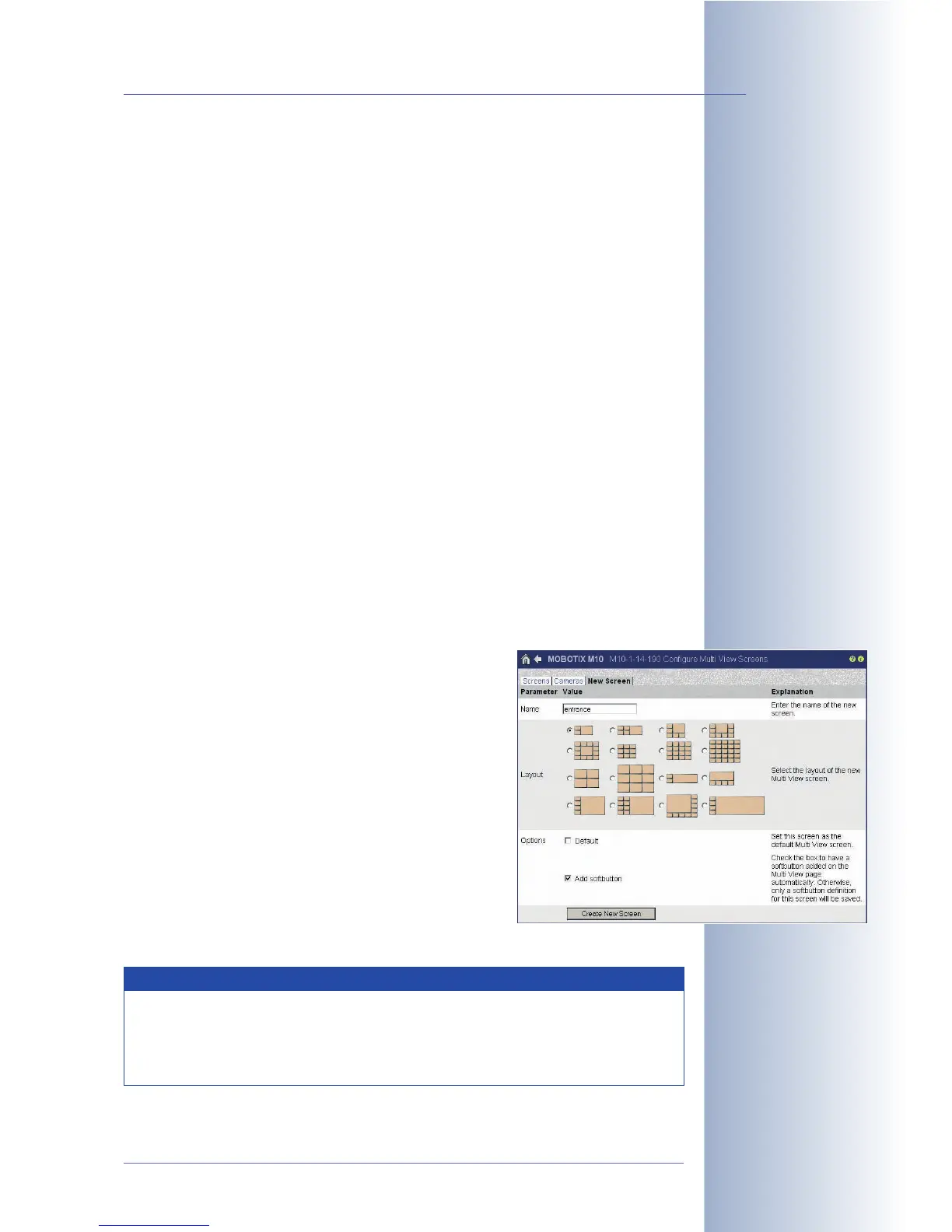
4.5.4 Creating Customized Screens
You can change the parameters of the predefined MultiView screens of the MOBO-
TIX camera (Events, Focus, Quad) at any time or you can create new screens for
your requirements (Admin Menu > MultiView Screens > New Screen, see figure).
For adding new screens, several predefined layouts are available.
Besides entering the name and selecting the desired
layout for the new screen, you may also set the new
MultiView screen as Default screen (MultiView always
shows this screen when opened) and you can let the ca-
mera automatically create a new softbutton for this scre-
en.
The Screens tab contains a list of all defined MultiView
screens. Use this tab to manage, open, delete or rena-
me the defined screens and to set the default screen.
In order to assign MOBOTIX cameras to individual image
areas of the MultiView screen, open the corresponding
screen and proceed as described in section 4.5.3,
Confi-
guring Image Areas
.
© MOBOTIX AG • Security-Vision-Systems • Made in Germany
www.mobotix.com • sales@mobotix.com • 10.10.2006
41/288
Software Camera Manual Part 2
Cycling through a list of
cameras for an image area
in an endless loop
This option allows display-
ing network cameras or
web cams from other ma-
nufacturers
Creating custom Multi-
View layouts
Note
By editing the configuration file, you can create customized layouts
that are not present in the factory configuration. Please send a messa-
ge to your MOBOTIX Support team (intl-support@mobotix.com) if you
would like to know how to create individual MultiView layouts.



 To Next Page