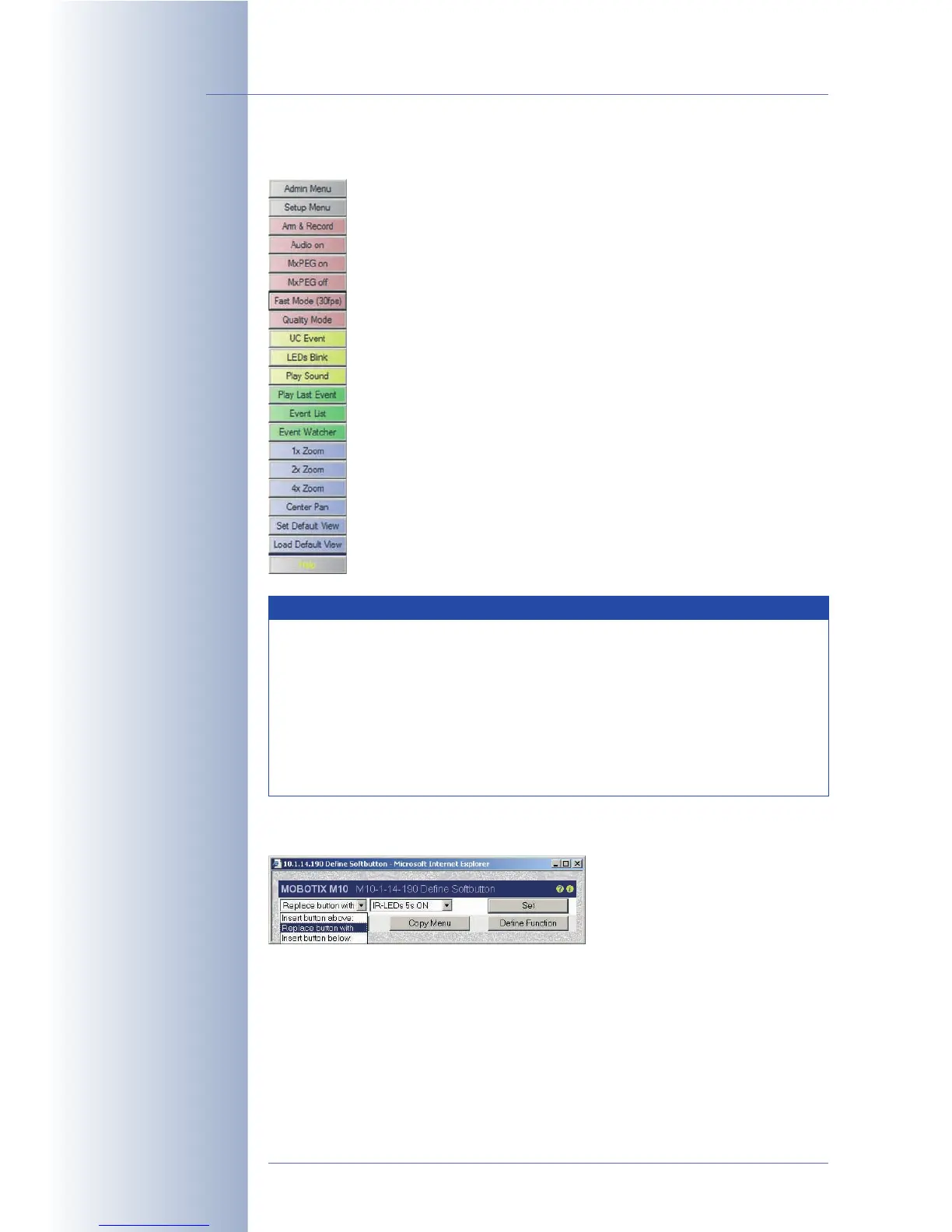
4.9 Configuring the Softbuttons
The softbuttons on the left-hand side of the Live, Player and MultiView
screens execute a number of predefined camera functions. You may
assign other functions and freely change the color and order of the
buttons.
Apart from executing most common camera features, such as swit-
ching between different MultiView screens, you may also open docu-
ments on the LAN or on the Internet. You may thus display any web
page from the Internet or you could open an Emergency Procedures
document (HTML, PDF, AVI, etc.) from a server or the local PC.
Softbuttons are also perfectly suited to control e.g. pan/tilt heads
that are connected to the serial interface of the camera. This is ac-
complished by assigning the control commands to the corresponding
button, which in turn sends the command to the camera's serial inter-
face when clicked. Several pan/tilt head manufacturers deliver a con-
figuration file for the MOBOTIX camera. After loading this configurati-
on file (Admin Menu > Load ...), the softbuttons are preset with the
appropriate commands.
4.9.1 Configuring a Softbutton
Configuring the softbuttons is quite
simple using the corresponding di-
alog. Shift-click an existing soft-
button to open the Define Soft-
button dialog. This dialog allows
deleting, replacing or re-assigning the softbutton. You can also use this dialog to
create new softbuttons above or below the softbutton you clicked in the beginning.
Click on Set to save the changes and to reload the screen with the changed soft-
button layout. Click on Default Menu to reset the softbuttons of all camera screens
(Live, Player and MultiView) to the factory settings. Click on Copy Menu to copy the
current softbutton configuration to all other screens. Click on Define Function to
open the Configure Softbuttons dialog.
© MOBOTIX AG • Security-Vision-Systems • Made in Germany
www.mobotix.com • sales@mobotix.com • 10.10.2006
48/288
Software Camera Manual Part 2
Softbuttons are freely
configurable!
Other local or global web
sites can be added to the
menu
Also used to switch other
devices using the came-
ra's serial interface (hea-
ting system, phone sys-
tem, etc.)
Requires access rights of
the
admins
group
Click on Set to edit a but-
ton
Note
Under Windows XP, the buttons in the browser view are not shown
colored since the Internet Explorer by default uses the visual effects of
the operating system for the browser buttons. In order to display colo-
red buttons, you can deactivate the use of these visual effects in the
Internet options of Internet Explorer (see section 4.8,
Browser Set-
tings
). Depending on the operating system, some browsers do not
show the colors of the softbuttons at all (e.g. Safari or Camino on Mac
OS X).



 To Next Page