5.6 Logos
5.6.1 Overview
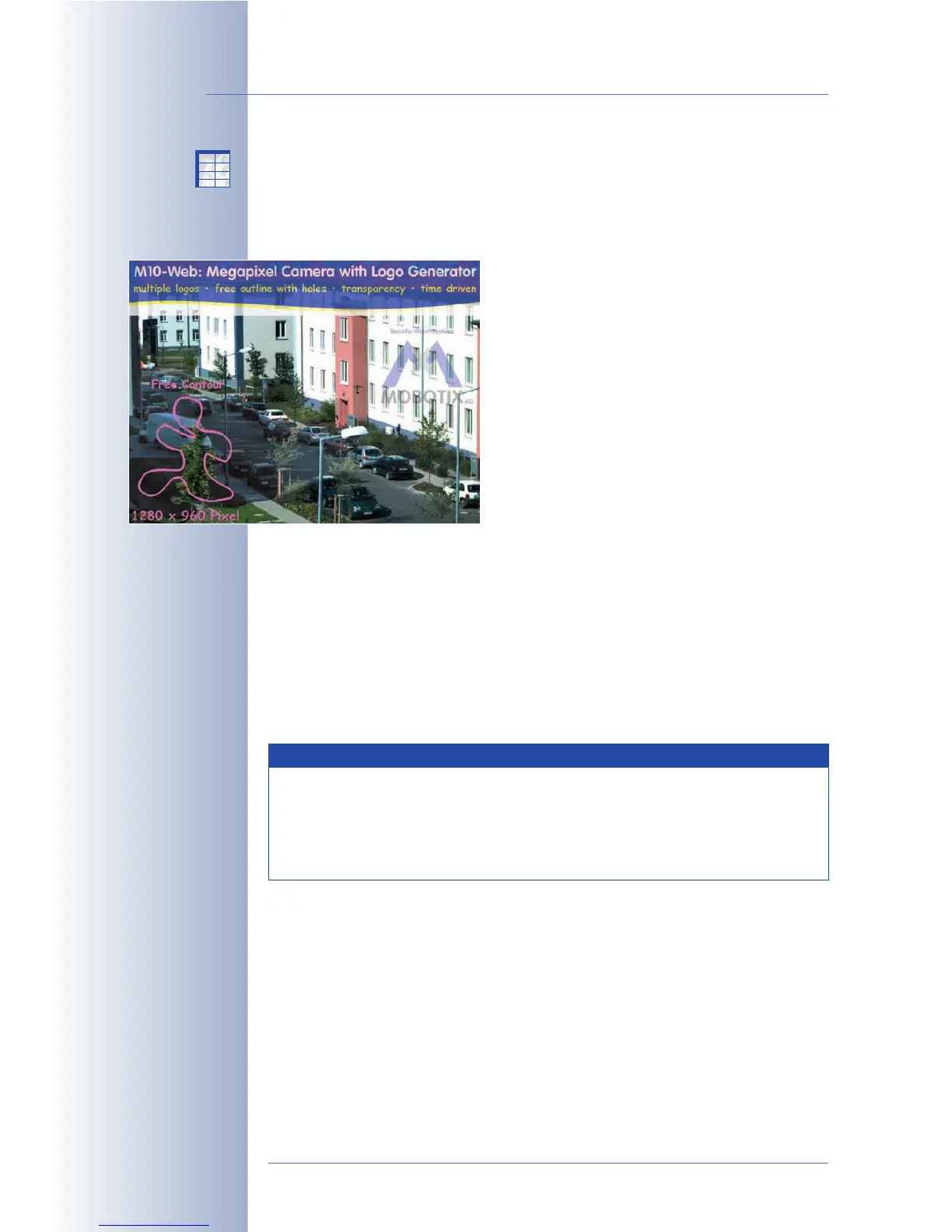
The logo generator of your MOBOTIX camera can display one or several logos
(graphic files) with free contours and selectable transparency in the camera image
and features pixel-precise positioning and auto-
matic alignment at any image border with defin-
able offsets.
When displaying logos, the MOBOTIX camera can
switch automatically between several logos with
different sizes that have been assigned to different
resolutions. Note that the logos can also be dis-
played permanently or controlled by a schedule
(Admin Menu > Time Tables). Another possibility
is to rotate several logos at a set interval, which
also allows creating simple animations in the live
image.
5.6.2 Managing Image Files
Prior to displaying any logos you need to upload the corresponding graphics files
(PNG or BMP) into the camera (Admin Menu > Manage Image Files). You can
either upload the files manually (provided you are a user with Admin rights) or the
camera can download the respective files automatically from the previously config-
ured URLs on a web or FTP server, updating the files at a predefined interval. In
order to access protected areas on an FTP server, you can set a user name and
password for each of these entries.
• Image File: Click on the Browse button to select a graphics file (or the TAR
archive stored from another MOBOTIX camera). Then, click on the Upload
button to upload the file to the camera. The
Keep
option makes sure that a
number is added to the name of a newly uploaded graphics file in case the
names happen to be identical, allowing you to keep the old file. If the
Over-
write
option is activated, newly uploaded files with the same name automati-
cally overwrite files already in the camera.
© MOBOTIX AG • Security-Vision-Systems • Made in Germany
www.mobotix.com • sales@mobotix.com • 10.10.2006
116/288
Software Camera Manual Part 2
Use PNG or BMP files
Uploading graphics files
to the camera
Note
One single image file may not be larger than 228 kB, a TAR
archive file may not be larger than 246 kB. It is recommended to
use PNG files since they are a lot smaller than bitmap (BMP) files. In
addition, PNG files allow saving a transparent background (set this
color when saving the file).
X
X
-
-
-
-
X
X
Kamerafunktionen
Kameramodell



 To Next Page