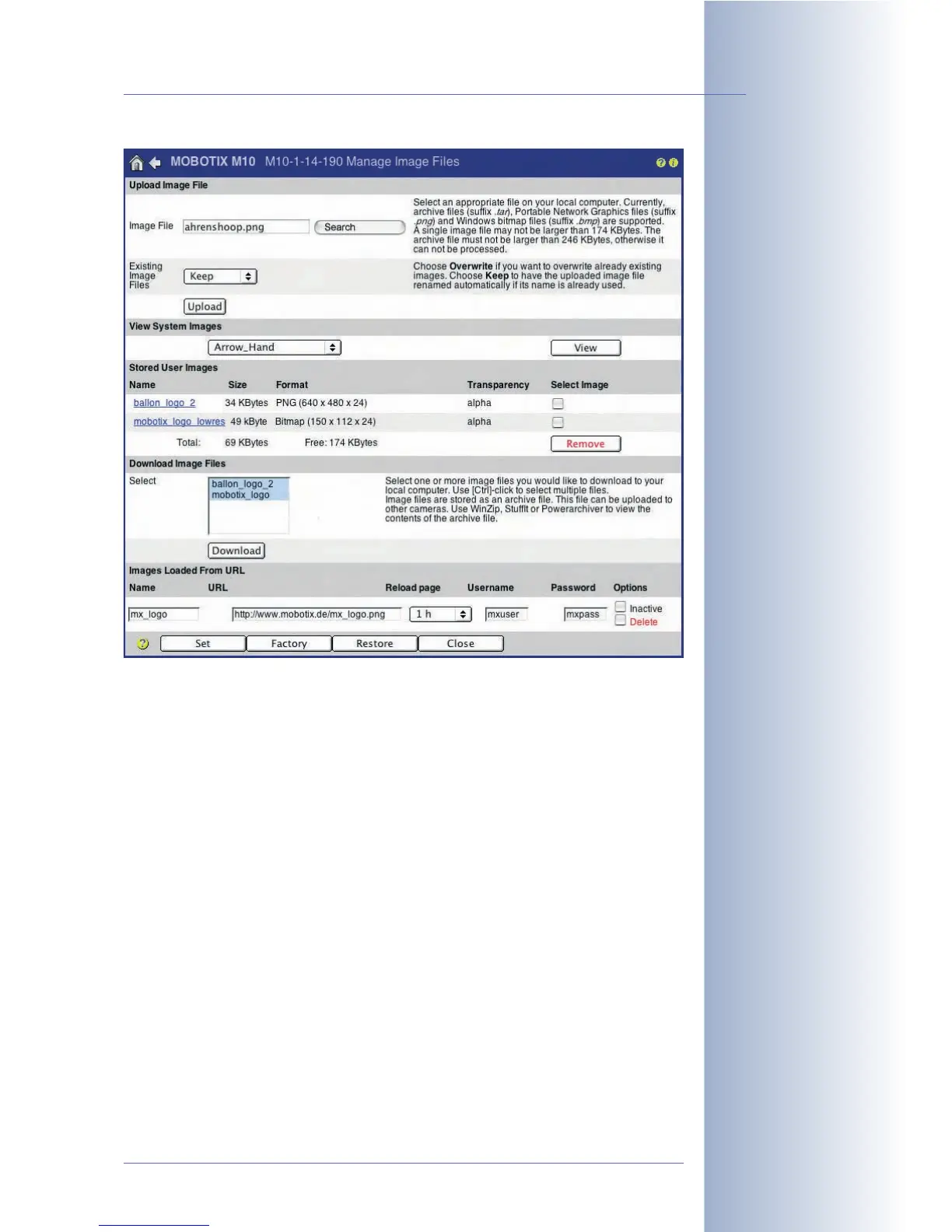
• Stored User Images: This list contains the graphics files you have already
uploaded to the camera. The image and file sizes are displayed in the Size
columns. The Format column contains additional information on the file type,
image size and color depth of the image. The area below this table displays
how much storage capacity the graphics files are using (Total) as well as the
free storage space (Free).
• Download Image Files: This option allows downloading the graphics files
from the camera and storing them on a local computer. In this process, all
selected files are combined in a TAR archive (image_archive.tar). This TAR
archive can then be uploaded to other MOBOTIX cameras. This section is
available only if you already have stored graphics files in your camera.
• Images Loaded From URL: This section of the dialog allows specifying
graphics files that the MOBOTIX camera will download automatically from a
web or FTP server. Specify the file's location on the server in the URL field.
Enter a descriptive name in the Name field for easy identification later on.
Once the graphics file has been uploaded to the camera, it is available in the
logo profiles under the name you just entered.
© MOBOTIX AG • Security-Vision-Systems • Made in Germany
www.mobotix.com • sales@mobotix.com • 10.10.2006
117/288
Software Camera Manual Part 2
1. Search graphics file on
your computer
2. Upload graphics file to
the camera
You may load more than
one file into the camera
Loading logo files from a
URL



 To Next Page