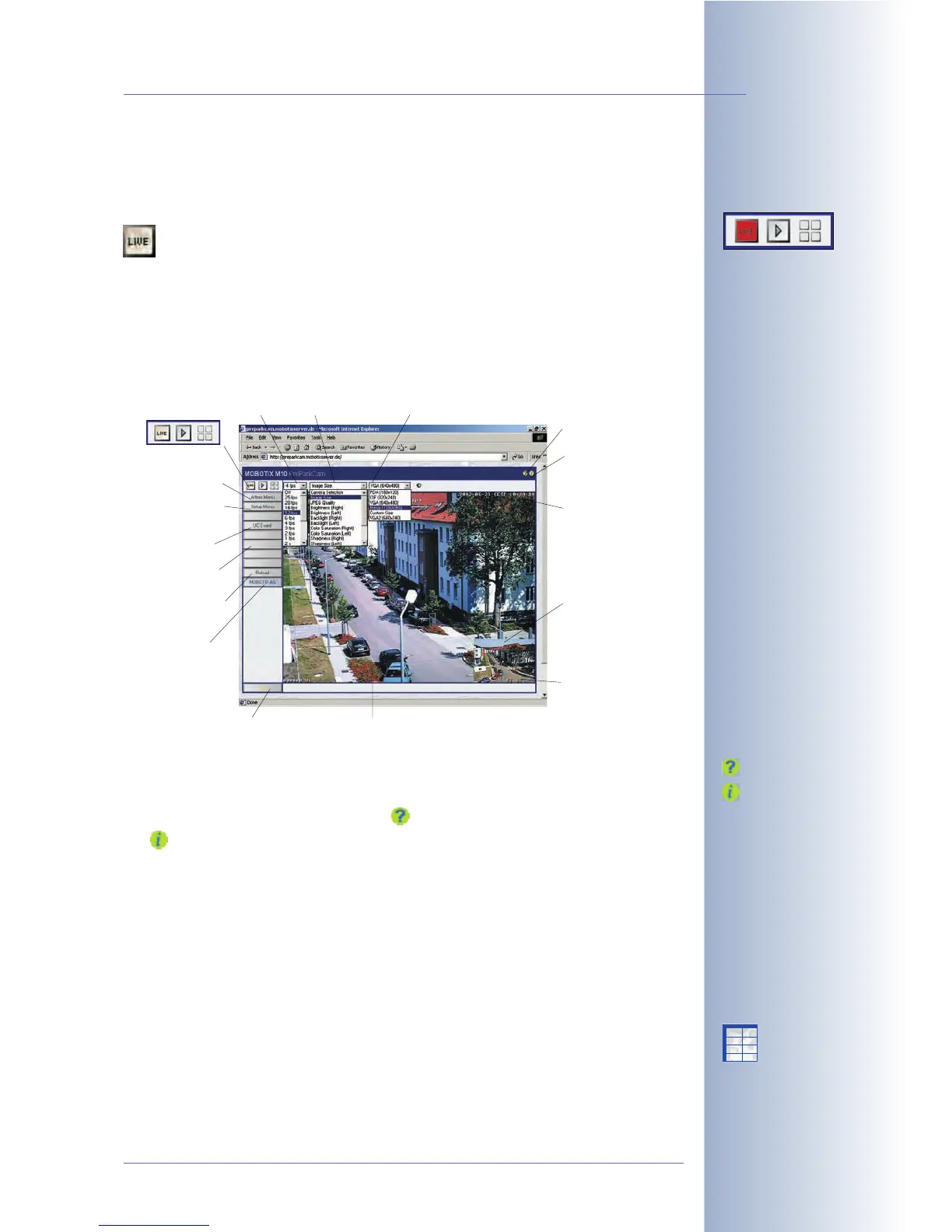
4.3 The Live Screen in the Browser
4.3.1 Controls
The Live screen shows the camera's live image using the selected image
resolution (size). This screen allows setting the most prominent image
parameters, executing important functions and getting specific camera informa-
tion. Icons, displayed text, the status bar, the Quick Controls above the Live image
and other display elements within the Live image help getting the required infor-
mation.
Icons
The three screen icons in the upper left corner allow switching between the Live,
Playback, and MultiView screens. The icon will open the camera's online help,
the icon displays information about the camera's operating parameters.
Text Display
The text displayed in the upper left corner of the live image can be customized and
positioned freely anywhere in the image, or it can be hidden (Setup Menu > Text
& Display Settings). In order to improve readability, you can select different back-
ground colors (with adjustable transparency) for the text in the live image. The text
itself can also be displayed in different colors. Apart from simple texts, the camera
can display status information using variables, e.g. camera IP address, image size
in bytes, time of the last event, frame rate, text transferred from external devices
using the serial interface, etc. For additional information on this topic, read section
5.5.4,
Placeholders and Variables in the Comment Field
, as well as
Placeholders for
Dynamic Image Text
in the camera help and the reference manual.
© MOBOTIX AG • Security-Vision-Systems • Made in Germany
www.mobotix.com • sales@mobotix.com • 10.10.2006
15/288
Software Camera Manual Part 2
Quick Control
Manage Settings>
Store Complete Configu-
ration to store the set-
tings permanently
The help pages contain
links to more information
and hints on certain topics
Online help
Camera status
X
X
-
-
-
-
X
X
Kamerafunktionen
Kameramodell
Help pages
Info button
Help pages
Picture in picture
(only dual lens
models)
Text display
Status bar
(can be disabled)
Screen selection:
- Live
- Player
- Multiview
Admin Menu
Setup Menu
(Image, Events)
User Click
Softbuttons
Update
MOBOTIX
Homepage
Quick Controls (can be disabled):
Frame rate Image settings Parameters
Live image



 To Next Page