Click on the Player Mode button to switch between displaying only event images,
event images with story (pre- and post-alarm images) or only one single event with
story. When combined with the Fast Forward button, this provides for efficient event
search. The Playback screen's footer displays information on the event itself and
the event story, i.e. the number of images before and after the event and the cur-
rent image. For example: for an event with ten images before and six images after,
the footer would look like this for the third pre-alarm image: "-10.. -8 ..6".
Clicking on the Image Info button displays the camera's status at the time
when the image had been recorded. This window displays the date and time, ca-
mera IP, software version, image and exposure settings and all other sensor data.
The data is not stored separately, but is available as JPEG comment in each image.
The Event List (Event List softbutton or button) shows a link list of the last 20
events that you can browse forward and backward (see section 4.4.4, Image
Search Using Date & Time).
Open the Download dialog (Event List softbutton) to download the recorded video
clips as a compressed tar file (expand using tar, WinZip, Stuffit, PowerArchiver,
etc.) from the camera to your local computer (see section 4.4.5,
Archiving
).
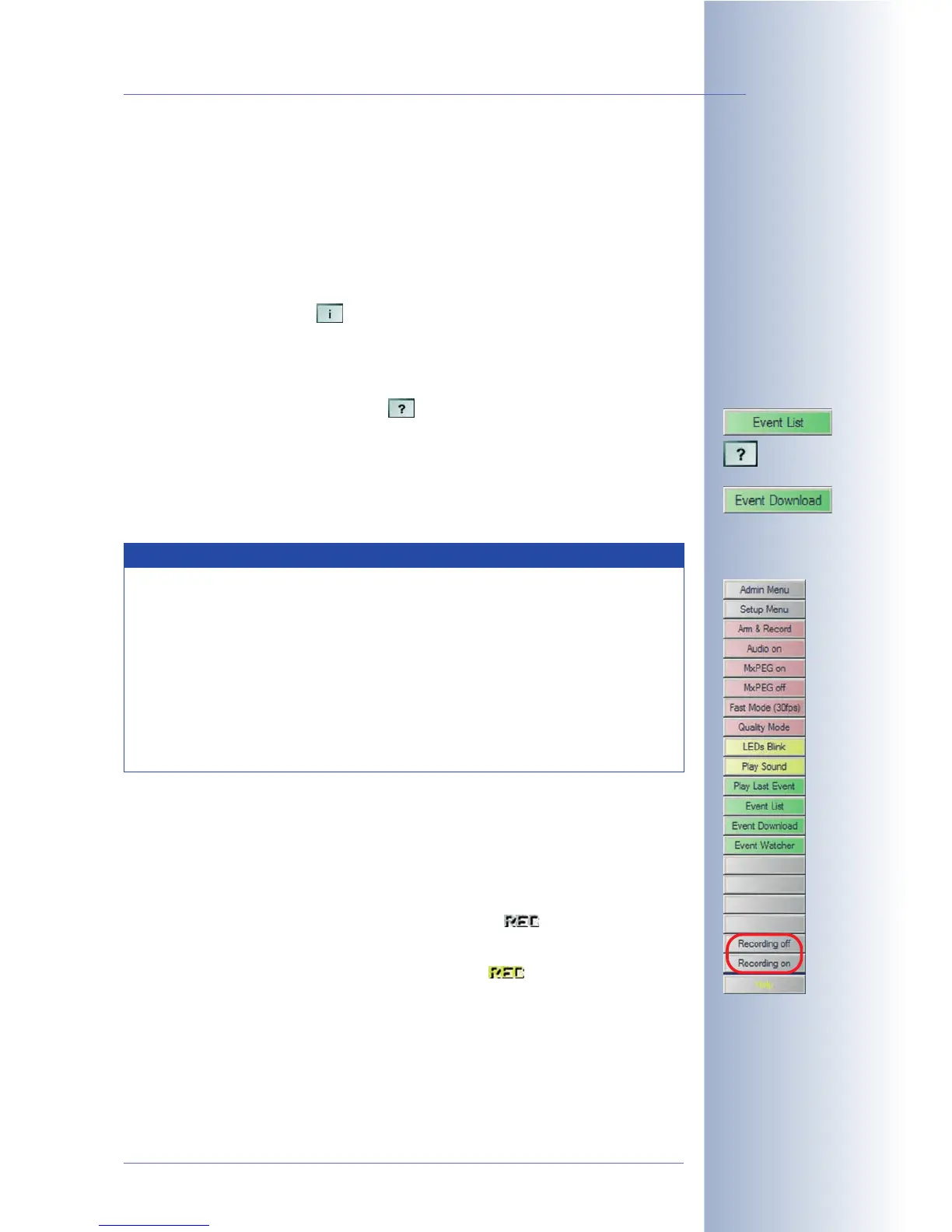
Softbuttons
While the upper part of the softbutton bar is more or less identical to the Live scre-
en (see section 4.3,
The Live Screen
), the lower part features the Recording off and
Recording on softbuttons.
• Recording off: Deactivates the recording feature of the camera. The REC
symbol in the live image will be displayed in gray: .
• Recording on: Activates the recording feature of the camera. The REC sym-
bol in the live image will be displayed in yellow: .
© MOBOTIX AG • Security-Vision-Systems • Made in Germany
www.mobotix.com • sales@mobotix.com • 10.10.2006
31/288
Software Camera Manual Part 2
Note
Using the Player screen to view event images will not disrupt the recor-
ding of new events. However, new event images will only be displayed
after the Player window has been reloaded. You can reload the Player
window by updating the page in the browser or by clicking on the Go
button in the Event List.
If the camera's ring buffer is full, older events will be deleted to make
room for new events. In this case, you will also have to reload the Play-
er screen using one of the methods described above to see the new
events.



 To Next Page