• Text Display: This parameter enables or disables all displayed texts in the
camera live image. The
Date & Time
option displays only the date and time
information in the upper right area of the live image. If this setting is acti-
vated, neither the text entered in the Comment field (see below) nor the
event and action symbols in the lower area of the live image will be shown.
• Text Color: This parameter controls the text color; select a color from the pal-
ette of predefined colors.
• Background Color: This parameter controls the text background; select a
color from the palette of predefined colors.
• Background Opacity: This parameter sets the text background opacity. The
Transparent
setting displays the text without background color while the
Full
BgColor
setting covers the image background completely. Intermediate set-
tings are
25%
,
50%
and
75%
.
• Date and Time: Use this parameter to configure the date and time format.
Several formats are available.
• Comment: The text entered in this text field will be displayed in the upper left
area of the live image. Using placeholders and variables, you can display
dynamic texts and camera status information. For additional information on
this topic, see section 5.5.4,
Placeholders and Variables in the Comment
Field
.
Note: To position the text, you can also use the ^gx, y; placeholder.
• Error Messages: The
On
option displays camera error messages in the lower
image area. Such an error message, for example, can report an unsuccess-
ful FTP data transfer, an unsuccessful telephone call or a file server used as
external image storage that cannot be reached.
• Cover Borders: The
Top/Left
option covers the borders of dual images and of
picture-in-picture displays with narrow bars in the defined background color.
• Show Event/Action Symbols: The
Symbols
(one-line display) and
Symbols II
(two-line display) options display abbreviations for events, actions, messages
and recording modes at the bottom of the live image. This is the main source
of information regarding event control and recording activities of your
MOBOTIX camera.
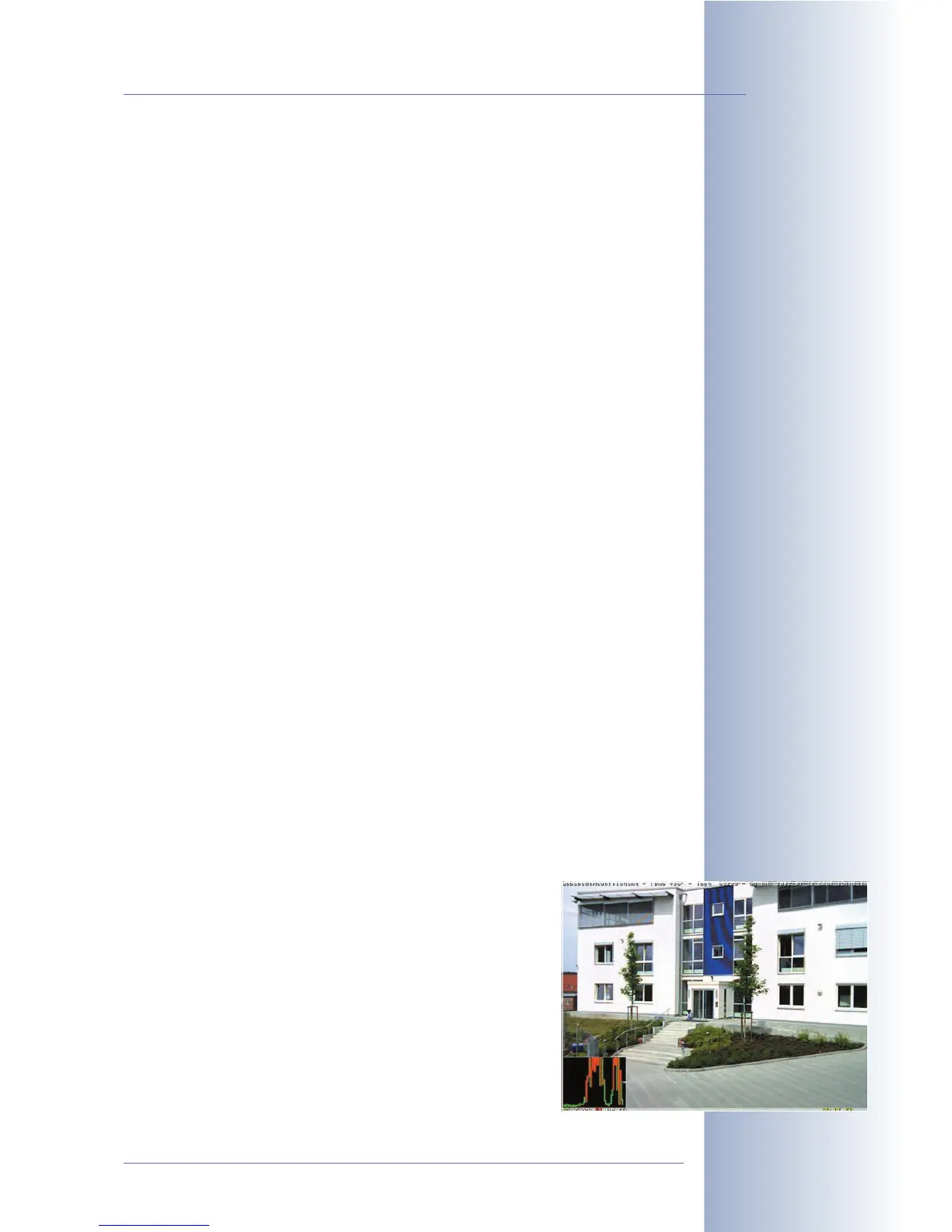
• Level Meter, Level Meter Data: The level meter can dis-
play the values measured by different camera sensors
(PIR sensor, microphone, illumination value, signal input,
event counter, temperature) as a
Bar
with trigger value
(vertical white line) or as time-related
Scroll Chart
in the
lower area of the live image. This helps monitoring the
defined trigger values and when fine-tuning is required.
© MOBOTIX AG • Security-Vision-Systems • Made in Germany
www.mobotix.com • sales@mobotix.com • 10.10.2006
109/288
Software Camera Manual Part 2
Display texts, variables,
comments as well as date
and time information
directly in the live image



 To Next Page