155
Functions in Océ View Station® LT
[29]
[30]
Toolbar options
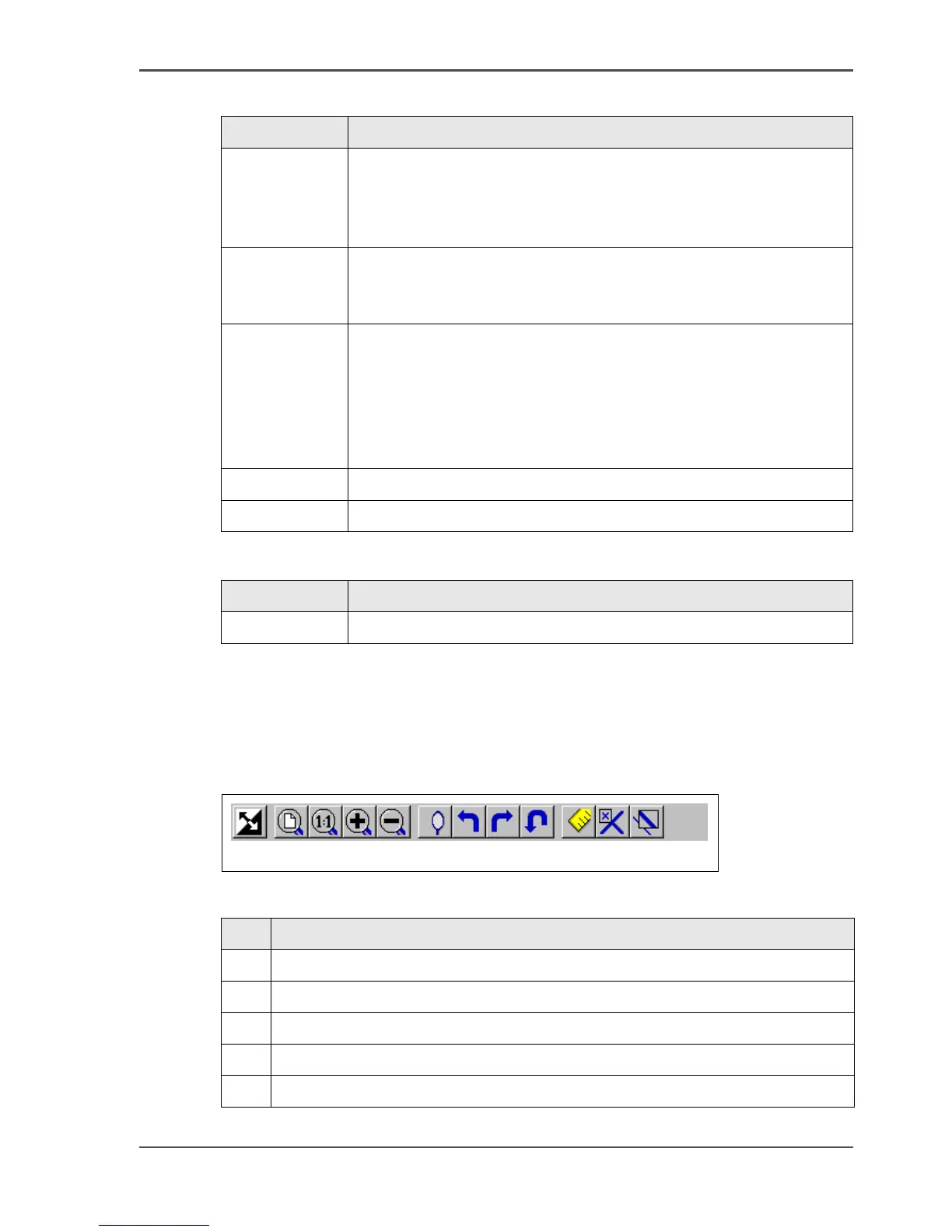
Below the menu options you find the function buttons in a toolbar. This toolbar can
be turned on and off.
[94]
[94] toolbar options
[31]
[29] Preference menu
Command What does it do
View toolbar View toolbar displays and removes the toolbar that contains
buttons. The View toolbar appears, by default, below the menu
bar. It serves as a fast means of selecting some File, View, and
Preference menu commands.
Status bar Status Bar displays and removes the Status Bar at the bottom of
the Océ View Station LT window. The Status Bar displays the
pointer co-ordinates and a status line.
Reference Reference displays or removes a small, usually floating window.
This window displays the entire current page in miniature. The
crossed box inside the Reference window indicates which part of
the page is displayed in the document window. By moving or
resizing the crossed box, you change which area of the page is
displayed.
Detail Displays or removes the Detail window.
Measurement When active, allows you to measure lines and areas on the image.
[30] Help menu
Command What does it do
About Shows information about Océ View Station LT.
1 2 3 4 5 6 7 8 9 10 11 12
Nr Description
1 Invert: Reverses the black and white parts of the image.
2 Fit: Scales the image to fill the window.
3 1:1: Displays the image at a 1:1 scale factor.
4 Magnify: Zooms into the page.
5 Reduce: Zooms out of the page.












 To Next Page