227
Auto align
3. Press the ‘Align’ function key again and select a vertical alignment value (Top,
Centre, or Bottom) with the arrow keys.
Note: If you select ‘Centre’, make sure the original width is specified as indicated
(see figure 135 on page 217):
■ ‘Standard’ if a standard sized original is used
■ The exact original width (numeric) if a non standard sized original is used.
4. Feed your original.
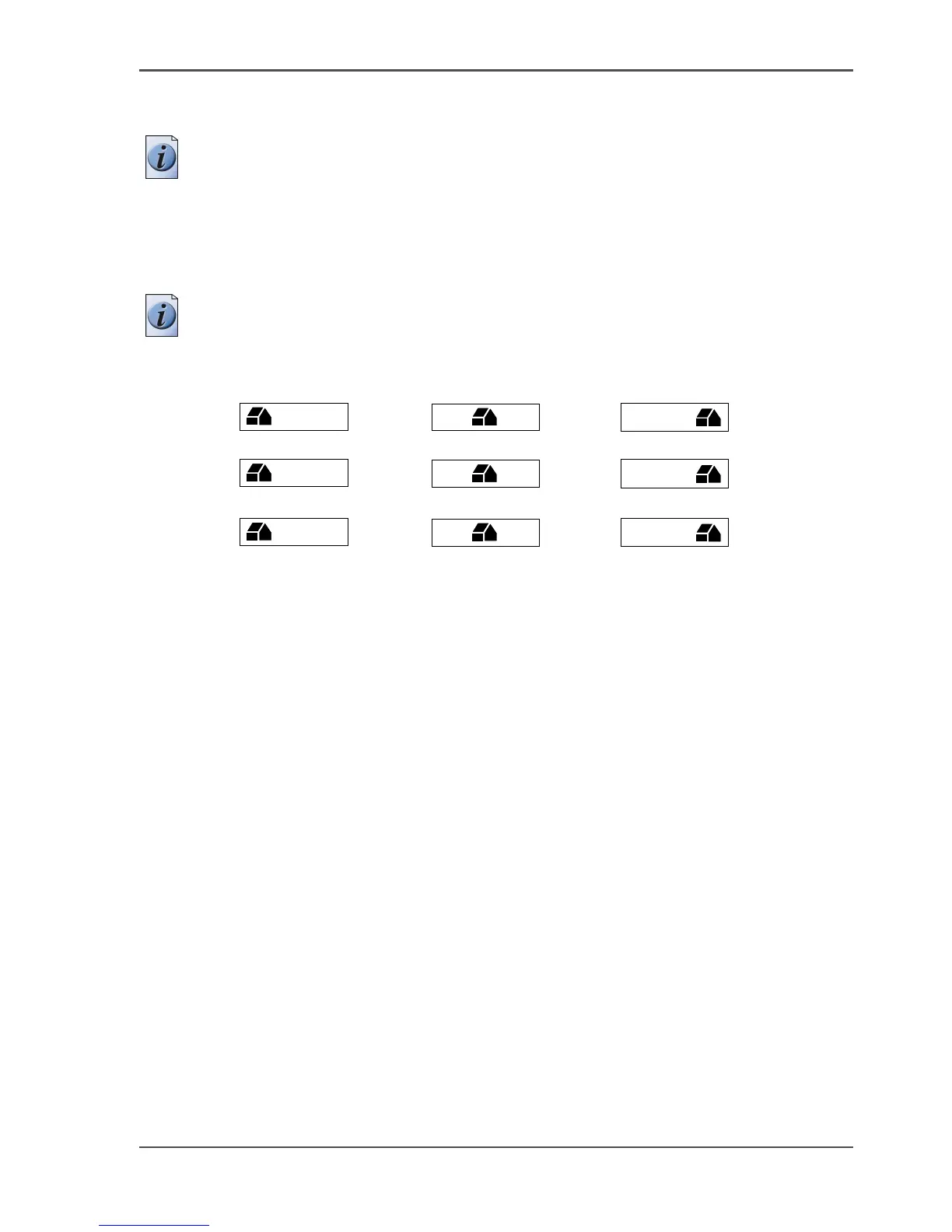
Note: You must switch on standard cut length to get output like the one in the
example of the illustration above. If Synchro cut length has been switched on, the
result will be as illustrated below, the media is cut at the edge of the printed image.
[147]
In (see ‘Shift the image’ on page 228) you can read how to define the exact place of
your image on the page.
7
8
9
4
5
6
1
2
3




 To Next Page