Video : Wrap in Video
21 - 526
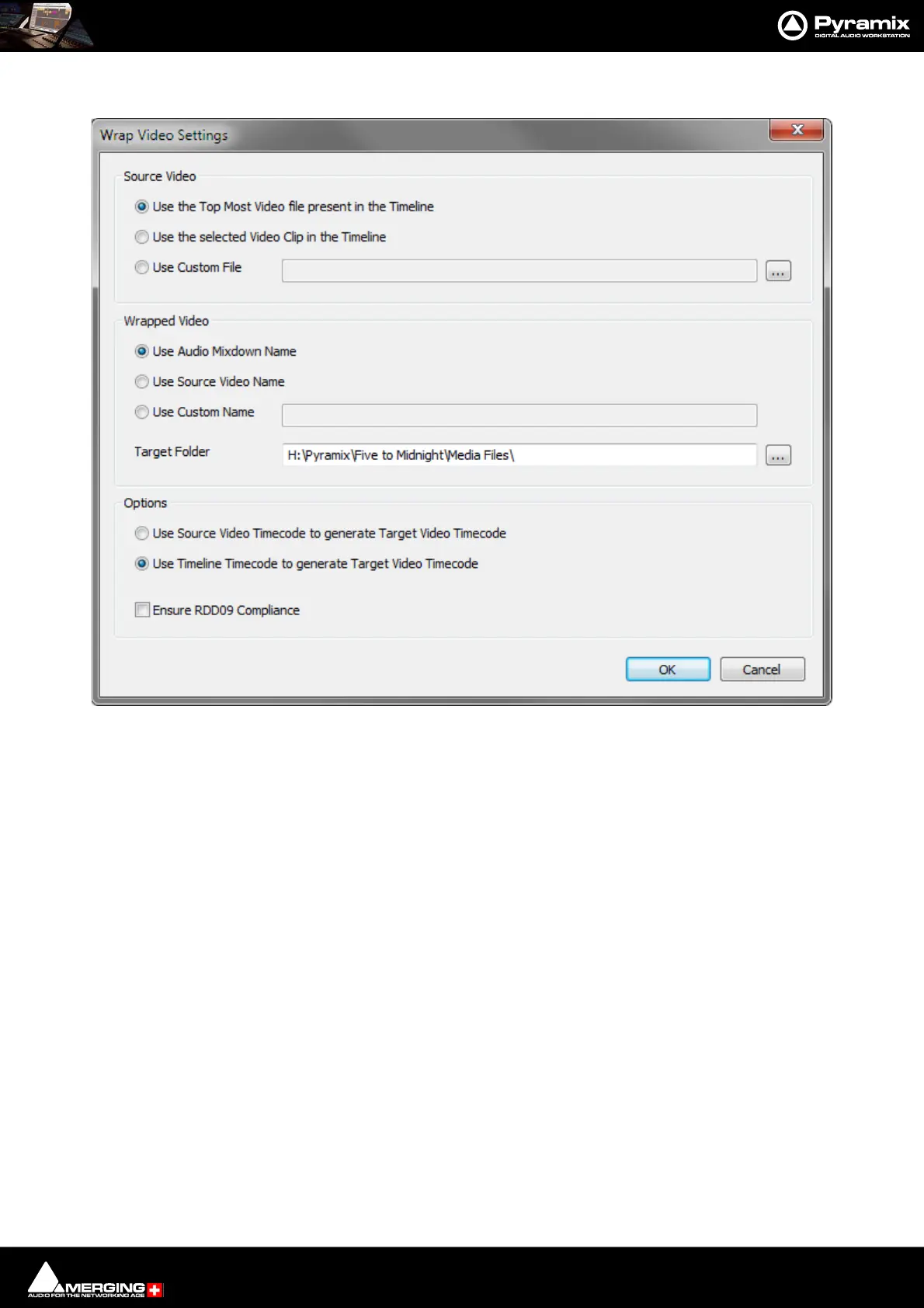
3. Click on the adjacent Settings button to open the Wrap Video Settings dialog:
Source Video
Use the Top Most Video present in the Timeline This will include the top timeline video track in the Wrapped file.
Use the selected Video Clip in the Timeline This will include the Video Clip selected in the Timeline in the wrapped file.
Use Custom File This will include the file whose path is shown in the field in the wrapped file. The ... but-
ton opens a File Browser enabling a file suitable file to be selected.
Note: The Source Video options are disabled if not applicable.
If there is no video selected the option Use the selected video Clip in the Timeline is disabled.
If there is no video present in the Timeline, then only the option Use Custom File is enabled.
Note: If an option was valid for a Wrap and then a Mixdown is executed, afterwards if the Time-
line is changed (deselect the Video Track), on a subsequent Mixdown the Wrap Video Settings
dialog will open to enable a source video option to be chosen.
Wrapped Video
Use Audio Mixdown Name The resulting file name will have the Mixdown name selected in the Mixdown Dialog.
Use Source Video Name The resulting file name will have same name as the Video Source File.
Use Custom Name Type the name you require name in the field.
Note: If this Use Custom Name option is checked but the field left empty the wrapped video file
will be assigned the same name as the Audio Mixdown output file. If a file wwith the same name
already exists, the new file will be given a Date/Time suffix.
Wrap Video Settings dialog



 To Next Page