Data Backup and Restore
Update from R3 to R5 (or later) Local PC
Strata CIX Programming Vol.1 12/09 14-15
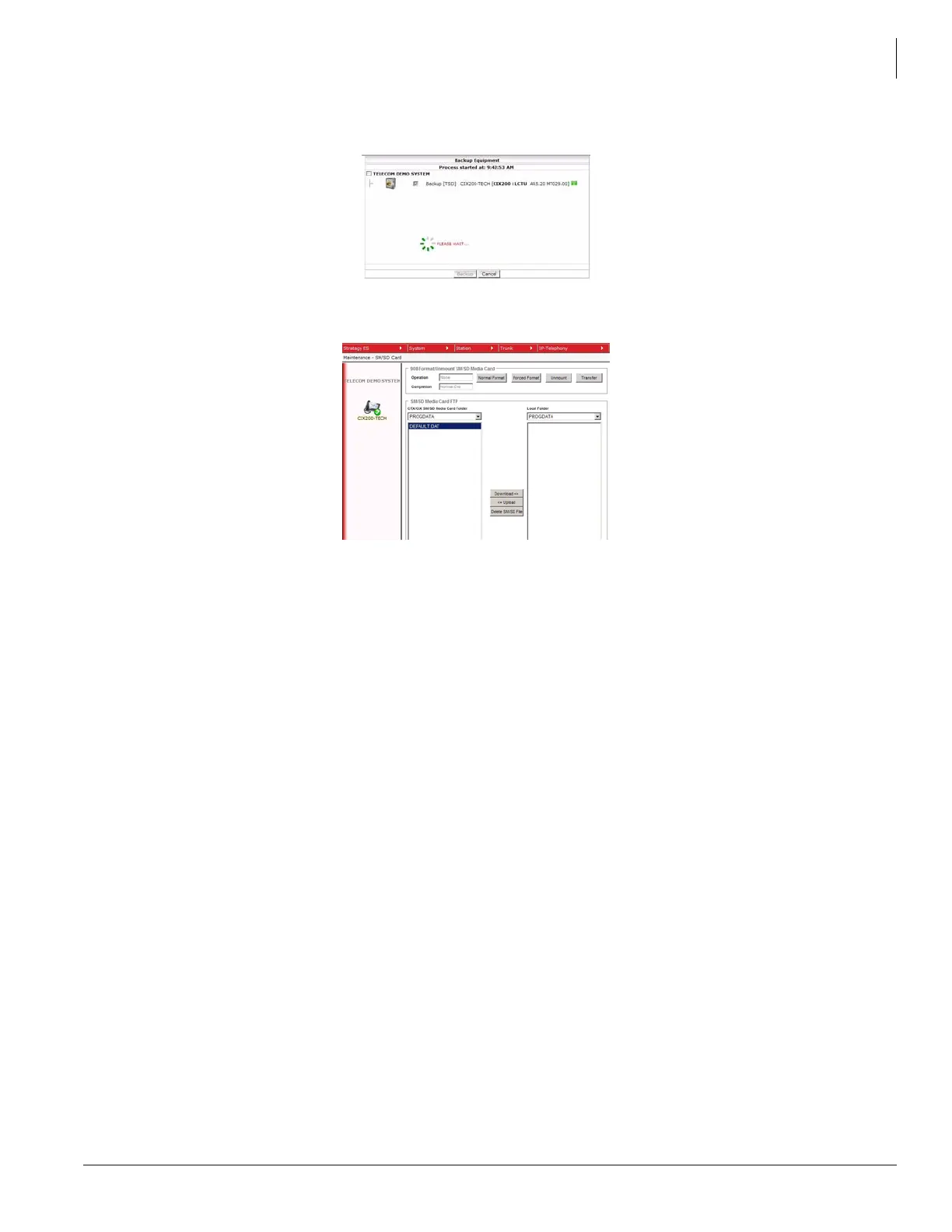
2. Backup the system database to the on-board SM. The backup will be the DEFAULT.DAT file in the
PROGDATA file on the SM card.
3. To copy the DEFAULT.DAT file from SM to a file on your PC select the PROGDATA Media Card Folder
on the left side of the screen. Highlight the DEFAULT.DAT file then, click on the Download button.
4. The system will copy the DEFAULT.DAT file to your PC.
5. Power down the system and remove the processor card.
6. Insert the new processor card. Insert the SD card into the connector on the processor card.
7. Power up the system.
8. Connect the Strata CIX system. Note the MAC address of the new processor.
9. The path to the PROGDATA folders on your PC is:
C:\eManager\main\eManager\UserData\Administrator\<MAC address of the processor
card>\SM.SD_CARD
10. Copy the DEFAULT.DAT file from the PC folder of the old processor to the PROGDATA folder on your
PC for the new processor. Note: Network eManager selects the folders to upload to, or download from
by the processor MAC address.
11. Select the DEFAULT.DAT file on the right side of the screen. Highlight the PROGDATA folder on the
left side of the screen. Click on the Upload button.
12. After the file has copied Initialize the processor.



 To Next Page