Software and Firmware Updates
IP Telephone, MIPU, GIPU, LIPU and BIPU Firmware Update Procedures
Strata CIX Programming Vol.1 12/09 B-3
Software and
Firmware Updates
Method 1: Update from CIX SM/SD Card
Prerequisites
1. Requires a Network eManager PC and CIX SM/SD card for xIPU and IP telephone program updates.
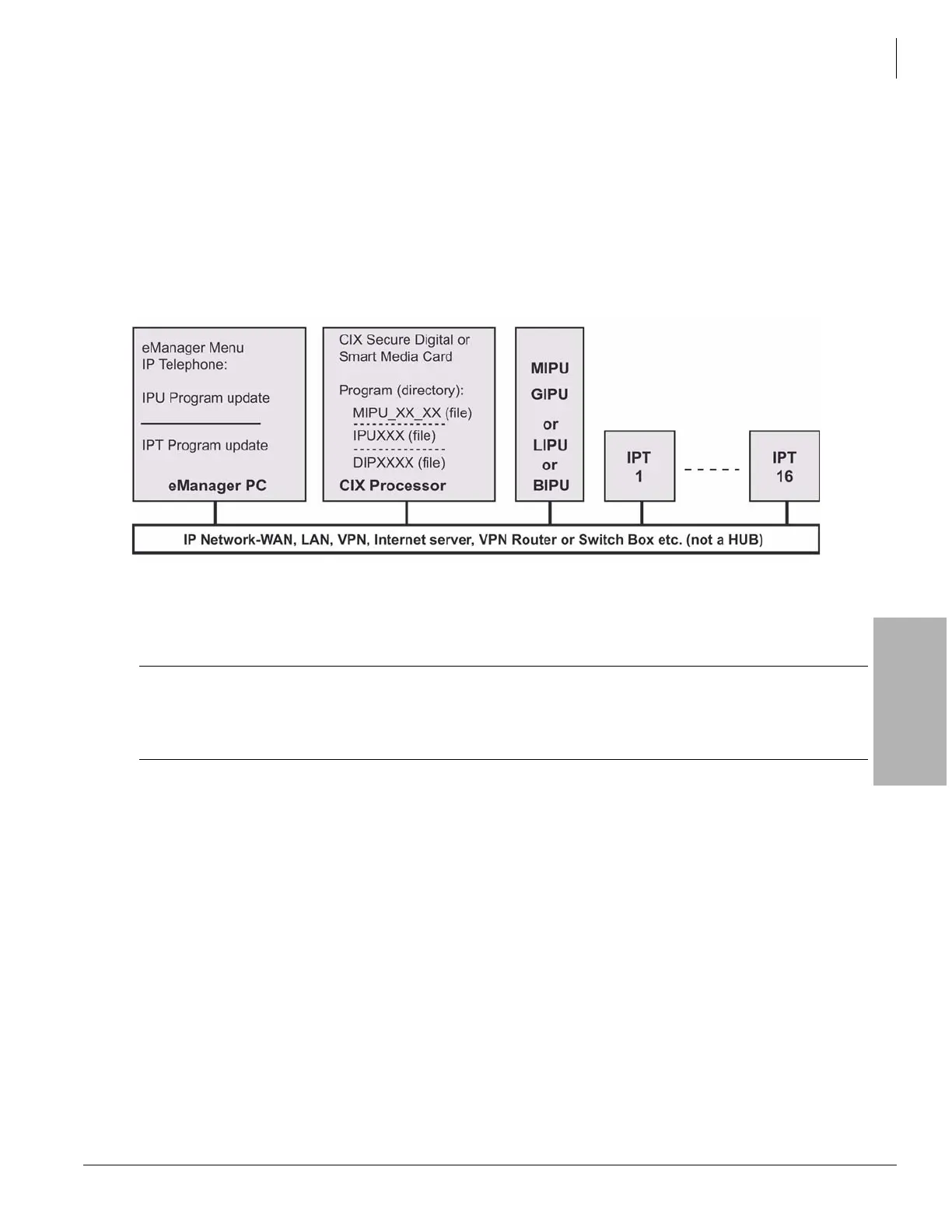
2. Do not connect the Network eManager PC directly to the Strata CIX processor network jack (see
Figure B-1). All connections must be through the network.
3. The xIPU must have the same subnet address as the Strata CIX and Network eManager – both must
be in the same domain.
Figure B-1 FTP Server (SM/SD card) Network Connection
xIPU Update
CAUTION! Do not unplug the xIPU, press the xIPU reset button, or turn off the CIX power during
the xIPU program update process. Any of these operations will damage the xIPU
kernel software and require the xIPU software restoration process to enable the xIPU
to function. Restoration can only be done at a Toshiba TSD repair facility.
Important! Complete all Prerequisites shown above before you do the following.
From the Network eManager PC connected to the CIX
Format the SM/SD
1. From the eManager PC select Maintenance > SM/SD Card
2. “Force format” a SM (SmartMedia) or SD (Secure Digital) card using Network eManager.
3. Copy the xIPUXXX update file to the SM/SD card PROGRAM file folder (XXX is the xIPU firmware
version level).
Copy The Firmware to the Folder
4. Select Maintenance > SM/SD Card to Make sure the xIPUXXX file is stored on the SD/SM card under
the PROGRAM directory.
Update the xIPU firmware, refer to the cautions on Page B-1.



 To Next Page