4.
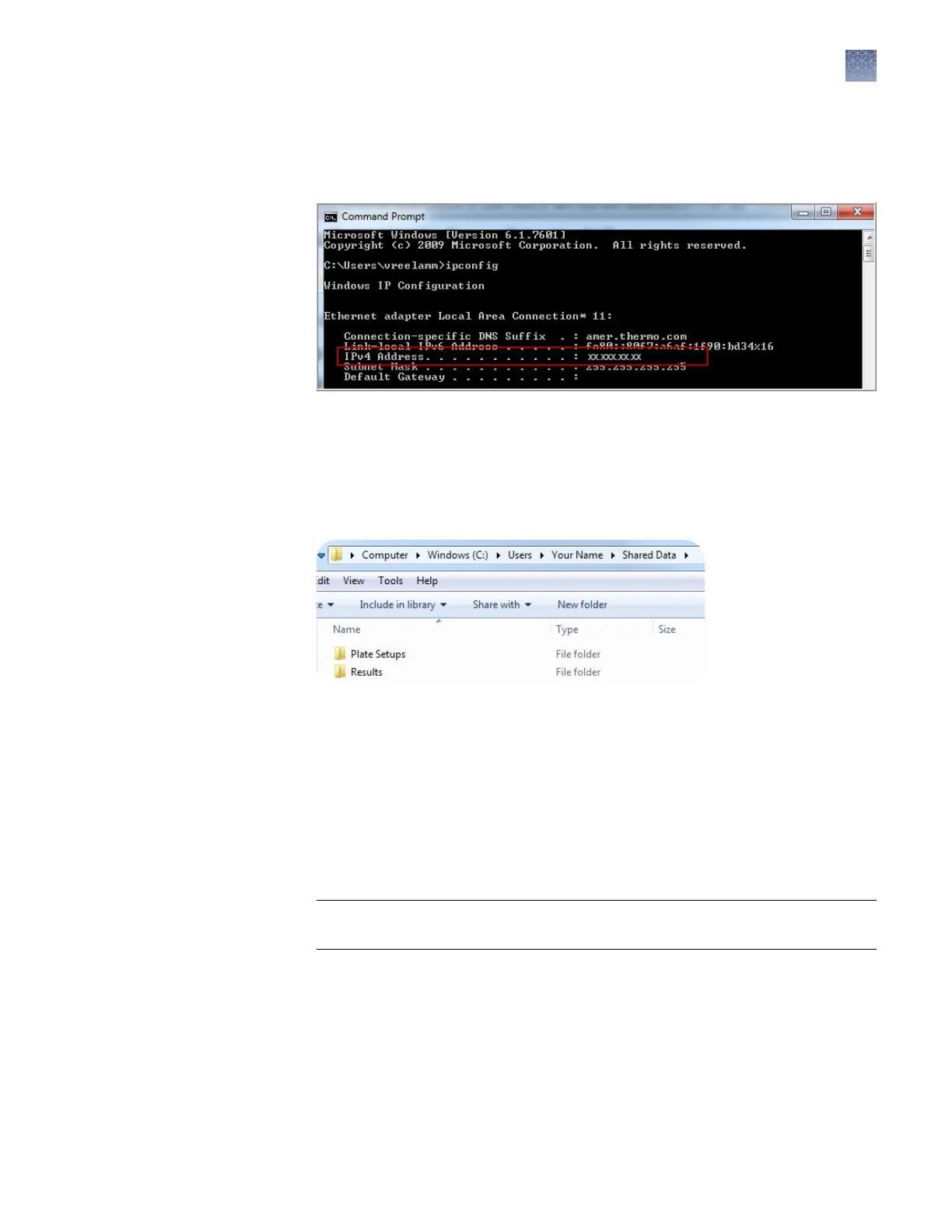
Note the IP address listed.
Note: The location and number of digits in your IP address may dier from the
IPv4 Address example shown below.
In the Windows
™
desktop:
1.
On a Windows
™
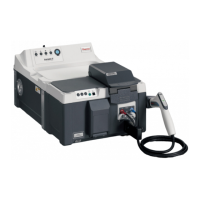
computer, server, or network drive, create a folder to store your
plates and results. Example: C:/Users/Your Name/SharedData.
2.
Create subfolders in the SharedData folder. Example: PlateSetups and Results.
3.
Right click on a folder, then select Sharing4Advanced or Share
with4Advanced sharing.
4.
Select the Sharing tab.
5.
Click Advanced sharing.
6.
Select Share this folder.
7.
Click Permissions, then select Full Control or Read, Write, and Delete options.
IMPORTANT! Without these permissions, the instrument cannot autoexport
results when a run is complete.
8.
Click OK, click OK, then click Close.
Create folders and
enable network
folder sharing
Chapter 10 Manage the software (instrument)
Connect the instrument to a network drive
10
SeqStudio
™
Genetic Analyzer Instrument and Software User Guide
131









 To Next Page