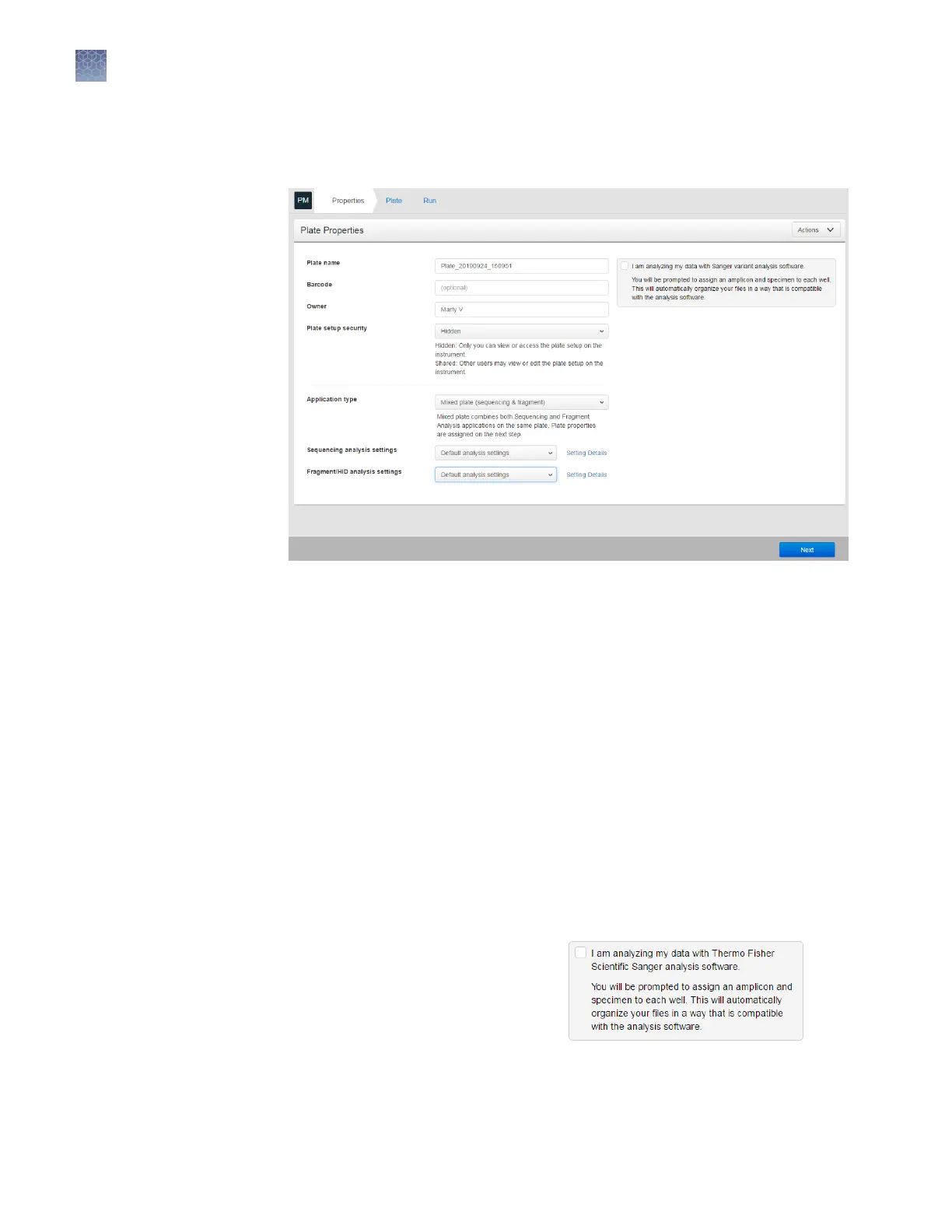
In the Properties tab:
1.
(Optional) Edit the Plate name, Barcode, or Owner.
2.
Select an option in the Plate setup security eld.
• Hidden—Prevents other users from using or accessing the plate on the
instrument. Your analysis seings are saved with the plate setup, and are
used the next time that you open or create a hidden plate. However, the
analysis seings will not be available to other system users.
• Shared—Allows other users to access and edit the plate on the instrument.
Your analysis seings are saved with the plate setup, and are used the next
time that you open or create a shared plate. Your analysis seings will be
available to other system users.
3.
Select the Application type: Sequencing, Fragment analysis, HID, or Mixed
plate (sequencing & fragment).
A mixed plate allows you to specify fragment analysis and sequence analysis
seings on the same plate.
4.
Select the analysis seings. If needed, edit the seings (see “Edit analysis
seings“ on page 75).
5.
(Optional for Sequencing or Mixed
plate) Select the I am analyzing my
data with Sanger variant analysis
software checkbox.
The amplicon and specimen elds
are added to the Plate view, and the
aributes are automatically added to the default le name conventions (see
“Modify the default le name convention“ on page 88).
Enter plate
properties
Chapter 5 Create or modify a plate setup from the Plate Manager
Set up a plate using default settings (Plate Manager)
5
70
SeqStudio
™
Genetic Analyzer Instrument and Software User Guide









 To Next Page