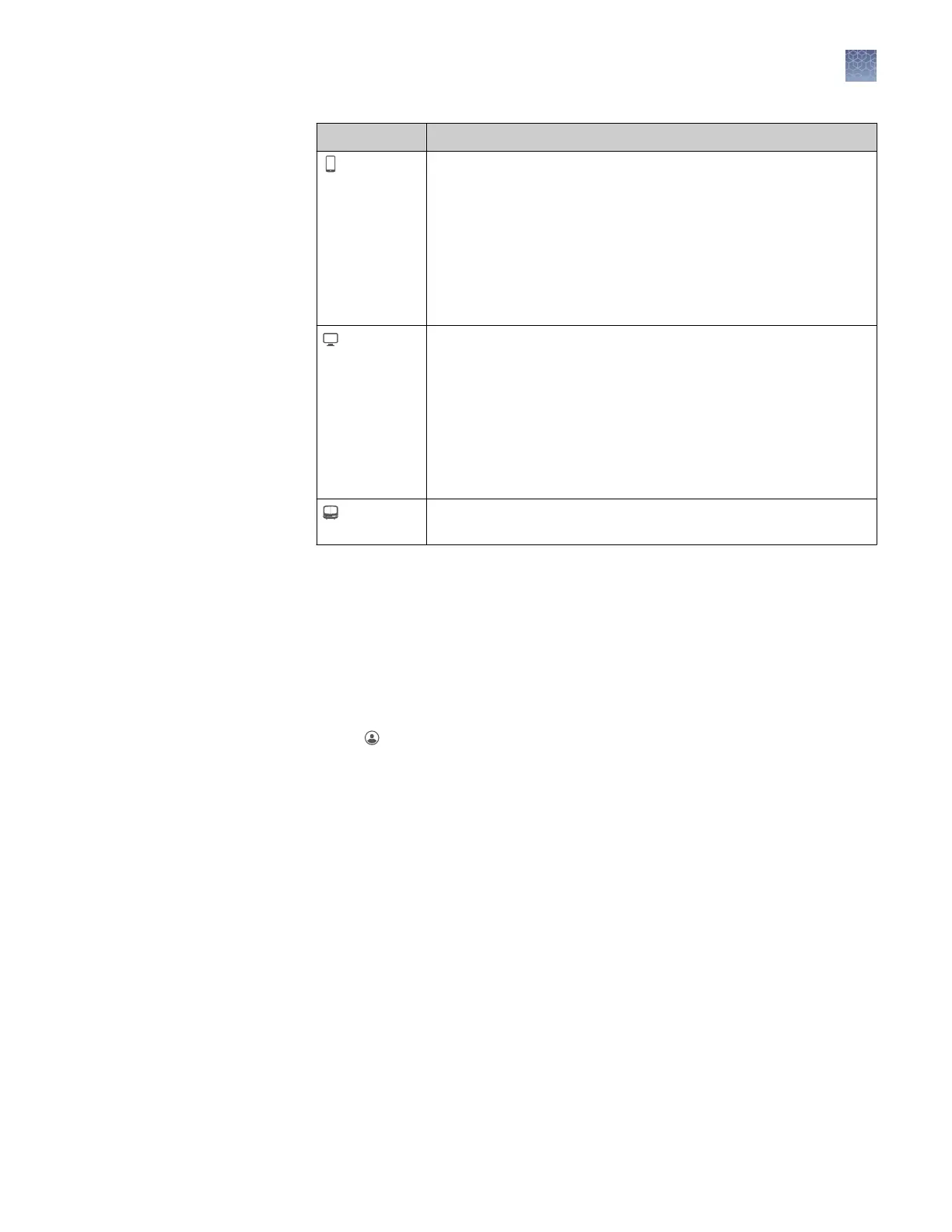
Option Action
Mobile
devices
Note: Before selecting this option, install and sign in to the
InstrumentConnect app on your mobile device.
In the Connect to the Cloud screen:
1. Touch Mobile devices.
2. Hold the camera on your mobile device over the QR code that
is displayed on the touchscreen.
3. Click Close.
PC In the Connect to the Cloud screen, a link code is displayed.
On a computer:
1. Access the Connect platform.
2. Access InstrumentConnect.
3. Click Add instrument.
4. Select SeqStudio.
5. Enter the link code.
Instrument In the Connect to the Cloud screen, enter your account information,
then click Link account.
Lock the touchscreen
During a run, you can lock the touchscreen to prevent other users from using the
instrument. This feature is not available to Guest users.
Only the user who locked the touchscreen or an administrator can sign in to the
instrument if the touchscreen is locked.
1.
Touch .
2.
Touch Prole.
3.
Touch Lock instrument.
Note: If a run is not in progress, Sign out is displayed instead of Lock
instrument.
Chapter 10 Manage the software (instrument)
Lock the touchscreen
10
SeqStudio
™
Genetic Analyzer Instrument and Software User Guide
137









 To Next Page