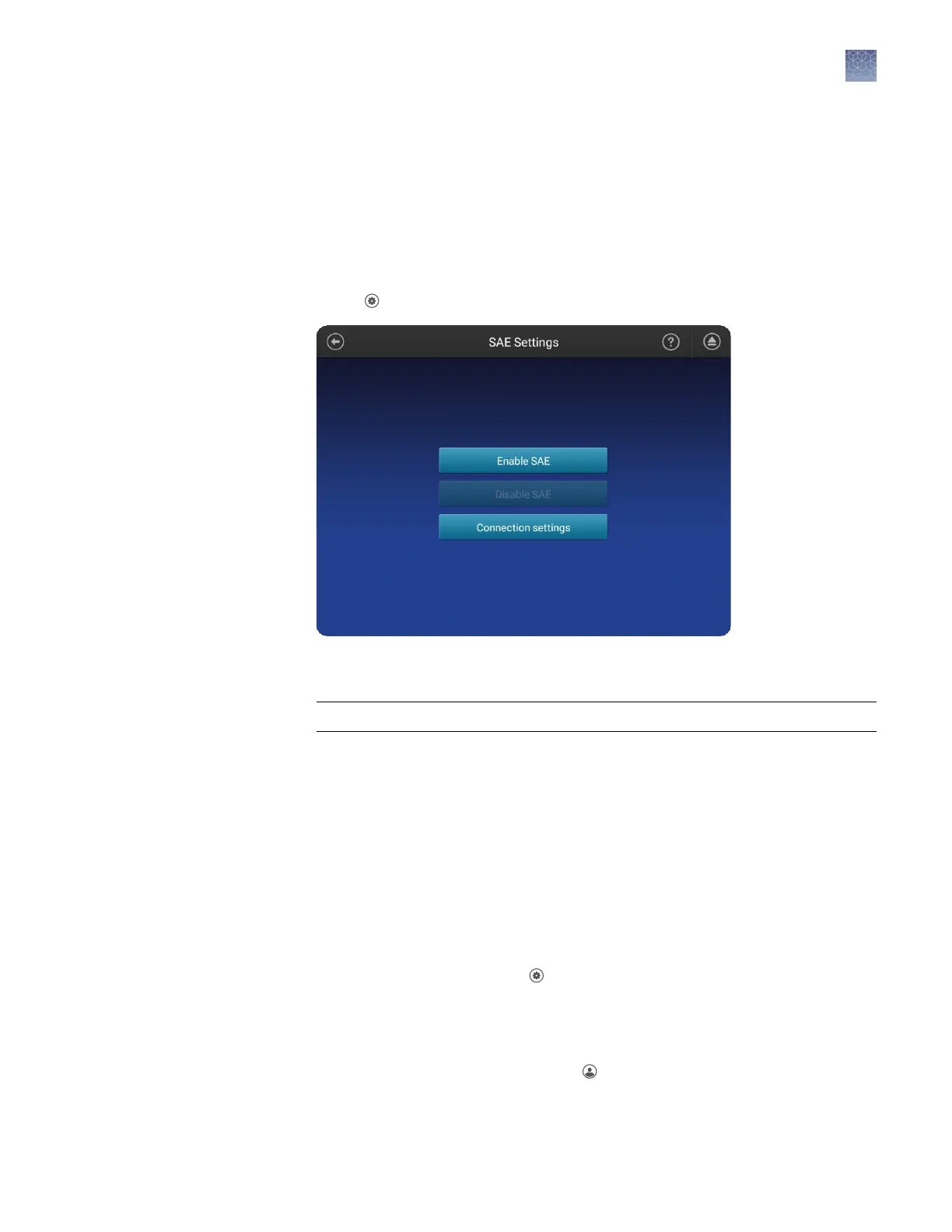
Enable SAE on the instrument and specify the SAE server
(administrator only)
This procedure requires a local administrator prole on the instrument and an SAE
administrator account in the SAE Administrator Console.
1.
Sign in to the instrument with a local administrator prole.
2.
Touch Seings4SAE.
3.
Touch Connection seings, then enter the Server IP and Port of the computer on
which the SAE Administrator Console is installed.
IMPORTANT! Specify a server with a static IP address.
4.
Touch Enable SAE.
5.
Enter your SAE administrator account username and password, then touch
Enable SAE.
Disable SAE (administrator only)
This procedure requires a local administrator prole or an SAE administrator account.
• If you are signed in to the instrument as an SAE administrator:
a.
In the home screen, touch
Seings4SAE4Disable SAE.
b.
Enter your SAE administrator account username and password.
• If you are not signed in to the instrument:
a.
If another user is signed in, touch
in the home screen, then touch Sign
out.
Chapter 4
Use the instrument with the Security, Auditing, and E‑signature (SAE) v2.0 module
Enable SAE on the instrument and specify the SAE server (administrator only)
4
SeqStudio
™
Genetic Analyzer Instrument and Software User Guide
59













 To Next Page