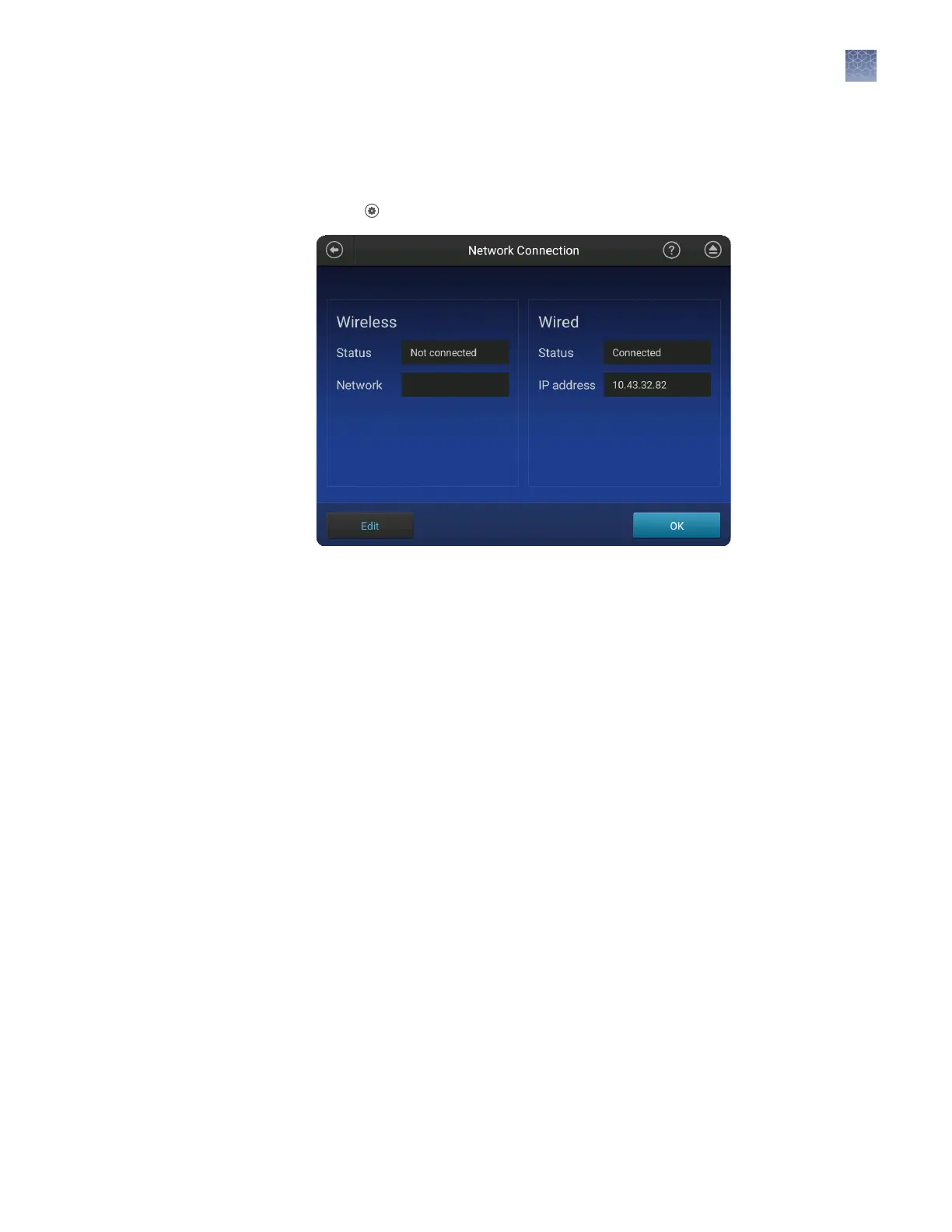
Note: For a direct connection between the instrument and a computer, set up a wired
connection.
In the home screen:
1.
Touch Seings4Insrument seings4Network Conguration.
2.
Touch Edit, or touch one of the network seings elds.
3.
(Optional) Edit the Wireless network seings.
a.
Select a Network that was automatically detected by instrument.
b.
Enter a password, if prompted.
c.
Click Join.
d.
Click OK when the authentication is completed.
4.
(Optional) Edit the Wired network seings.
a.
Select DHCP or Static IP.
An IP address is automatically assigned if DHCP is selected.
b.
(Static IP only) Enter an IP address, Subnet mask, Default gateway, Primary
DNS server, and Secondary DNS server.
For more information, see “Determine IP address for a computer on a
network“ on page 130.
5.
Touch OK.
Manage the
network
configuration
Chapter 10 Manage the software (instrument)
Manage instrument settings
10
SeqStudio
™
Genetic Analyzer Instrument and Software User Guide
149











 To Next Page