CONSOLE AI | Introduction | 13
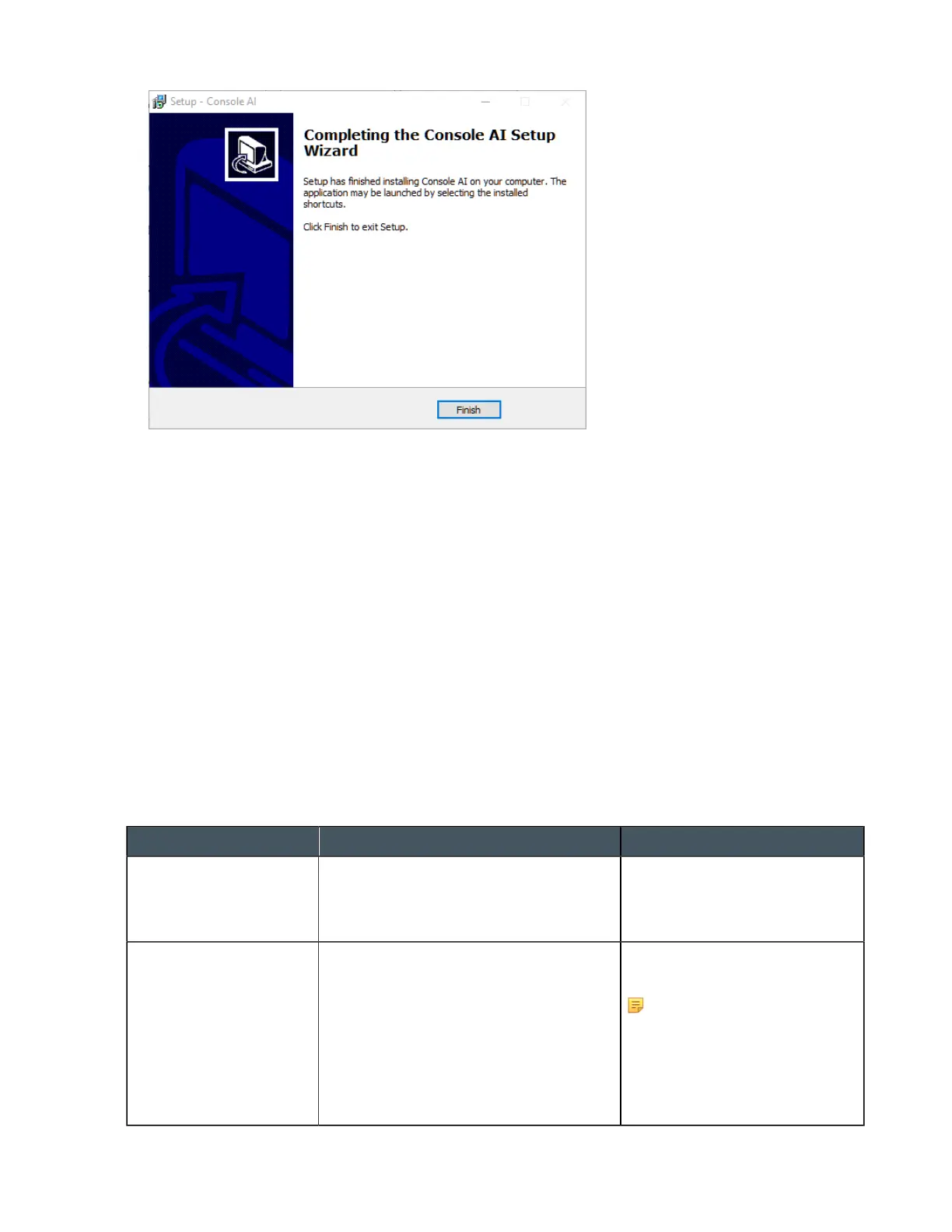
8. Click Finish.
Setup is complete.
About Projects
The CONSOLE AI application lets you change the settings for a CONVERGE Pro 2 or CONVERGE
Huddle device, to specify how they interact with audio and control devices.
These settings can be saved together as a project. A project contains all the settings for one or more
devices. In the case of a CONVERGE Pro 2, you can save the settings for a single CP2 device or for a
stack of CP2 devices, along with related peripherals (Beamforming Microphone Array 2 mics, DIALOG
20 mics, BMA CT or CTH mic/speakers, or Expanders). In the case of Huddle, a project contains only the
settings for one Huddle device. The settings are saved in a project file. You can create and save multiple
projects and then load them in the CONSOLE AI application as needed.
Project File Versions
When you are working in the CONSOLE AI application, there is not just one version of a project file. For
any given project file, three versions of the file could exist, and they may not always be synchronized with
one another:
Version Description How to Change
On a Drive If you have saved a project file, a version
of the file exists on a local hard drive or
network drive, depending on where you
have saved the file.
Use Save or Save As to save
the version of the project in the
CONSOLE AI to the drive.
CONSOLE AI application
(offline mode)
When you create a new project file or load
an existing project file from disk, a version
of that project file exists loaded within the
CONSOLE AI application.
Make changes to the project
settings while in CONSOLE AI.
Note:
Changes you make to
this project file have no
effect unless the project
is loaded to a CP2 or
Huddle device.
CONSOLE AI User Manual









 To Next Page