CONSOLE AI | Configuration - Offline (Huddle) | 63
7. Type a base name (the root of the channel name, to which other parts of the name will be appended) in
the Base Name text box.
8. (Optional) If you want to start numbering with a number other than 1, type the value in the Base Number
text box.
9. (Optional) If you want to add a prefix to the base name, type it in the Base Name Prefix text box.
10.Click Apply.
11.(Optional) Repeat steps 6-10 for additional channel types.
12.Click OK to close the Naming Tool.
13.Click Close to close the Channel Names dialog box.
Connecting Channels Using FlowView (Huddle)
You can use the FlowView to make connections between Huddle audio channels. FlowView is designed to
let you visualize the connections between assets as a flow from input channels, through mixer channels,
such as processing blocks, through to output channels or speakers.
Note: FlowView and MatrixView are alternative methods of visualizing the connections between
audio devices. Therefore, when you make connections in FlowView, those connections are reflected
in MatrixView as well.
To make connections between channels using FlowView:
1. In the Navigation Panel, choose FlowView
™
.
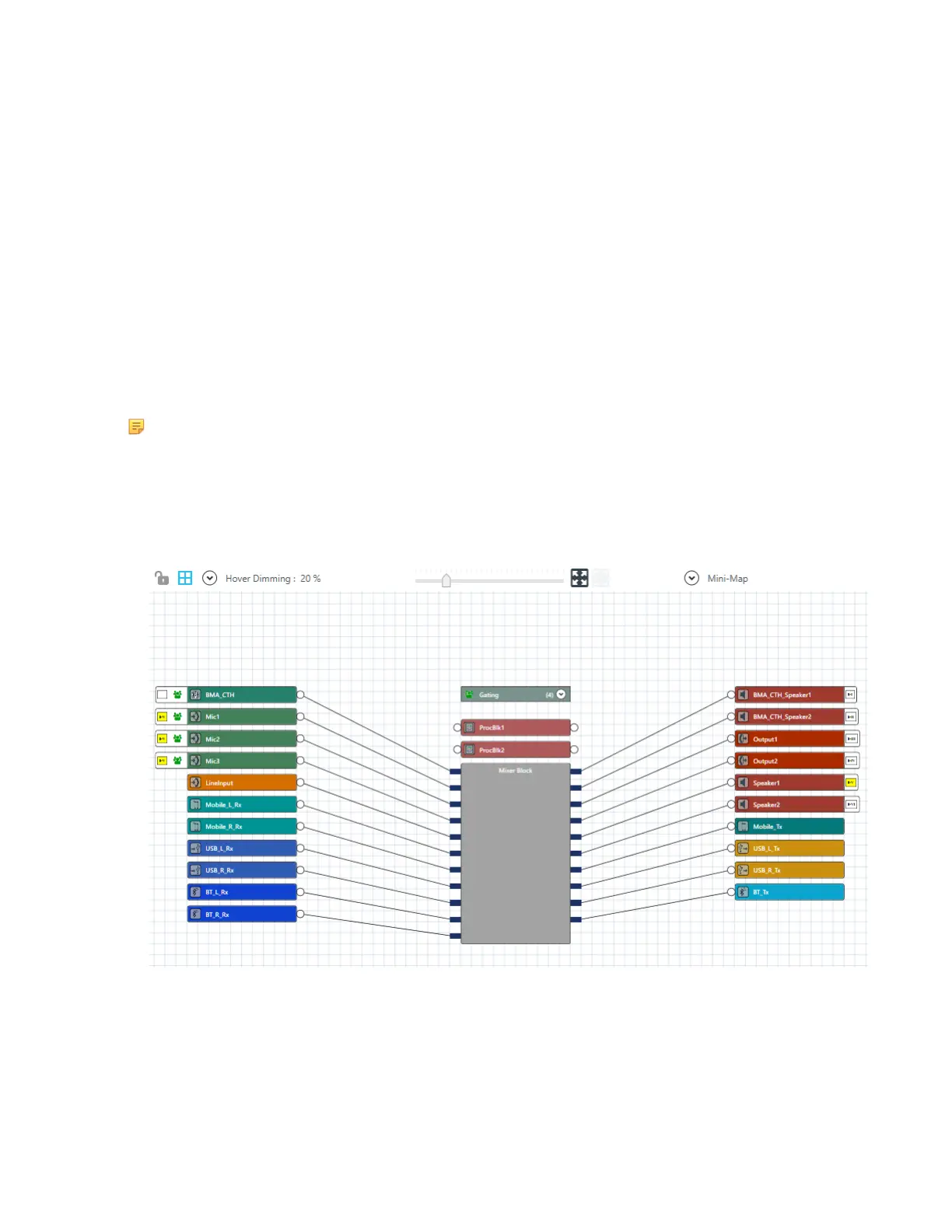
The FlowView screen appears:
FlowView shows the assets available in the Huddle device, and the relationships between them. The
following table how assets and asset relationships are represented in FlowView and the available
controls:
CONSOLE AI User Manual









 To Next Page