CONSOLE AI | Managing Channels (CP2) | 242
Note:
You can also view and change the channel properties in FlowView. See Connecting Channels
Using FlowView
™
(CP2) for more information.
2. Click Bluetooth Rx to open the channel list.
3. Select the channel you want to change.
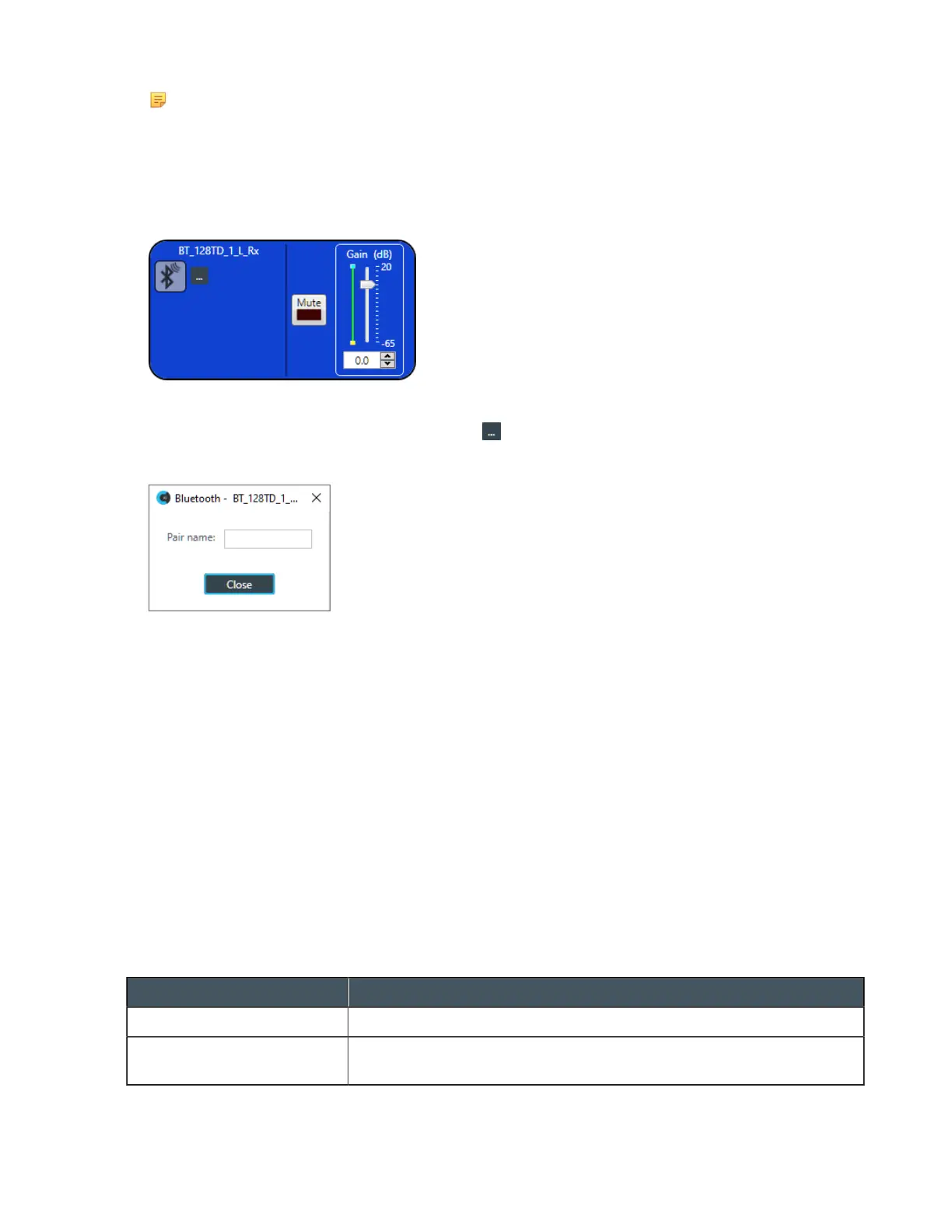
The Bluetooth Rx Channel Properties block appears:
Device Properties
4.
To change the Bluetooth device properties, click .
The Bluetooth Device Properties dialog box appears:
5. Type a value in the Pair name text box.
Mute
6. To mute this channel, click the Mute button (the button changes to red if the channel is muted).
Gain
7. You can change the gain in any of the following ways:
• Drag the slider
• Type a value in the text box
• Click the incrementer and decrementer arrows beside the text box to set the value
Changing Channel Properties - Processing Block (CP2)
You can use channel properties to modify a Processing Block channel. Processing Settings enable you to
configure filters, delay, compression, and gain to create precise audio configurations for any venue. There
are eight processing blocks available per device.
You can make any of the following changes:
Feature Description
Active (Group only) Lets you choose which member of the group to show or modify.
Sync All (Group only) Lets you synchronize all the members of the group to match the settings
of the active member.
CONSOLE AI User Manual









 To Next Page