CONSOLE AI | Interface | 33
Item Description
File Transfer Maximum transfer time (between CONSOLE AI and a CP2 device) for
any single file.
Get Project Maximum time to request and process a CONSOLE AI project file.
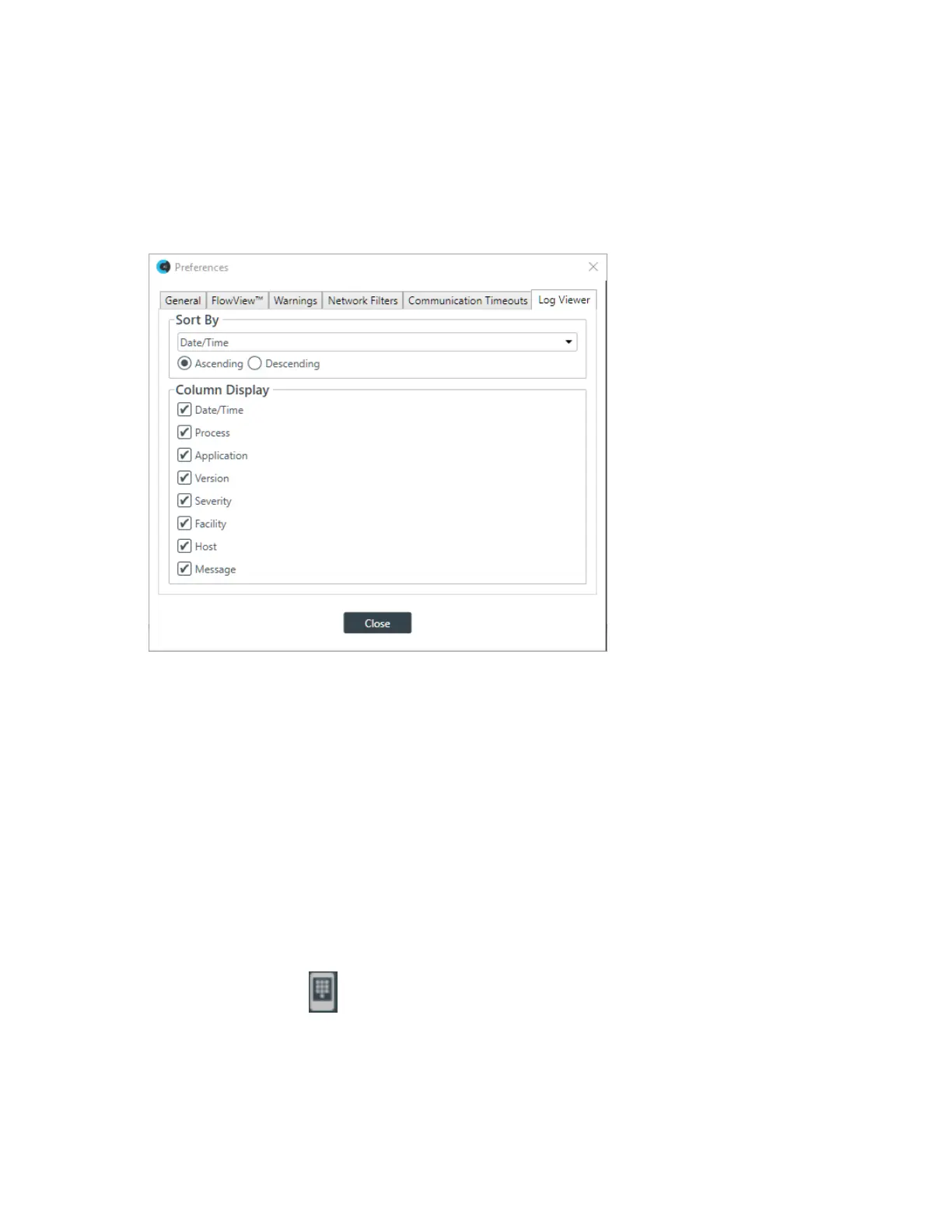
12.(Optional) To specify which log information appears in the Log Viewer, click the Log Viewer tab.
The Log Viewer tab appears:
13.(Optional) Select a sorting option from the Sort By drop-down list and specify whether you want to sort
in Ascending or Descending order.
14.(Optional) Specify which columns to display by checking or unchecking boxes under Column Display.
15.When you are done making changes, click Close.
Launching the CONVERGE Pro 2 Dialer (CP2)
If you have installed the CONVERGE Pro 2 Dialer, you can launch it from the CONSOLE AI toolbar.
See About Dialer for more information about the Dialer.
See Checking for Updates for more information about using Check for Updates to download and install the
Dialer.
See CONVERGE Pro 2 Dialer User Manual for more information about using the Dialer.
To launch the Dialer
From the Toolbar, click at the upper right of the CONSOLE AI interface.
The Dialer application is launched.
Updating DIALOG 20 Transmitter Firmware
You can upgrade the firmware of a DIALOG 20 transmitter using the CONSOLE AI application.
CONSOLE AI User Manual









 To Next Page