CONSOLE AI | Online Mode (CP2) | 288
Connecting to a Device or Stack (CP2)
You can connect to a CP2 device or stack. Doing so lets you work in online mode. See Online Mode vs.
Offline Mode for more information.
To connect to a CP2 device or stack:
1. From the Navigation Panel, click Home.
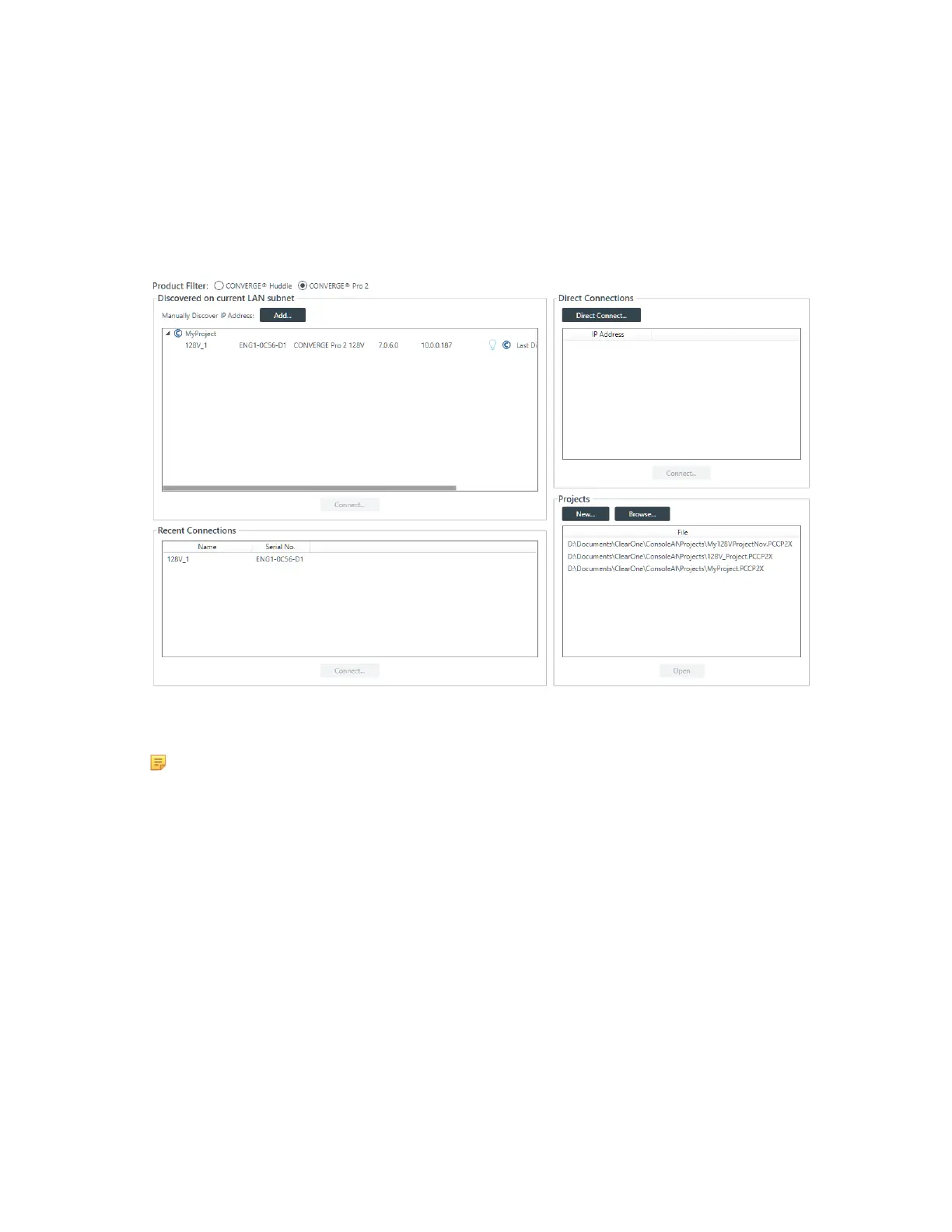
The Home screen appears:
All discovered CONVERGE Pro 2 devices are listed under Discovered on current LAN subnet.
Devices that have been connected to the CONSOLE recently are shown under Recent Connections.
Note:
If the device you want to connect to is not shown, check the following: a) make sure device is
turned on; b) make sure the device is on the same subnet as your computer (this can include
connecting via the USB connection on the front of the device); c) if you aren’t connecting using
a USB cable, make sure you are connected to the network. If you have checked all these and
the device is still not shown, you can also try to connect to the device by IP address. See Direct
Connect below for more information.
2. If you have chosen to have both Huddle and CP2 as active products, then before you connect to a
device, you must choose CONVERGE Pro 2 from the Product Filter options.
For more information about which products are active, see Choosing Active Products.
3. Choose a device to connect to from the Discovered on current LAN subnet or Recent Connections
lists.
If the device you want to connect to doesn’t appear, and you want to add a device manually, skip to the
Direct Connect section below.
4. Click Connect.
The Authenticate dialog box appears:
CONSOLE AI User Manual









 To Next Page