CONSOLE AI | Online Mode (CP2) | 303
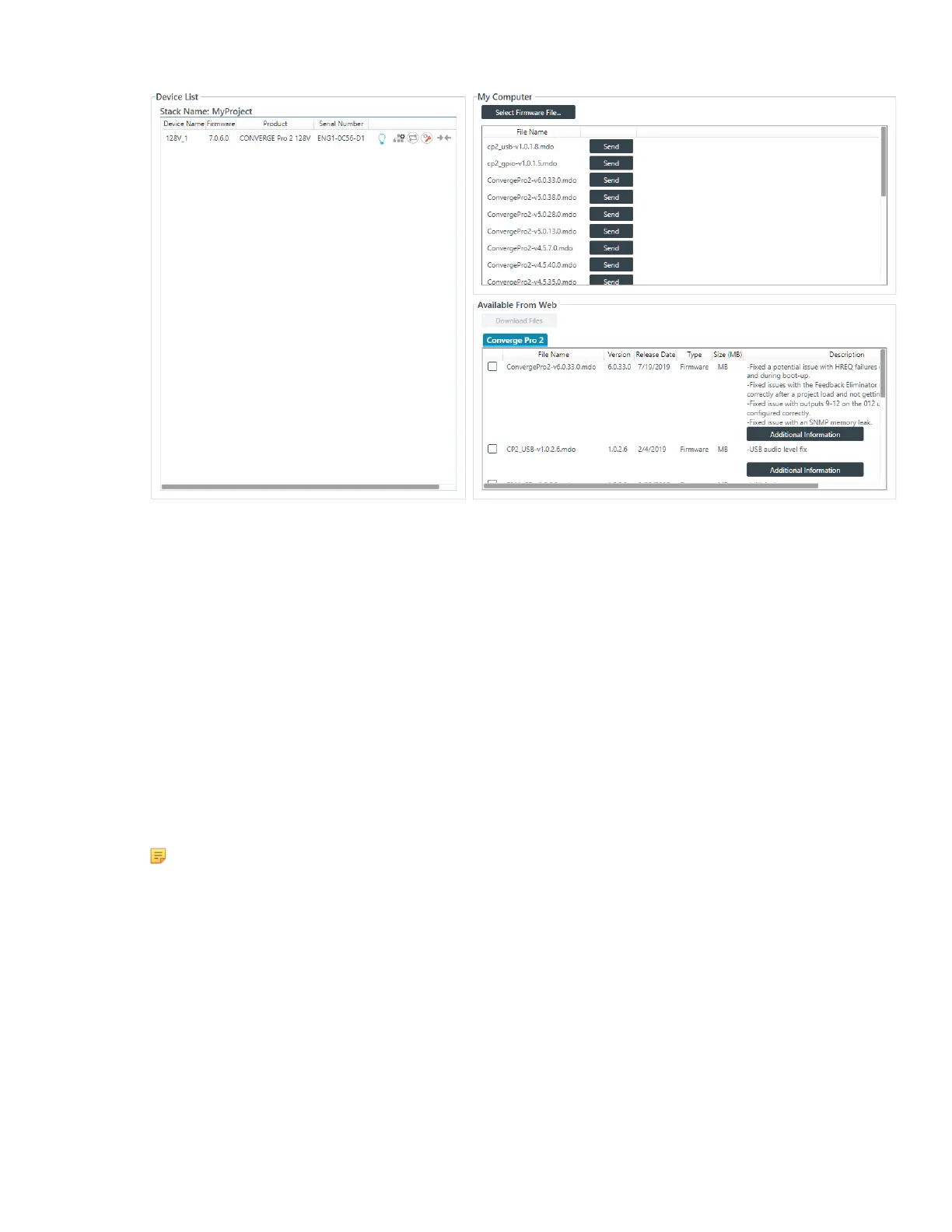
Any available updated files appear in the Available From Web list in the lower right of the Firmware
screen.
3. Some files have additional information available. You can click the Additional Information button
below a file to see more information about that file.
4. To download a file, select the check box next to the item in the list.
5. Click Download Files.
The Download Files dialog box appears and shows you the download progress for any files you have
selected.
6. When the downloads are complete, click OK.
If you have downloaded a CP2 firmware file, the file you downloaded now appears in the My Computer
list in the upper right of the Firmware screen. Firmware files are saved in the following location: <user>
\Documents\ClearOne\Equipment\<device>\Firmware (where <user> refers to the Windows user and
<device> refers to the device name. If you have downloaded an updated Help file, the file is placed in
the correct location so that it is available from the Help menu. Other files, such as the Dialer installer,
are available in the following location: <user>\Download.
Note:
Using the method described above searches for updates related to the CONVERGE Pro 2. To
search for updates for both the CONVERGE Pro 2 and the CONVERGE Huddle, choose Check
for updates from the Help menu, and then choose the correct tab for the updates you want to
see.
Updating Device Firmware (CP2)
Periodically, ClearOne releases firmware updates to improve device performance. You can download
firmware updates from within the CONSOLE AI (see Downloading Updates (CP2)) and then you can
update the device firmware.
To update the device firmware:
1. If you have not already done so, connect to a stack.
CONSOLE AI User Manual









 To Next Page