CONSOLE AI | Online Mode (CP2) | 304
For more information about connecting to a stack, see Connecting to a Device or Stack (CP2).
2. From the Navigation Panel, select Firmware.
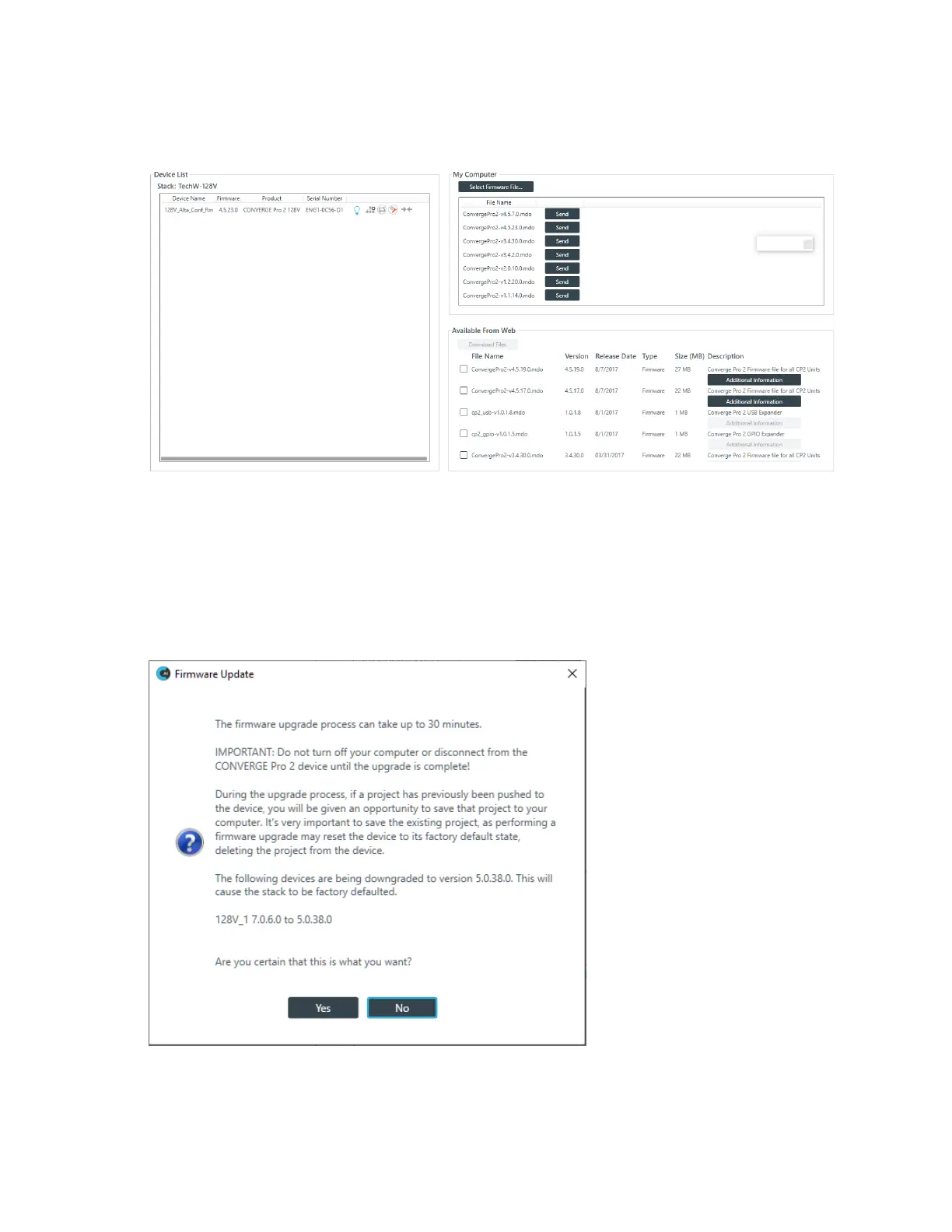
The Firmware screen appears:
Any available firmware files appear in the My Computer list in the upper right of the Firmware screen.
3. If you don’t see the firmware file you want to use to update the device and you have the firmware
update file on your computer, click Select Firmware File.
4. From the dialog box that appears, locate the firmware file you want to use, then click Open.
The selected firmware now appears in the My Computer list.
5. Click the Send button next to the firmware file you want to send to the device.
The Firmware Update dialog box appears:
6. Click Yes to update the firmware using the file you selected.
The Firmware Update progress dialog box appears.
Once the firmware update completes, the device restarts and you are disconnected.
CONSOLE AI User Manual









 To Next Page