CONSOLE AI | Online Mode (CP2) | 290
10.Type the username and password for the device, and then click OK.
Assuming you have provided the correct credentials, you are connected to the device or stack.
11.If the CONSOLE AI software detects that a newer version of the firmware is available for the device(s)
you are connecting to, a message appears to let you know that you can update the firmware. If you
wish, you can take this opportunity to upgrade the firmware of the device.
Note:
If you don’t want this warning to appear in the future, uncheck the Show Again check box.
12.Click OK.
Live Control (CP2)
When you are connected to a device or stack, you can:
• Run macros
• Run presets
• Run timers
• Change GPIO pin states (including divider states)
For more information about creating macros, see Recording Macros and Adding Macros. For more
information about creating presets, see Adding or Modifying Presets (CP2). For more information about
creating timers, see Adding and Modifying Timers. For more information about configuring GPIO, see
Changing GPIO Configuration.
To run macros, presets, or timers or to set GPIO pin states:
1. Connect to a device.
See Connecting to a Device or Stack (CP2) for more information.
2. Be sure you’re in Control Panel mode.
See Choosing Interface Modes (CP2) for more information.
3. From the Navigation Panel, under Room Partitions, choose Control.
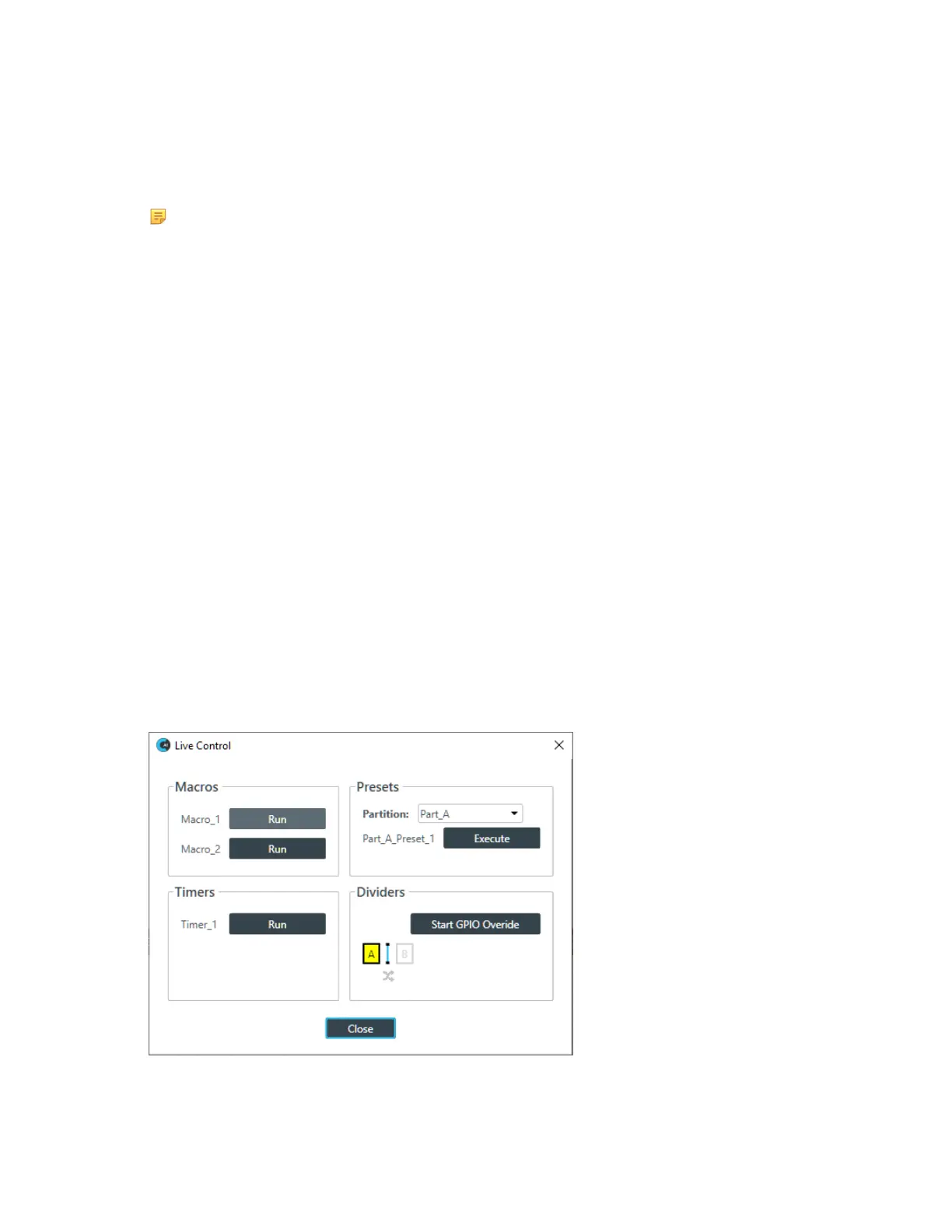
The Control screen appears:
All available macros, presets, timers, and divider state GPIO pins appear here.
4. To run a macro, under Macros click Run next to the name of the macro.
The specified macro is run.
CONSOLE AI User Manual









 To Next Page