CONSOLE AI | Interface | 29
• Korean
• Russian
• Spanish
To change the CONSOLE AI user interface language:
1. From the Help menu, choose Language.
A sub-menu appears.
2. Choose a language from the sub-menu.
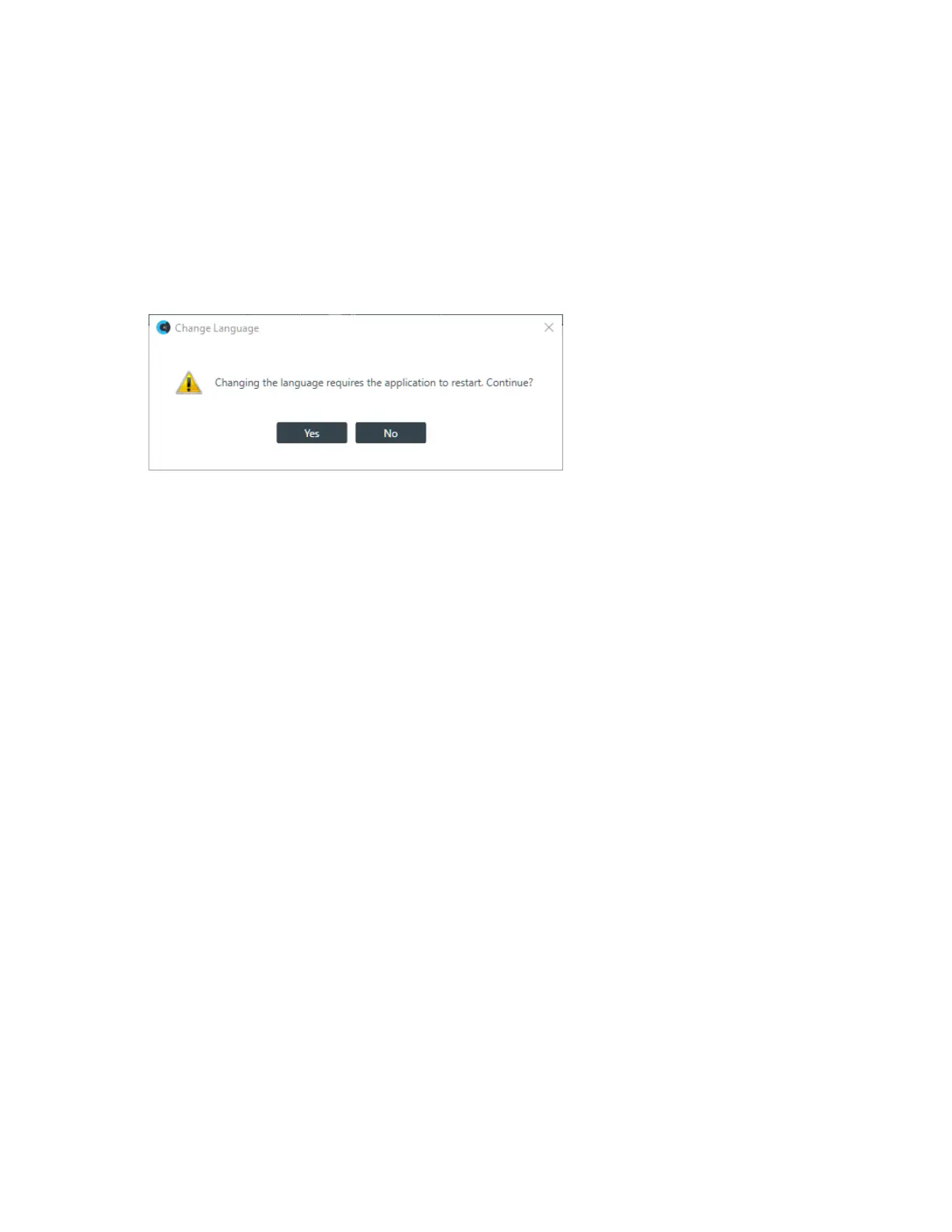
The Change Language dialog box appears, to confirm that you want to restart the CONSOLE AI and
change the user interface language:
3. Click Yes.
The CONSOLE AI application is restarted and its user interface will be shown using the selected
language.
Changing CONSOLE AI Preferences
The CONSOLE AI Preferences lets you change the following:
• Active Products (choose CONVERGE Pro 2 or CONVERGE Huddle or both)
• General - Change several general settings
• Flowview - Change Flowview options
• Warnings - Specify which warnings to show
• Network Filters - Specify which network interfaces and properties to display
• Communication Timeouts - Specify timeout values for various CONSOLE AI communications functions
• Log Viewer - Specify how to sort the results and which Log Viewer columns to display
To change the CONSOLE AI preferences:
1. From the File menu, choose Preferences.
The Preferences dialog box appears:
CONSOLE AI User Manual









 To Next Page