CONSOLE AI | Introduction | 14
Version Description How to Change
CP2 Device/Huddle
Device
When you commit a project file to a
CONVERGE Pro 2 or Huddle device, a
version of the project file exists on the
device and is reflected in the CONSOLE
AI online mode.
There are a few changes you
can make while in online mode
(connected to a device), but
you cannot make many of the
same changes as you can while
in offline mode. Use Commit to
hardware to load changes you
have made in CONSOLE AI to
a device. See Commit Changes
to Hardware (CP2) for more
information. Use Save Project
+ Changes to save the state of
a project in the device to disk,
along with any changes you have
made while connected to the
device.
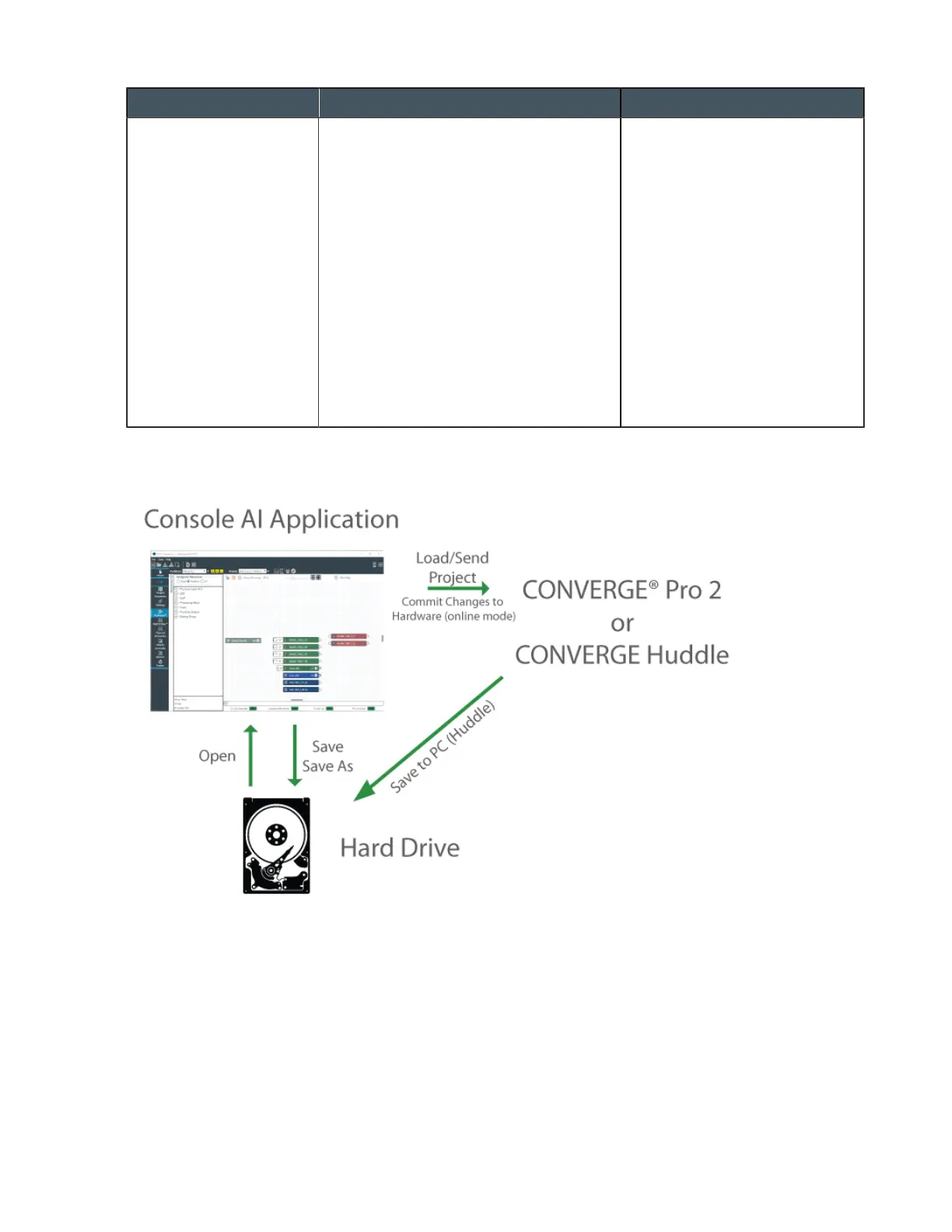
The following illustration shows the relationships between the various project file versions, and the ways
you can use to synchronize these versions with one another:
Online Mode vs. Offline Mode on page 14
Commit Changes to Hardware (CP2) on page 296
Send Project File to a Device (Huddle) on page 277
Opening a Project on page 55
Saving a Project on page 56
Online Mode vs. Offline Mode
The CONSOLE AI application can be in one of two possible modes: online mode (connected to a device
or stack) or offline mode (not connected to a device or stack). When you start CONSOLE AI, it begins in
CONSOLE AI User Manual









 To Next Page