CONSOLE AI | Managing Channels (CP2) | 236
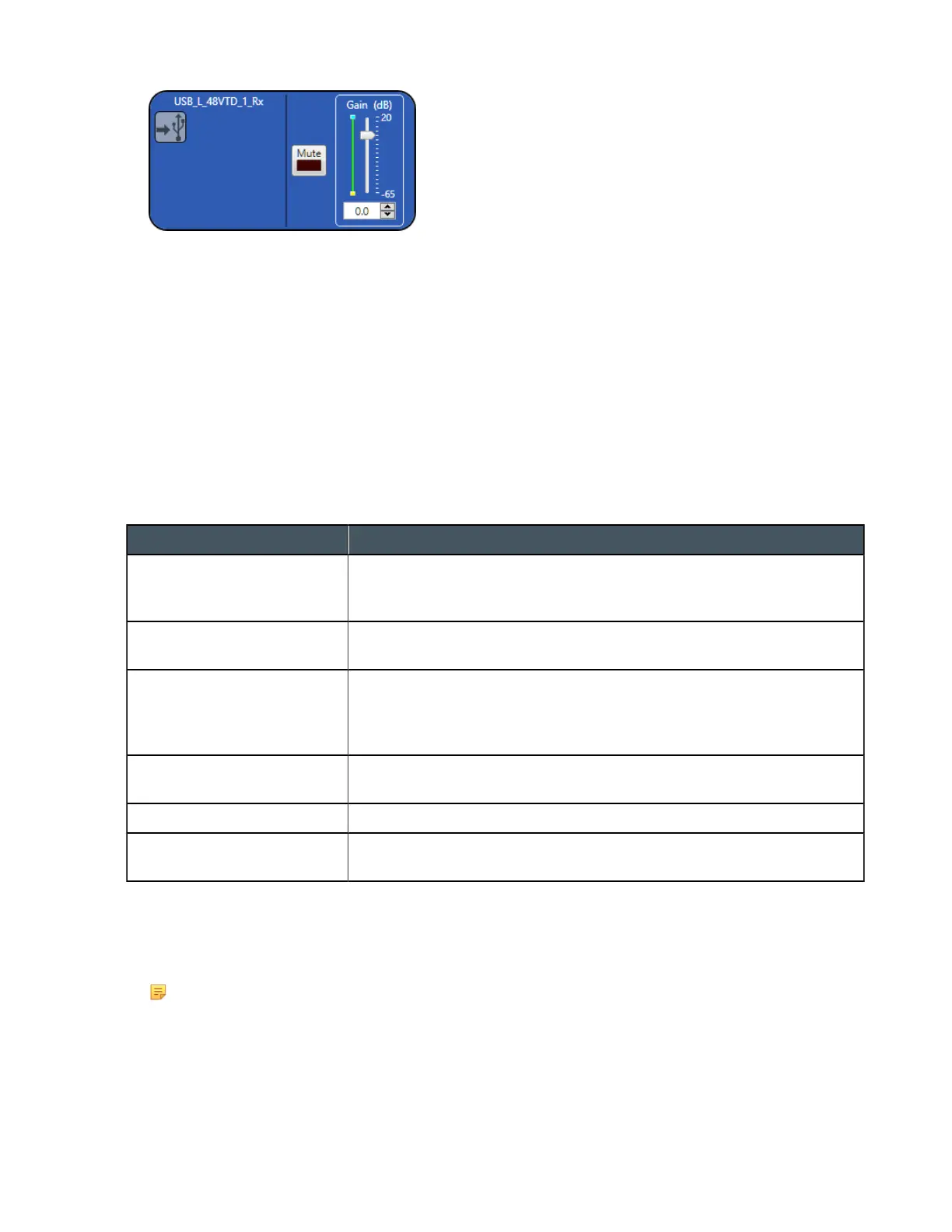
Mute
6. To mute this channel, click the Mute button (the button changes to red if the channel is muted).
Gain
7. You can change the gain in any of the following ways:
• Drag the slider
• Type a value in the text box
• Click the incrementer and decrementer arrows beside the text box to set the value
Changing Channel Properties - Telco Rx (CP2)
You can use channel properties to modify a Telco Rx (analog phone line receive) channel. You can make
any of the following changes:
Feature Description
Receive Boost Lets you to set the gain for the incoming Telco Rx signal. This is typically
used for low-level telephone lines, allowing the signal to be boosted to an
acceptable level of performance.
Noise Cancellation (NC) Lets you reduce noise in the Telco Rx line and set the cancellation depth
to provide the best combination of low noise and maximum clarity.
ClearEffect To reduce bandwidth requirements, telephone lines limit audio bandwidth
to a range of 300Hz–3.3kHz. ClearEffect
™
enhances the incoming signal
from a telephone line to emulate wideband audio by adding high and low
frequenciesto the audio signal.
Automatic Level Control (ALC) Provides auto-leveling for all conference call participants on the Telco/
VoIP Rx line, keeping soft and loud participants at a consistent level.
Mute Mute a channel.
Gain Gain adjusts the input volume level for a USB input in increments of
0.5dB.
To change the properties for a Telco Rx channel:
1. In the Navigation panel, under Room Partitions, choose Channel Properties.
The Channel Properties screen appears.
Note:
You can also view and change the channel properties in FlowView. See Connecting Channels
Using FlowView
™
(CP2) for more information.
2. (Optional) If you’re using Advanced Room mode, choose a partition from the Partition drop-down list.
3. (Optional) Choose a preset from the Preset drop-down list.
4. Click Telco Rx to open the channel list.
CONSOLE AI User Manual









 To Next Page