CONSOLE AI | Configuration - Offline (Huddle) | 90
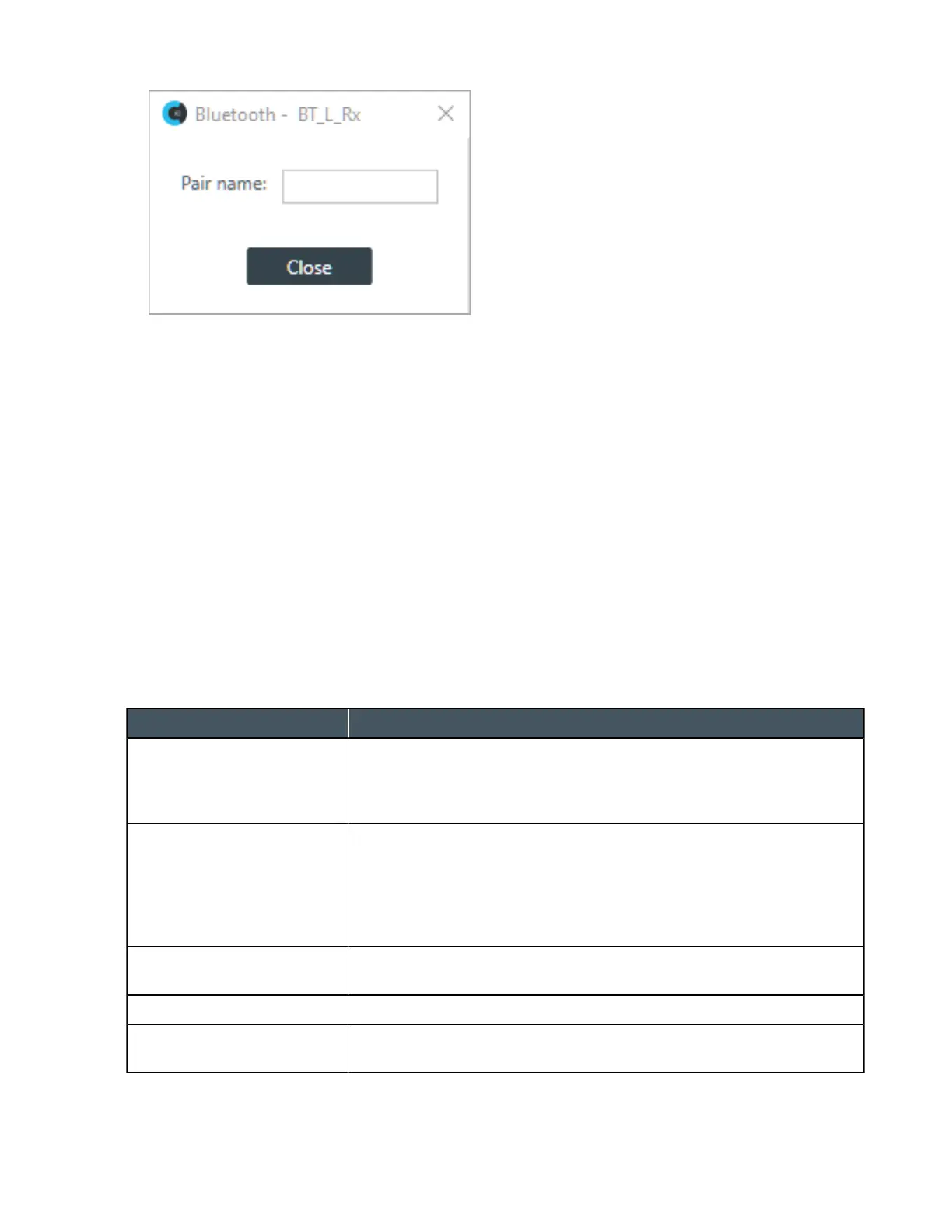
5. (Optional) Type a value in the Pair name text box.
The pair name is the name that appears when you turn on Bluetooth discovery to pair a device.
Mute
6. To mute this channel, click the Mute button (the button changes to red if the channel is muted).
Gain
7. You can change the gain in any of the following ways:
• Drag the slider
• Type a value in the text box
• Click the incrementer and decrementer arrows beside the text box to set the value
Changing Channel Properties - Processing Block (Huddle)
You can use channel properties to modify a Processing Block channel. Processing Settings enable you
to configure filters, delay, compression, and gain to create precise audio configurations. There are two
processing blocks available per Huddle device.
You can make any of the following changes:
Feature Description
Filter Filters enable you to shape the audio signals from mic inputs channels
for improved audio quality. Up to four filters can be added to a mic input
channel. Available filter types are All Pass, High Pass, Low Pass, Notch,
and Parametric Equalizer (PEQ).
Delay Delay lets you add a specified amount of delay into specified channels.
Introducing an appropriate amount of delay to the forward-mounted
driver(s) re-establishes the acoustical alignment necessary for proper
sound imaging in a room. The same principle of introducing delay applies
to separate speaker enclosures located various distances from the
listening area.
Compressor A compressor lets you change the gain transfer characteristics of the
signal path and control the dynamics of a signal.
Mute Mute a microphone.
Gain Gain adjusts the volume level for a processing block in increments of
0.5dB.
To change the properties for a Processing Block channel:
CONSOLE AI User Manual









 To Next Page