CONSOLE AI | Managing Channels (CP2) | 230
Option Description
Hold Time How long the channel stays gated on after the audio falls below the
Gate Ratio threshold. The hold time range is from 0.1 to 8.0 seconds.
The default is 0.3 seconds.
Off Attenuation The amount of level reduction applied to a channel when it is gated off.
The range is from 0 to 60dB. The default is 18dB.
Decay Rate How fast a channel gates off after the Hold Time expires. The default is
Medium.
Adaptive Ambient (Auto
Only)
Adjusts the ambient reference level as noise and room conditions
change. When Adaptive Ambient is on, the mic channel monitors
the ambient noise level on the input and adjusts the ambient level
reference automatically. This means that the gate threshold level
automatically increases or decreases based on background noise. The
default is On.
Manual Ambient Tracking
(Auto Only)
The input will use the fixed ambient level you specify in the Ambient
Level field as its gating reference.
Chairman Override Provides gating priority for this mic input over any other mic input within
the same gating group that is set to Auto gating mode. When a mic
with Chairman Override enabled gates on, all mics which do not have
Chairman Override enabled will gate off. The default is Off.
25.Click Close.
Changing Channel Properties - DIALOG
®
Microphone (CP2)
You can use channel properties to modify a DIALOG 20 mic channel.
You can make any of the following changes:
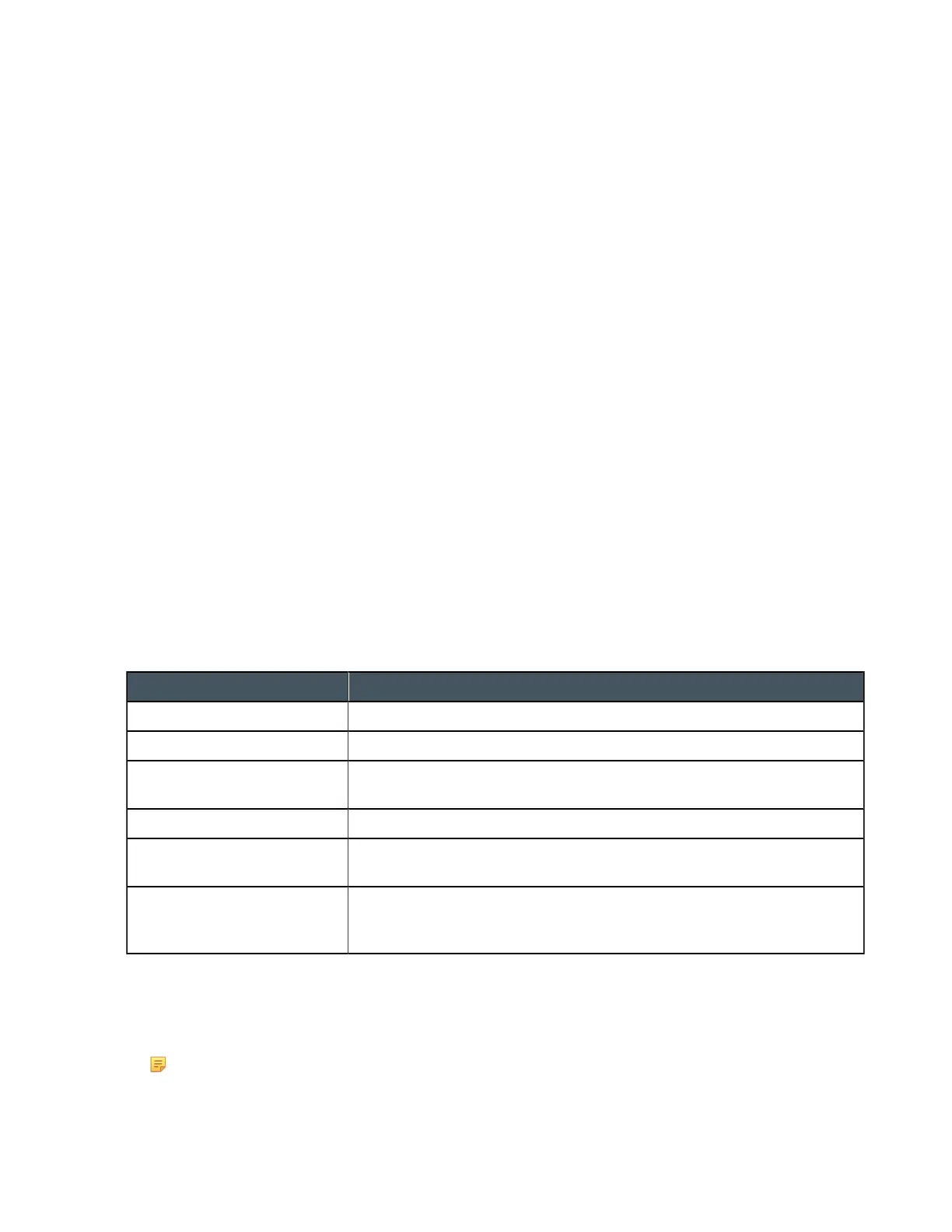
Feature Description
DIALOG 20 Device Properties Lets you change the DIALOG 20 device properties.
Active (Group only) Lets you choose which member of the group to show or modify.
Sync All (Group only) Lets you synchronize all the members of the group to match the settings
of the active member.
Mute Mute a microphone.
Gain Gain adjusts the input volume level for a DIALOG 20 channel in
increments of 0.5dB.
Gate Settings Gate settings control when a microphone is gated on or off, based on
audio environment factors for this microphone and other microphones in
the same gating group.
To change the properties for a DIALOG 20 channel:
1. From the Navigation panel, choose Channel Properties.
The Channel Properties screen appears.
Note:
You can also view and change the channel properties in FlowView. See Connecting Channels
Using FlowView
™
(CP2) for more information.
2. (Optional) If you’re using Advanced Room mode, choose a partition from the Partition drop-down list.
CONSOLE AI User Manual









 To Next Page