CONSOLE AI | Online Mode (CP2) | 298
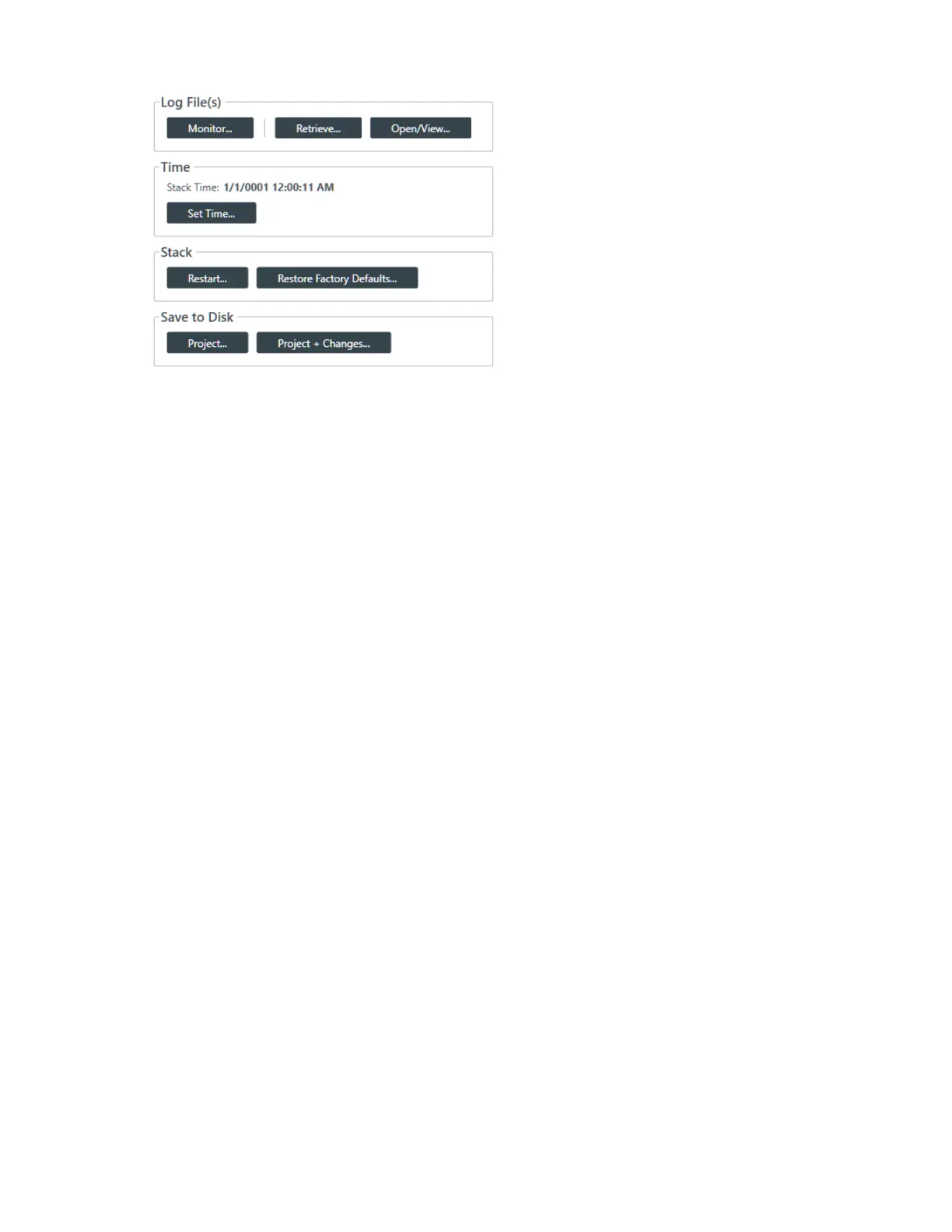
3. Under Log File(s) in the Admin screen, click Retrieve.
A dialog box appears to let you choose where to save the log files.
4. Specify the folder where you want to save the log file.
5. (Optional) If you want to create a sub-folder within the Log folder, to organize logs, click New Folder,
type a name for the new folder, then press Enter.
6. Click OK.
The log files from that device are saved to the specified location.
7. (Optional) You can view log files you have retrieved by clicking the Open/View button.
For more information about viewing log files, see Using the Log Viewer.
8. To retrieve the log files and then monitor them in real time, click Monitor.
A dialog box appears to let you choose where to save the log files.
9. Specify the folder where you want to save the log file.
10.(Optional) If you want to create a sub-folder within the Log folder, to organize logs, click New Folder,
type a name for the new folder, then press Enter.
11.Click OK.
The log files from that device are saved to the specified location and then opened in the Log Viewer so
you can monitor updates in real time.
Setting the Stack Time (CP2)
You can set the time for a stack.
To set the time for a stack:
1. If you have not already done so, connect to a stack.
For more information about connecting to a stack, see Connecting to a Device or Stack (CP2).
2. From the Navigation Panel, select Admin.
The Admin screen appears:
CONSOLE AI User Manual









 To Next Page