CONSOLE AI | Online Mode (Huddle) | 276
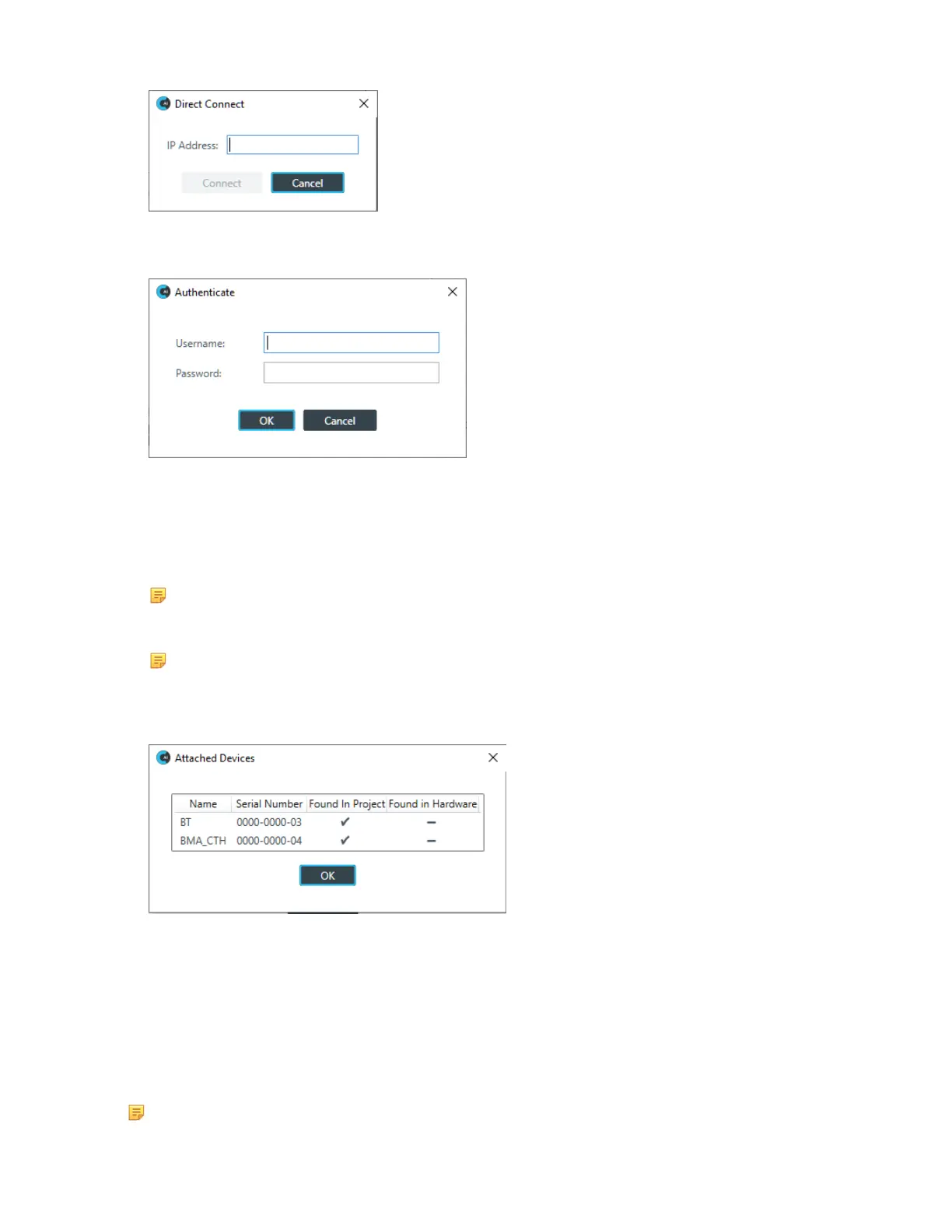
9. Type an IP address, then click Connect.
The Authenticate dialog box appears:
10.Type the username and password for the device, and then click OK.
Assuming you have provided the correct credentials, you are connected to the device or stack.
11.If the CONSOLE AI software detects that a newer version of the firmware is available for the device(s)
you are connecting to, a message appears to let you know that you can update the firmware. If you
wish, you can take this opportunity to upgrade the firmware of the device.
Note:
If you don’t want this warning to appear in the future, uncheck the Show Again check box.
Note:
Huddle projects created after a certain date include a BMA CTH and a Bluetooth Expander.
Depending on when you created your Huddle project and whether you have a BMA CTH and a
Bluetooth Expander, you may see the following dialog box:
This dialog shows you when there are devices found in the project that are not found in the hardware.
There’s no need to be concerned. Just click OK. You will see this dialog box each time you connect and
the hardware found doesn’t match the devices listed in the project.
12.Click OK.
View Network Info (Huddle)
You can view the network settings for a Huddle device.
Note:
CONSOLE AI User Manual









 To Next Page