CONSOLE AI | Managing Channels (CP2) | 185
Connecting Channels Using FlowView
™
(CP2)
You can use the CONSOLE AI FlowView to:
• add channels to the project
• make and configure connections between audio channels
• change channel properties
FlowView is designed to let you visualize the connections between channels as a flow from input channels,
through mixer channels, such as processing blocks, through to output channels.
Note: FlowView and MatrixView are alternative methods of visualizing the connections between
audio devices. Therefore, when you make connections in FlowView, those connections are reflected
in MatrixView as well.
To make connections between channels using FlowView:
1. From the Navigation panel, choose FlowView
™
.
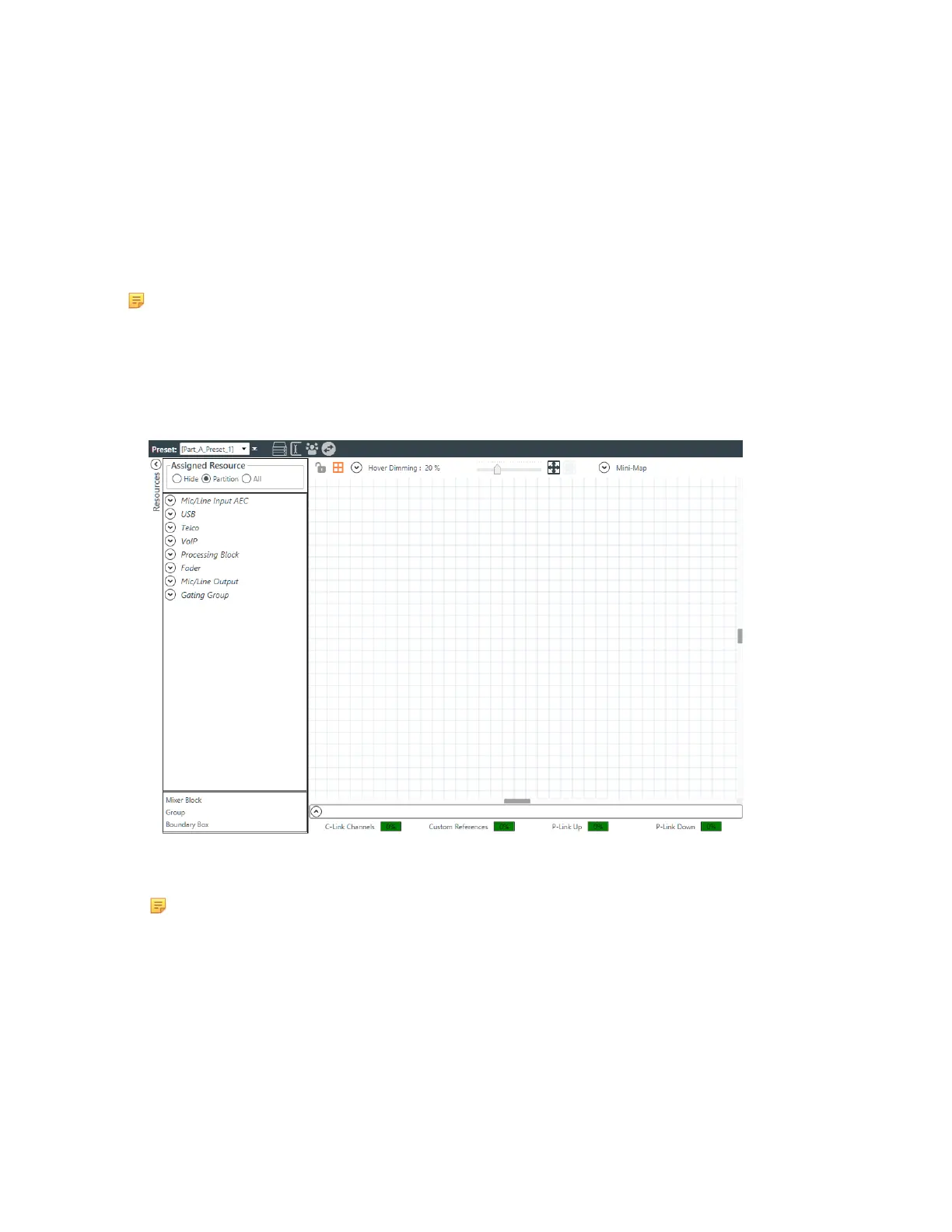
The FlowView screen appears:
FlowView starts out showing only the available resources on the left side of the FlowView area, under
Assigned Resource.
Note:
The resources shown here depend on what devices you have added to the project. If you
have added a CONVERGE Pro 2 device, for example, certain resources become available,
depending on the model of CP2. Most CP2 models include both Mic/Line Input channels and
Output channels (except for the 120, which has Mic/Line Inputs but no Output channels, and the
012, which has no Mic/Line Input channels but does have Output channels). Most CP2 models
have USB audio channels (except for those that have SR in the model name). Models with a “T”
in the name include Telco audio channels, and models with a “V” in the name include VoIP audio
channels. Adding an expander unit adds audio channels, depending on the type added. And so
forth.
Adding Channels to the Project
CONSOLE AI User Manual









 To Next Page