CONSOLE AI | Online Mode (CP2) | 302
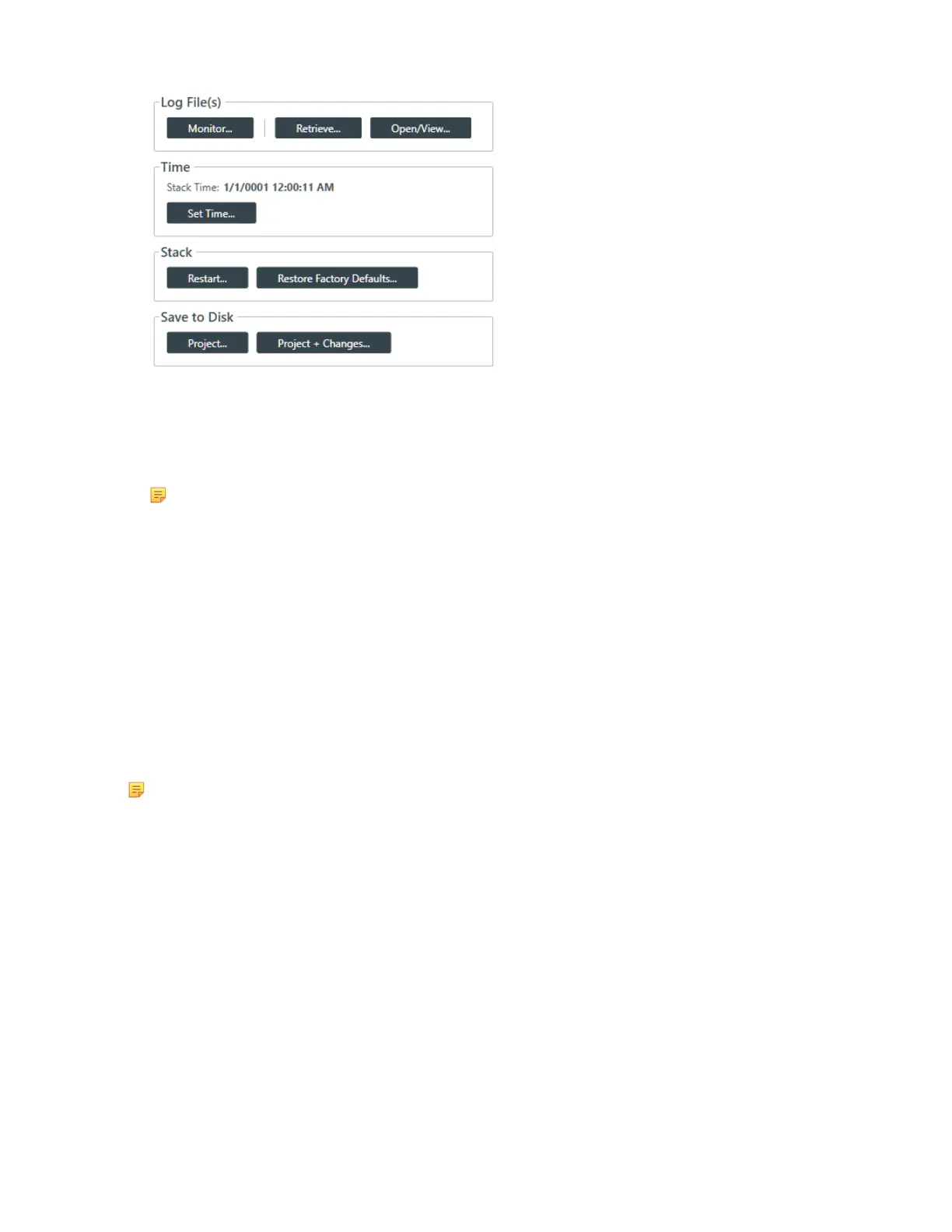
3. Under Save to Disk, click Project.
The current project information is retrieved from the stack, and then a Save As dialog box appears.
4. Using the Save As dialog box, specify the name and location of the project file.
5. Click Save.
Note:
Alternatively, you can choose to save the project and any live changes you have made to disk.
6. To retrieve the project information from the device(s) along with any live changes you have made and
then commit this to disk as a project file, click Project + Changes.
The current project information and all live changes are retrieved from the stack, and then a Save As
dialog box appears.
7. Using the Save As dialog box, specify the name and location of the project file.
8. Click Save.
Downloading Updates (CP2)
You can check for available updates, such as firmware, documentation updates, and software installation
files, and download them to your computer.
Note:
Your computer must be connected to the Internet to use this feature.
To check for and download updates:
1. If you have not already done so, connect to a CP2 device or stack.
For more information about connecting to a CP2 stack, see Connecting to a Device or Stack (CP2).
2. From the Navigation Panel, select Firmware.
The Firmware screen appears:
CONSOLE AI User Manual









 To Next Page