CONSOLE AI | Project - Offline | 56
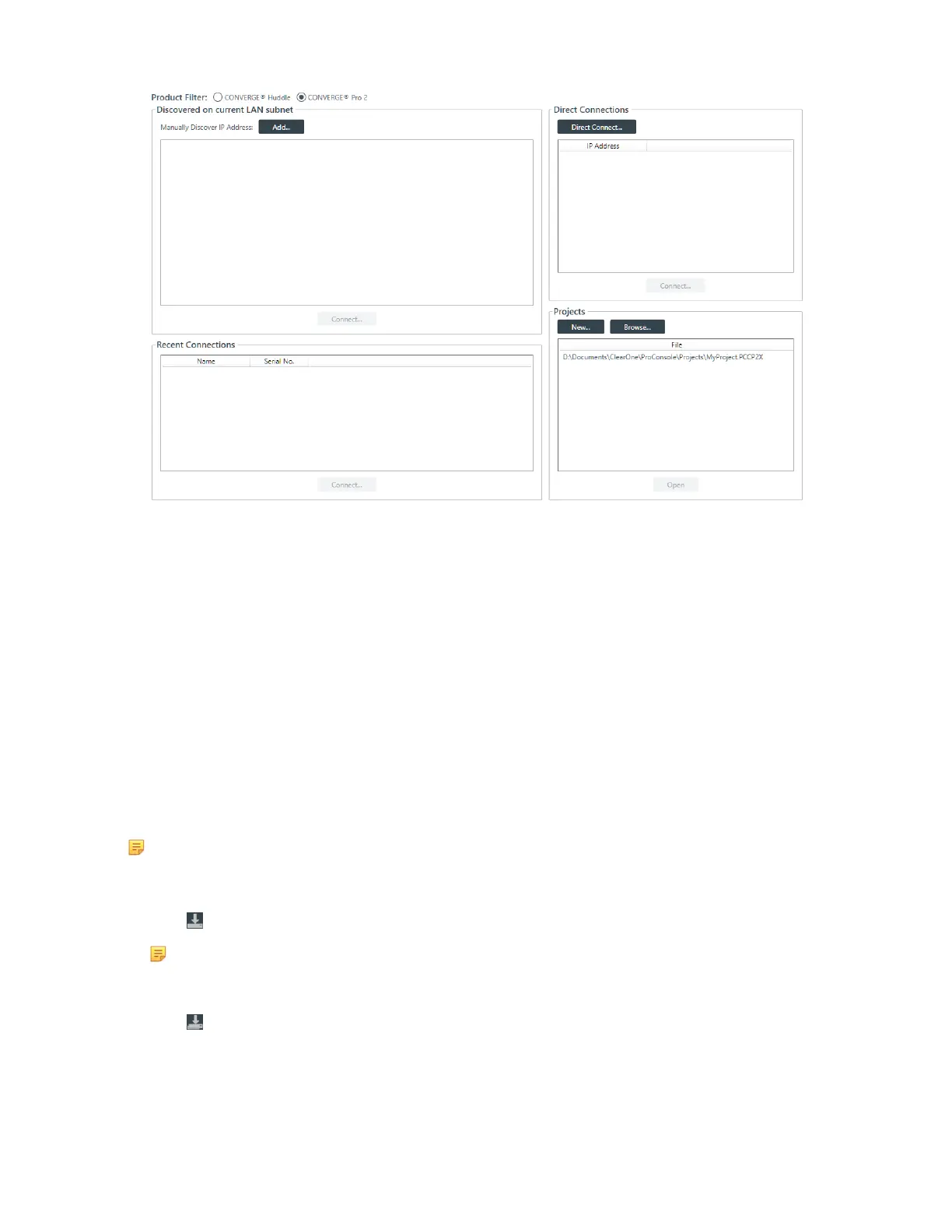
2. Select CONVERGE Huddle or CONVERGE Pro 2 under Product Filter.
If the type you want to use doesn’t appear, you can change which products are active in the Options.
See Choosing Active Products for more information.
3. Select a file in the Projects list, then click Open.
4. If the file you want to open doesn’t appear in the Projects file list, you can also click Browse to locate a
file.
An Open dialog box appears to let you locate and choose a project file.
5. When you have located the file you want, click Open.
The project file is loaded into the CONSOLE AI.
Saving a Project
When you are in offline mode (not connected to a device or stack), you can save a project file with a name
and location of your choice.
Note: For more information about the relationship between different project versions, see About
Projects.
To save a project file:
1.
Click (Save) on the toolbar to save any changes under the existing name and location.
Note:
If you are in offline mode but connected to a device, this option does not appear on the Toolbar.
You must use Save As to save project settings.
2.
Click (Save As) on the toolbar to save any changes under a different name and/or location.
CONSOLE AI User Manual









 To Next Page