CONSOLE AI | Online Mode (CP2) | 301
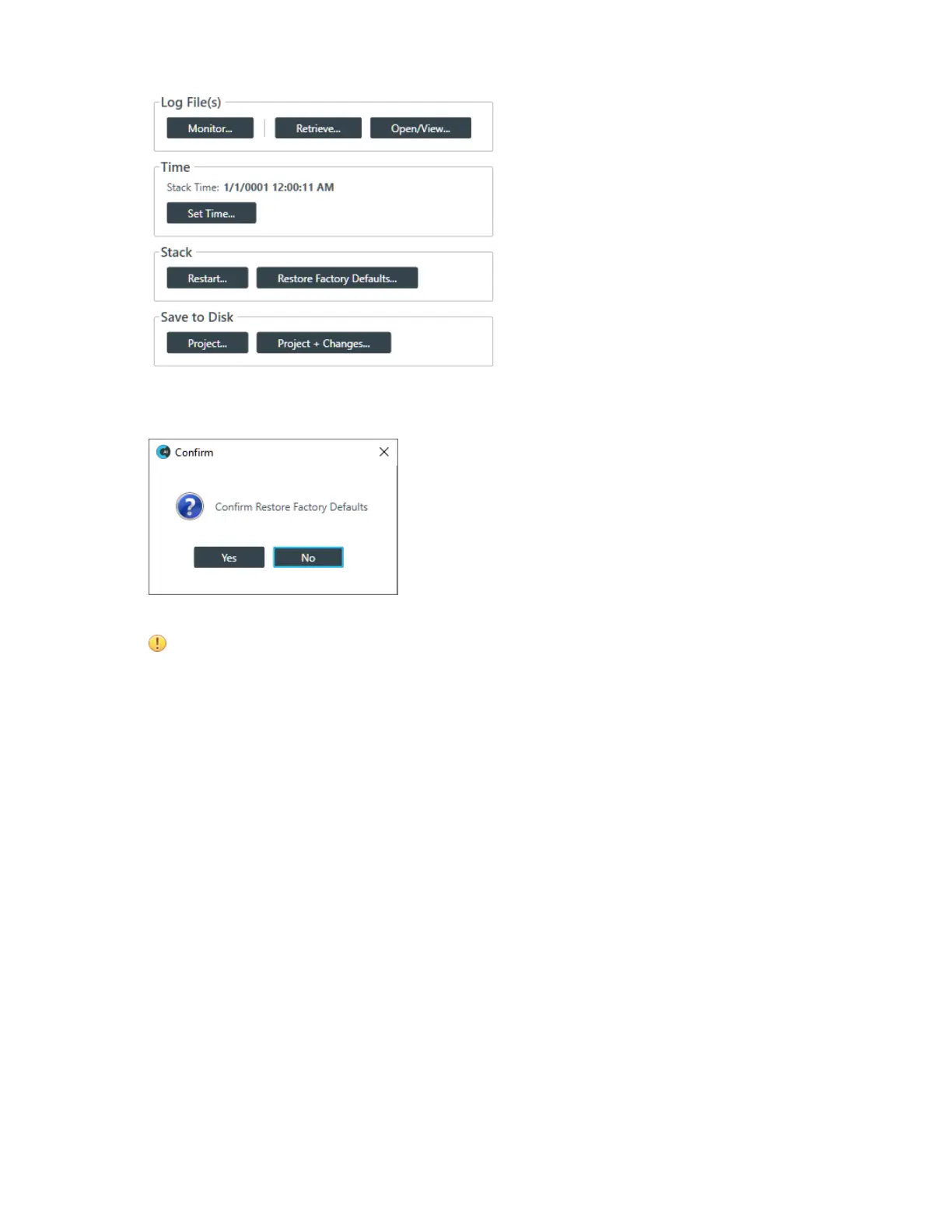
3. In the Admin screen, click Restore Factory Defaults.
The Confirm dialog box appears:
4. To restore all devices in the stack to factory defaults, click Yes.
Important:
Restoring the factory defaults for a stack removes all settings you have configured for all the
devices in the stack.
You are disconnected from the stack, and all devices in the stack are restored to their factory defaults.
Retrieving Project from Hardware and Save to Disk (CP2)
You can retrieve the project information from the stack and save it to your computer. You can also retrieve
the project information and save it along with any live changes you have made to disk.
To retrieve the active project from the hardware and save it to disk:
1. If you have not already done so, connect to a device or stack.
2. From the Navigation Panel, choose Admin.
The Admin screen appears:
CONSOLE AI User Manual









 To Next Page