CONSOLE AI | Interface | 46
11.To make adjustments based on something in the list, double-click an item in the list.
You are taken to the part of the CONSOLE AI interface where you can see more details and, if
necessary, fix the problem.
12.When you are done viewing errors, click Close.
Using Project Audit (CP2)
Project Audit lets you check a CONSOLE AI project for potential issues that could prevent your project
from working correctly. You can then use the audit results to easily jump to the parts of the CONSOLE AI
interface that let you resolve potential issues.
Note:
Project Audit is available only for CONVERGE Pro 2 projects.
Note:
You can also run a project audit from the Workflow Checklist. See Using Workflow Checklist (CP2)
for more information.
To use the Project Audit:
1. If you have not already done so, open a CP2 project.
For more information about opening a project, see Opening a Project.
2.
Click in the toolbar.
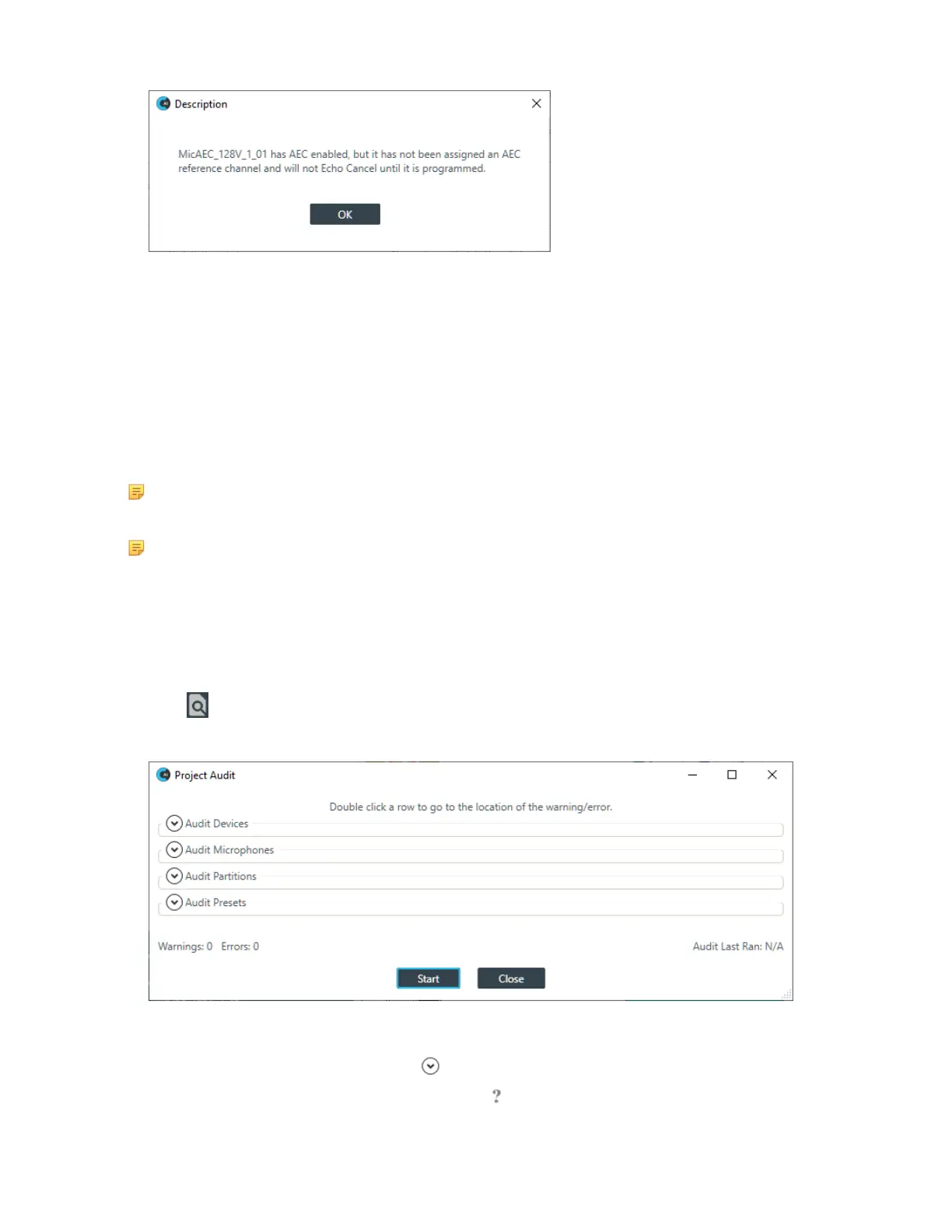
The Project Audit dialog box appears:
3. To allow more than one section of the checklist to be open at a time, deselect the Have Only One
Section Expanded check box.
4.
To open a section in the checklist, click next to that section heading.
5.
To find out more about any particular option, click to the right of that option.
CONSOLE AI User Manual









 To Next Page