CONSOLE AI | Online Mode (CP2) | 291
5. To run a preset, under Presets choose a partition from the Partition drop-down list and then click
Execute next to the preset you want to run.
Note:
You must choose a partition only if you are using Advanced Room mode.
The specified preset is run.
6. To run a timer, under Timers click Run next to the name of a timer.
The specified timer is run.
7. To open or close a divider, under Dividers click Start GPIO Override.
8. When you’re done running macros, presets, timers, or doing GPIO divider overrides, click Close to
close the Live Control Dialog box.
9.
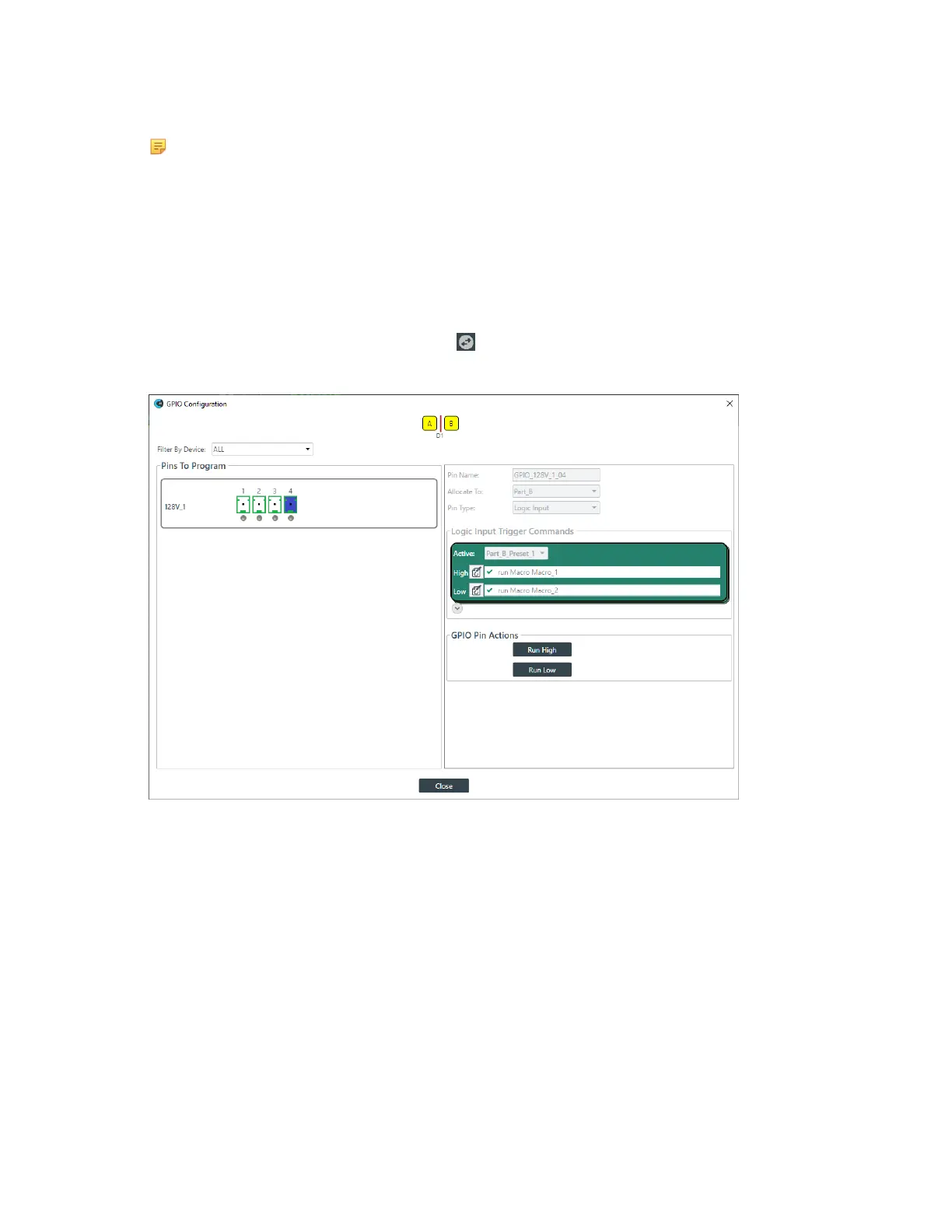
To control the state of other GPIO pins, click in the toolbar.
The GPIO Configuration dialog box appears:
10.Click a pin you want to set the state for on the left side of the dialog box.
The pin settings appear on the right side of the dialog box.
11.Click Run High or Run Low to run the actions associated with high or low states for this pin.
12.If desired, click another pin on the left and repeat step 10 for that pin.
13.When you’re done, click Close.
Viewing Equipment Information (CP2)
You can view the following details about the CP2 devices in a stack:
• Device Name
• Firmware
• Product Type
• Serial Number
• Which device in a stack you are connected to
CONSOLE AI User Manual









 To Next Page