CONSOLE AI | Adding Devices (CP2) | 152
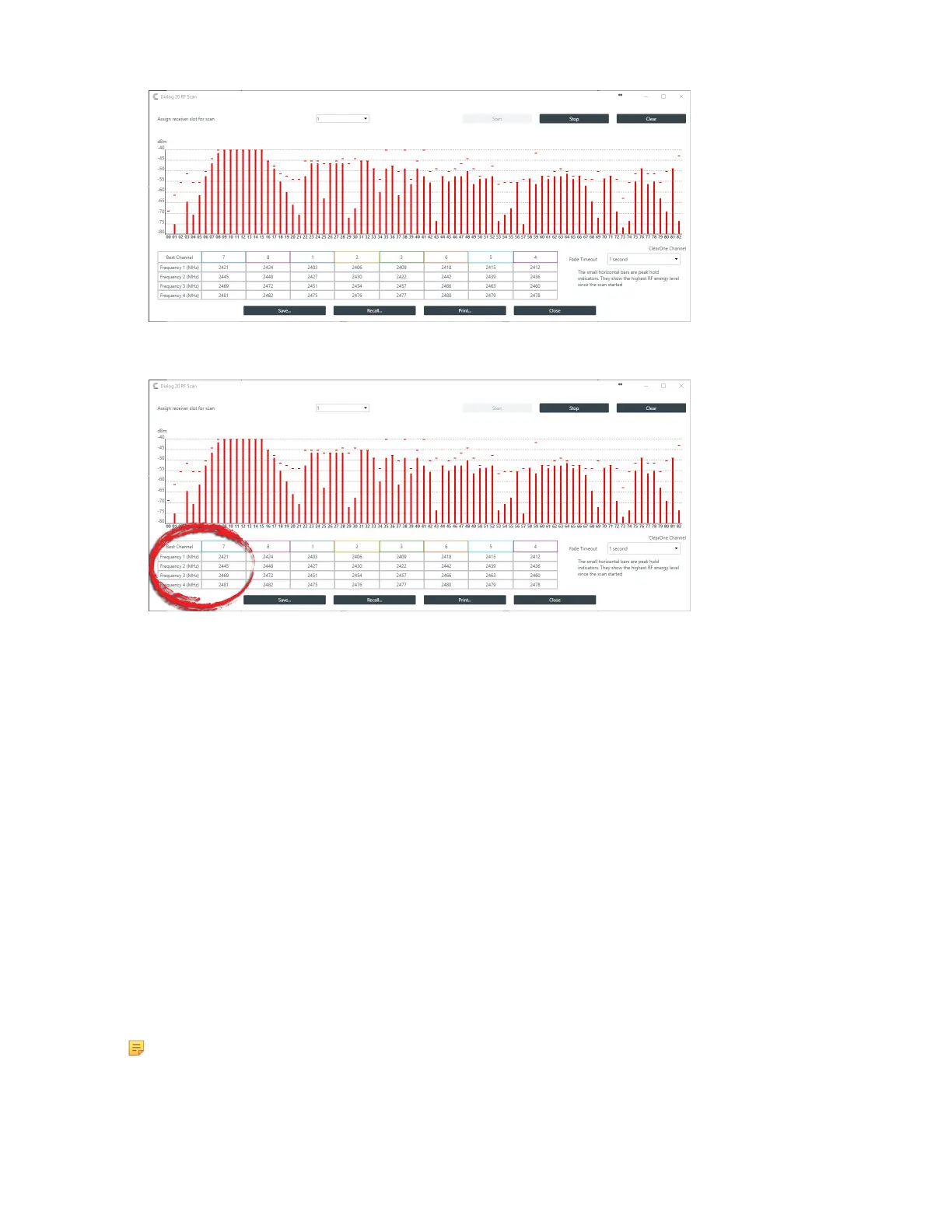
9. Results are shown at the bottom of the screen, with the best channels (those with the strongest signal)
ordered from left to right, showing you the best possible channel in your environment:
10.(Optional) You can choose from any of the other options in the dialog box, as described in the table
below:
Option Description
Stop Click to stop RF scanning.
Clear Click to clear the scanning results if you want to start over.
Fade Timeout Click to change how fast changes to the signal strength fade in the dialog box.
Save Click to save the scan results for troubleshooting purposes.
Recall Click to load previously saved scan results for troubleshooting purposes.
Print Click to print scan results for troubleshooting purposes.
11.Click Close to close the RF Scan dialog box.
12.(Optional) If desired, you can change the Channel Number setting being used under Slot 1 Settings
and Slot 2 Settings.
13.Click Close to close the DIALOG 20 Properties dialog box.
Changing Stack Settings (CP2)
You can change the settings for a CP2 device stack.
Note:
Stack settings apply to all the devices in a stack.
To change the stack settings:
CONSOLE AI User Manual









 To Next Page