CONSOLE AI | Online Mode (CP2) | 305
Turning on Safety Mute
To protect against damage to audio assets, you can turn on Safety Mute to mute all connected channels for
both CP2 and Huddle devices.
To turn on Safety Mute:
1. If you have not already done so, connect to a stack.
For more information about connecting to a stack, see Connecting to a Device or Stack (CP2).
2.
Click on the toolbar.
The icon changes to orange to indicate that Safety Mute is turned on. Safety Mute remains on for all
channels until you turn it off.
Disconnecting from a Stack
You can disconnect from a stack to which you are connected.
To disconnect from a stack:
1.
Click on the toolbar.
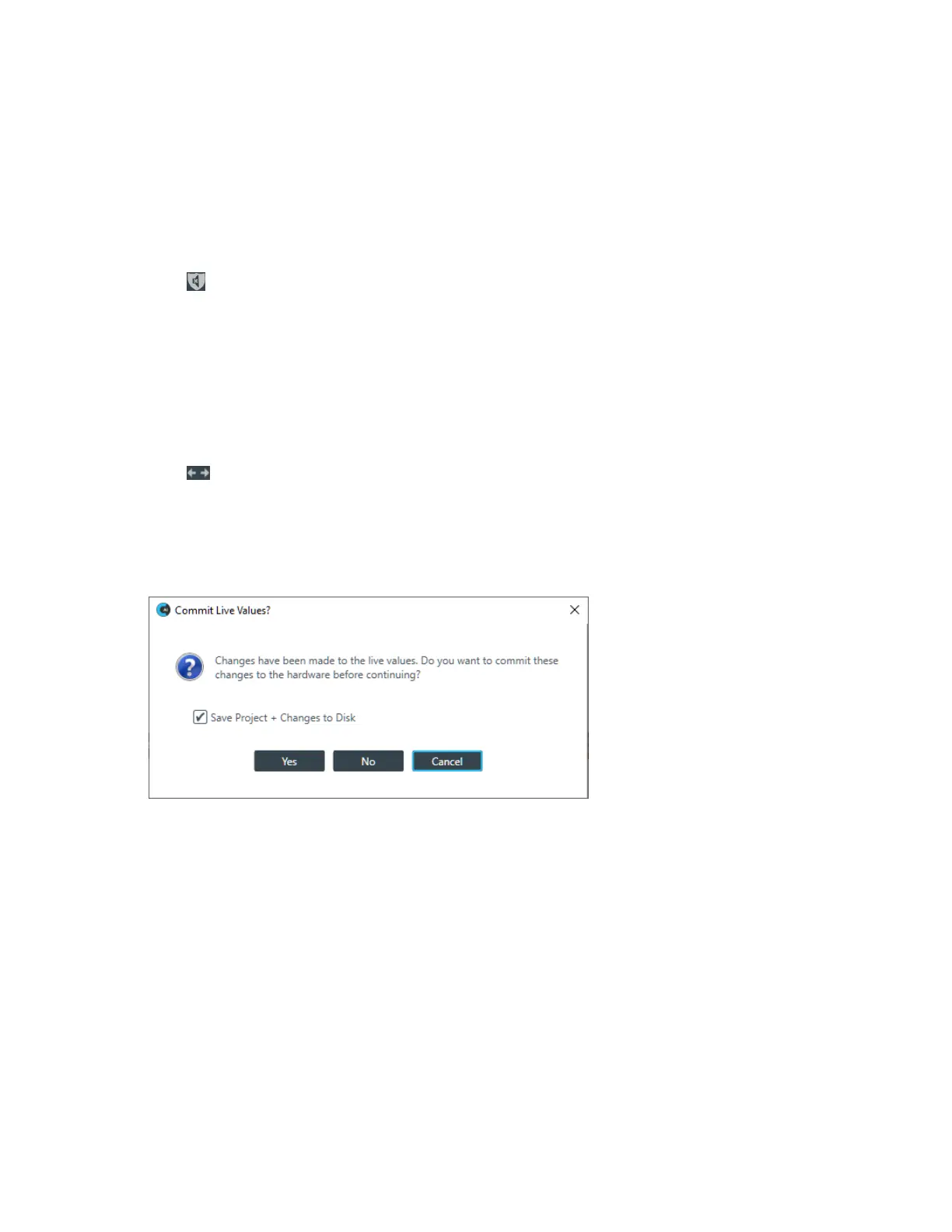
If you have made any changes to the live values, you are asked whether you want to commit these
changes to the hardware before disconnecting:
When Changes Have Been Made to Live Values
2. You are asked whether you want to commit the changes to the hardware and save them to disk:
3. If you want to save the changes you have made to live values to a project files on the disk, make
sure there is a check mark next to Save Project + Changes to Disk. To commit the changes to the
hardware without saving them to a project file, deselect this check box.
4. To commit the changes to the hardware, click Yes.
The changes you have made are loaded to the hardware and you are returned to online mode without
being disconnected from the stack. Return to step 1 to continue.
5. To continue disconnecting without committing your changes to hardware, click No.
The Confirm Disconnnect dialog box appears:
CONSOLE AI User Manual









 To Next Page